Tag: Final

  • Comcast Business Free Speed Upgrade to 500 Mbps

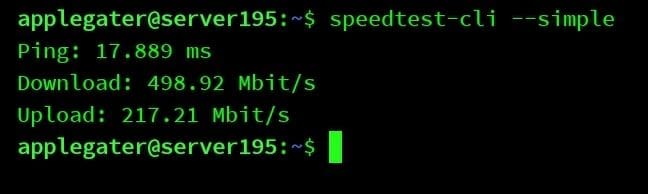
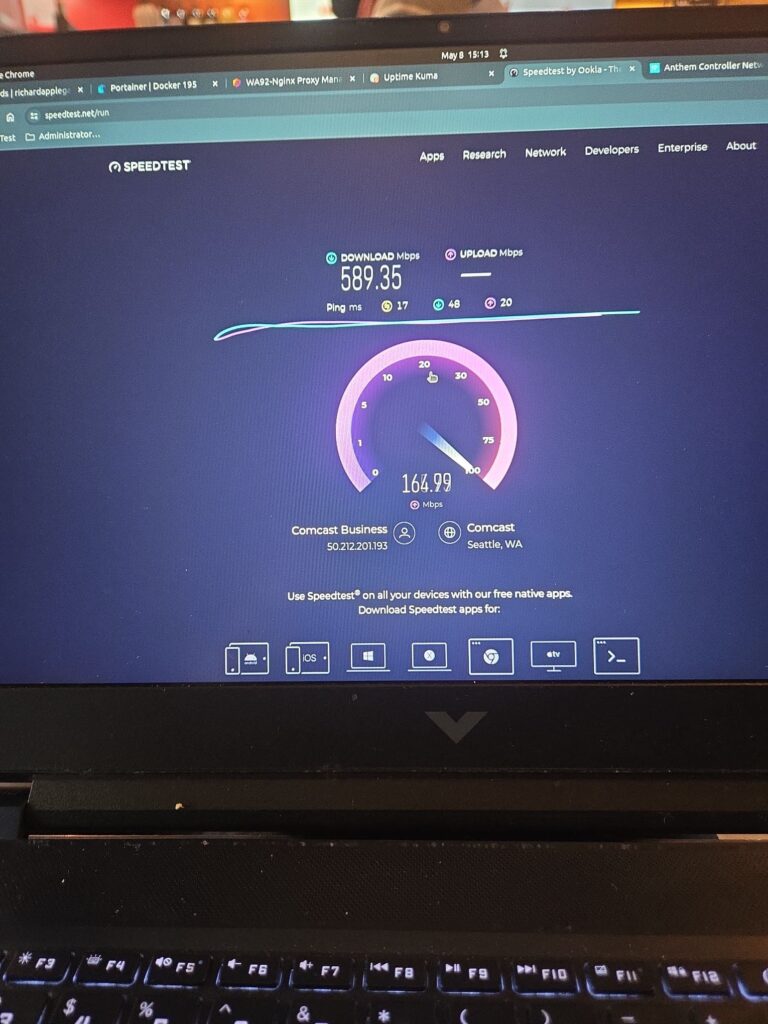
    Indeed, it was the correct decision. Comcast Business has recently upgraded our plans to 250 MBPS, automatically upgrading with download speeds reaching 500 MBPS and upload speeds at 200 MBPS. I have decided to relocate my server from medical to another location that offers the highest upload speeds and is ideal for smooth operation.

    500mbps download and 200 uploads from comcast Business.
    This is my first experience in our business.

    Subsequently, I have established a website at https://status.richardapplegate.io for my work status uptime. It is crucial to me to monitor their performance constantly. I also monitor our comcast business gateway. Great to document their outrage from time to time to provide us credit.

  • Deploy MariaDB with Portainer Stacks & Docker


    If you’re looking to run a robust relational database in your Dockerized environment, MariaDB is an excellent open-source choice. With Portainer, managing your databases and application stacks becomes super easy—even with little Docker experience. In this post, I’ll walk you step by step through deploying MariaDB using Portainer Stacks (which leverages Docker Compose).


    Why Use MariaDB with Portainer?

    • MariaDB: Powerful open-source database, compatible with MySQL.
    • Portainer: Friendly web UI to easily deploy, manage, and monitor Docker containers, stacks, and services.

    Using them together lets you:

    • Quickly spin up databases.
    • Take advantage of persistent storage.
    • Easily manage your containers and stacks through a visual interface.

    Step 1: Access Your Portainer Dashboard

    You need your Portainer instance up and running. Log in at
    http://<your-server>:9000
    Replace <your-server> with your server’s IP or domain.


    Step 2: Open Portainer Stacks

    • On the left sidebar, click Stacks.
    • Then, click the “+ Add stack” button.

    Step 3: Compose the MariaDB Stack

    1. Name your stack (e.g., mariadb-stack).
    2. In the Web editor area, paste the following Docker Compose YAML (and adjust credentials as needed):
       version: '3.8'
    
       services:
         mariadb:
           image: mariadb:11.3
           container_name: mariadb
           restart: unless-stopped
           environment:
             - MARIADB_ROOT_PASSWORD=YourRootPassword123
             - MARIADB_DATABASE=mydatabase
             - MARIADB_USER=myuser
             - MARIADB_PASSWORD=userpassword
           ports:
             - "3306:3306"
           volumes:
             - mariadb_data:/var/lib/mysql
    
       volumes:
         mariadb_data:

    What does this do?

    • Pulls the latest MariaDB image (v11.3).
    • Sets up root/user passwords and a database.
    • Persists your data in a Docker volume (mariadb_data).
    • Exposes MariaDB on the default port 3306.

    Step 4: Deploy Your MariaDB Stack

    Scroll to the bottom and click Deploy the stack.

    Portainer will pull the required images and create your MariaDB container.


    Step 5: Connect & Use Your Database

    The MariaDB instance is now running! You can connect to it:

    • From any app on the server:
      localhost:3306, user myuser, password userpassword
    • From another machine (if port 3306 is accessible):
      your-server-ip:3306, same credentials

    Use your favorite MariaDB/MySQL client, or connect from other containers via the Docker network.


    Optional: Add phpMyAdmin for Easy Database Management

    Want a web interface for MariaDB? Just add phpMyAdmin to the stack by updating your YAML:

    version: '3.8'
    
    services:
      mariadb:
        image: mariadb:11.3
        container_name: mariadb
        restart: unless-stopped
        environment:
          - MARIADB_ROOT_PASSWORD=YourRootPassword123
          - MARIADB_DATABASE=mydatabase
          - MARIADB_USER=myuser
          - MARIADB_PASSWORD=userpassword
        ports:
          - "3306:3306"
        volumes:
          - mariadb_data:/var/lib/mysql
    
      phpmyadmin:
        image: phpmyadmin:latest
        restart: unless-stopped
        ports:
          - "8080:80"
        environment:
          - PMA_HOST=mariadb
          - PMA_USER=myuser
          - PMA_PASSWORD=userpassword
    
    volumes:
      mariadb_data:

    Now, after redeploying the stack, visit:
    http://<your-server>:8080 for a full-featured GUI!


    Tips & Best Practices

    • Secure Your Database: Don’t expose port 3306 to the internet unless necessary.
    • Persistent Storage: Docker volumes make it easy to back up or move data.
    • Stack Upgrades: Edit the stack YAML and re-deploy for future changes.

    Conclusion

    With just a few clicks and a simple YAML file, you can have a resilient MariaDB server up and running using Portainer Stacks and Docker Compose. Add phpMyAdmin for web-based administration, and you have a powerful, easy-to-manage development or production setup!

    Have questions or run into trouble? Drop a comment below! 🚀


  • phpMyAdmin MariaDB Setup on Portainer with NGINX

    PhpMyAdmin is easy to set up for any app and fix the table database or troubleshoot. So, we will set up PhpMyAdmin with NGINX SSL secure for our HTTPS. Due to the possibility of a grabber username and password exploit, we would prefer not to expose this on HTTP.

    Please ensure that you complete this first. Before starting, we should make sure that this tutorial prevents hacking and exposes our port to the public. We do not want that to happen. We only want 80 and 443 to be open.

    How to set up Portainer with nginx Proxy Manager

    After you complete Portainer and nginx, we are good to go to build this app with nginx and PhpMyAdmin.

    Open Portainer → Stacks→ create stacks

    version: '3'
    services:
      pma:
        networks:
          - nginx
          - mariadb
        image: phpmyadmin/phpmyadmin
        container_name: pma
        environment:
          PMA_ARBITRARY: 1
        restart: always
        #ports:
         # - 8081:80
    networks:
      nginx:
        external: true
      mariadb:
        external: true

    I put hashtags on ports and port numbers because we don’t need them. We’ll just use nginx network on this app. Nginx proxy can talk to PhpMyAdmin instead of port or public. It is more secure to build our app before it is published to the public. Your sites can be injected with any insecure port.

    After deploying the stacks, your PhpMyAdmin is now online, but it won’t show up on the site because you didn’t set up the nginx proxy info. That would be our next step.

    You should open the nginx proxy manager for your site. My will be nginx__.richardapplegate.io.

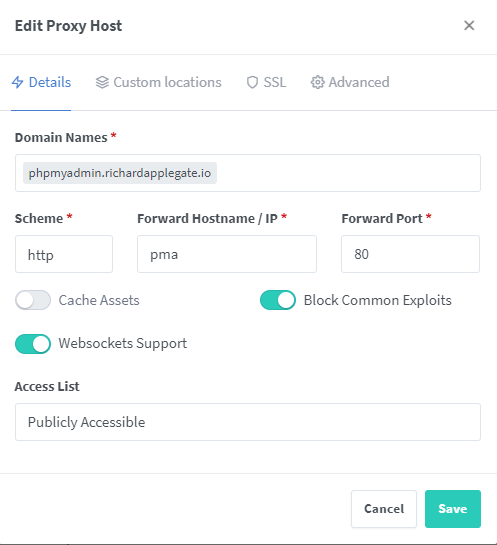
    Thereafter, you’ll need to access your admin account. Add proxy host, then fill this detail.

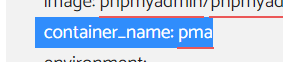
    I configured the PMA to forward hostname/IP as a result of setting docker-compose on the PhpMyAdmin container_name to the PMA. And this app uses 80 ports on the NGINX network.
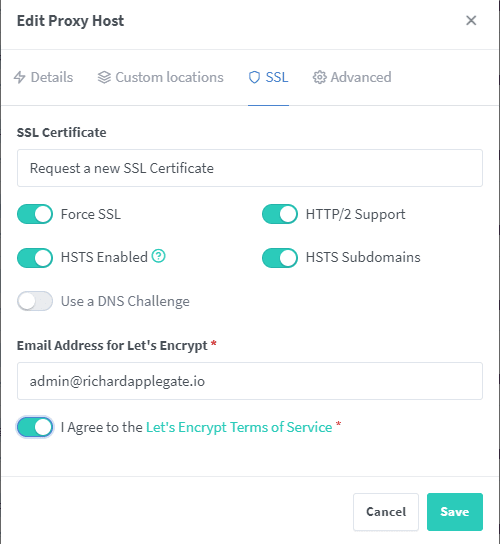
    Make sure you enable SSL and HTTP/2 and HSTS.

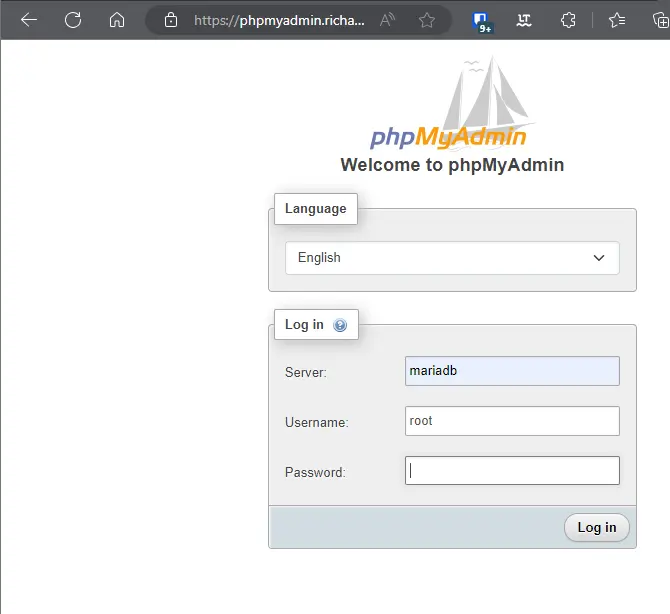
    Now you may be able to open your site with a domain without port. My will be phpmyadmin.richardapplegate.io. and working!

    Server: your database container_name on docker-compose. Mine is mariadatabase
    Username: your primary account for all database control. Mine is root.
    Password: you create the password and the password should on your docker-compose. You won’t be possible to log in my PhpMyAdmin because 3 times incorrect information, then you will be banned. You won’t access from my server or see my sites anymore for 1 week.

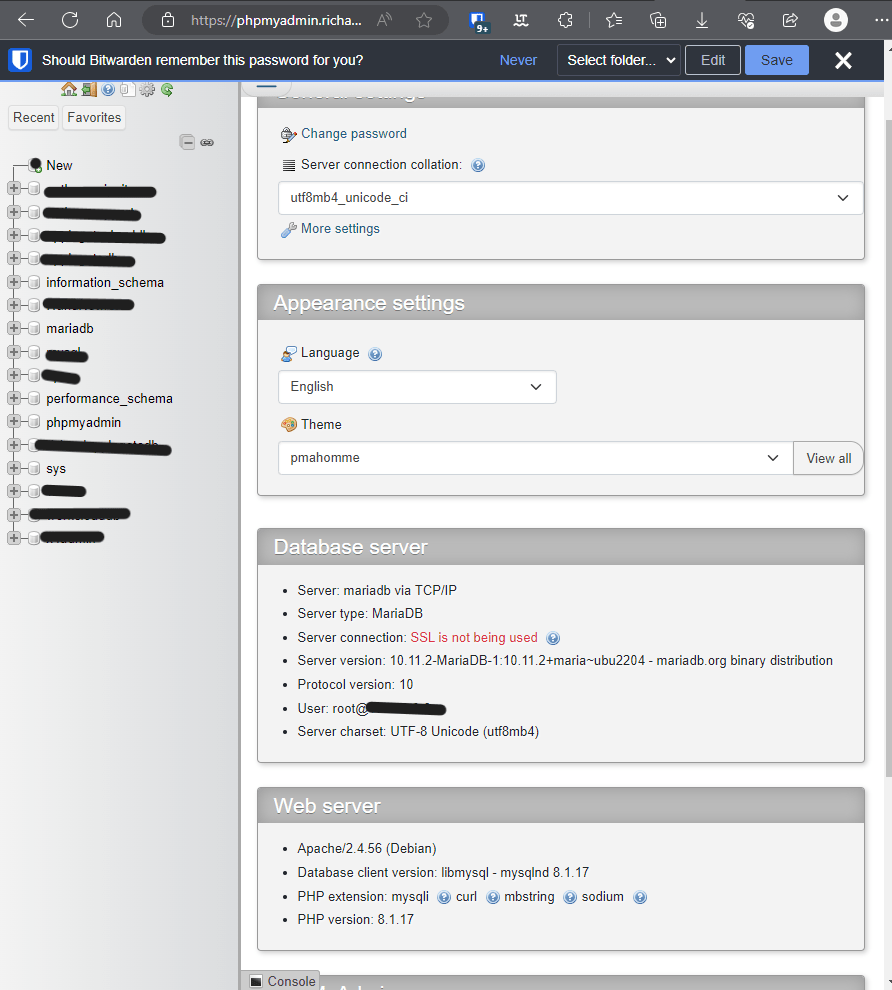
    You’re in the MariaDB database.

    “SSL is not being used” is normal because itself PhpMyAdmin is not on public, it is on nginx proxy manager. So, PhpMyAdmin is not public, it is full secured under the nginx. And you can see that we can create databases or tables or control user accounts.
  • Set Up Baserow on Portainer With Nginx Proxy Manager

    This baserow is my absolute favorite, it’s more like a spreadsheet with more options and an easy-to-use database. It also had a Grid and Form and a Gallery and a Calendar! It’s great for our list of things to do.

    Look over Baserow.io!

    You’ll need Portainer and nginx running, remember? If not, here are my instruction to set up on your server.

    Let’s build stacks now.

    Open Portainer site → stacks → add stacks

    version: "3.4"
    services:
      baserow:
        container_name: applegate-baserow
        image: baserow/baserow:1.24.2
        networks:
          - nginx
          - mariadb
        environment:
          BASEROW_PUBLIC_URL: 'https://sub.domain.com'
        volumes:
          - /yourpath/baserow/data:/baserow/data
    networks:
      nginx:
        external: true
      mariadb:
        external: true
        

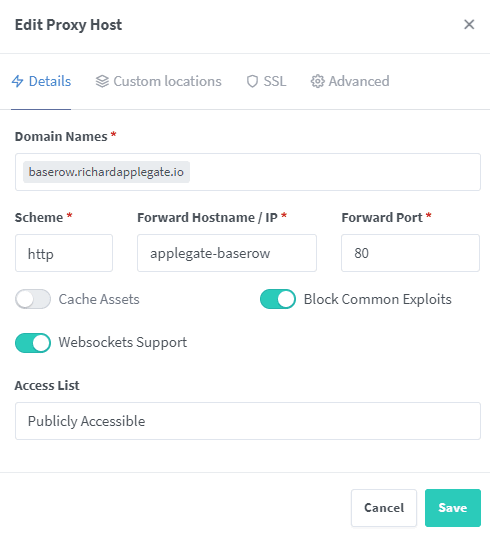
    Before you deploy, please ensure you follow the high light and modify and edit the networks to match your nginx proxy manager and MariaDB Database Network. Then, deploy the stack and this app is online but not show on site. We need to go to nginx proxy manager to set up a proxy host for baserow.

    Scheme – HTTP
    Forward Hostname – Your container_name here
    Forward port – Expose 80 to here.
    ensure to enable SSL and HTTP/2 and HSTS

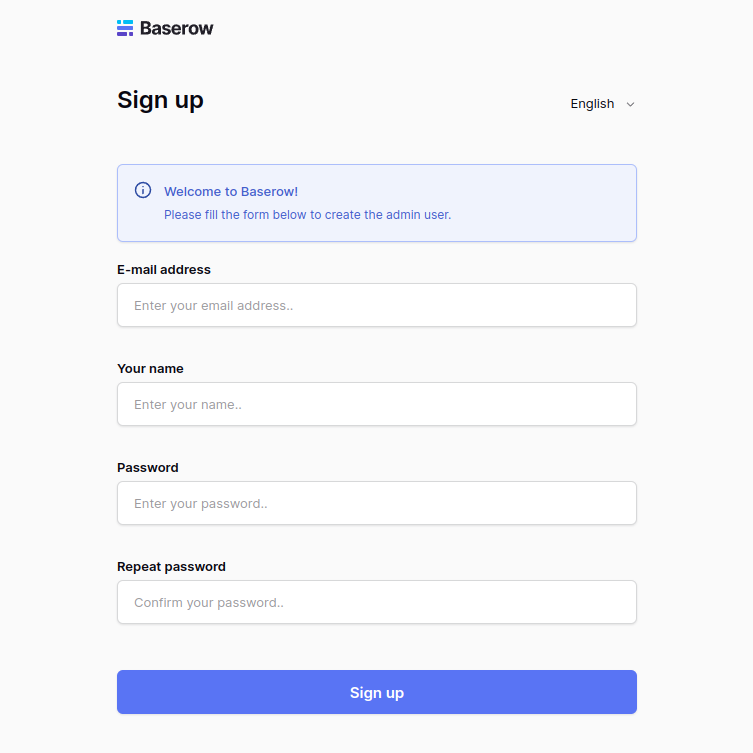
    The sign-up form should appear when you open the base row. Please complete it for the first user, and this account will provide you with an admin account.

  • Deploy Agent Edge Multi-Server with Docker Compose

    Docker-compose is my go-to for secondary or distributed servers. It’s better than docker run because it’s more clean and organized and easier to set up. And one time, too.

    So all you need to do is make sure the Secondary Server or Multiserver needs to install Docker and Docker Compose. Please follow this step by step.

    Install Docker Engine on Ubuntu | Docker Documentation

    Now that we have created the docker-compose files, we can create them where you want them to be saved. The secondary server has not yet set up Portainer, so this tutorial is for using SSH instead of Portainer. The docker compose will do the job, and our primary server will attach secondary from an outside server. This is cool, no need to use a port or anything else.

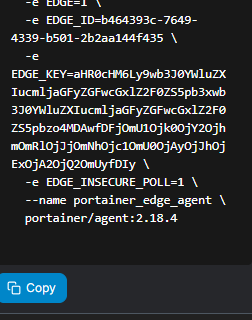
    Open the Portainer site on the primary server, then go to environment, add environment, Docker standalone, start wizard, and edge agent standard. Write down your edge ID and key in this way.

    You should see Edge ID and Edge Key on the primary Portainer site.

    Please ensure that you obtain the Edge ID and Edge Key. Make sure to change your volume path and change your volume path. Look for the highlights below.

    Version: '3.9'
    services:
        agent:
            image: 'portainer/agent:2.20.2'
            container_name: portainer_edge_agent
            environment:
                - EDGE_INSECURE_POLL=1
                - EDGE_KEY=
                - EDGE_ID=
                - EDGE=1
            restart: always
            volumes:
                - '/yourpathportainer/data:/data'
                - '/:/host'
                - '/var/lib/docker/volumes:/var/lib/docker/volumes'
                - '/var/run/docker.sock:/var/run/docker.sock'
    

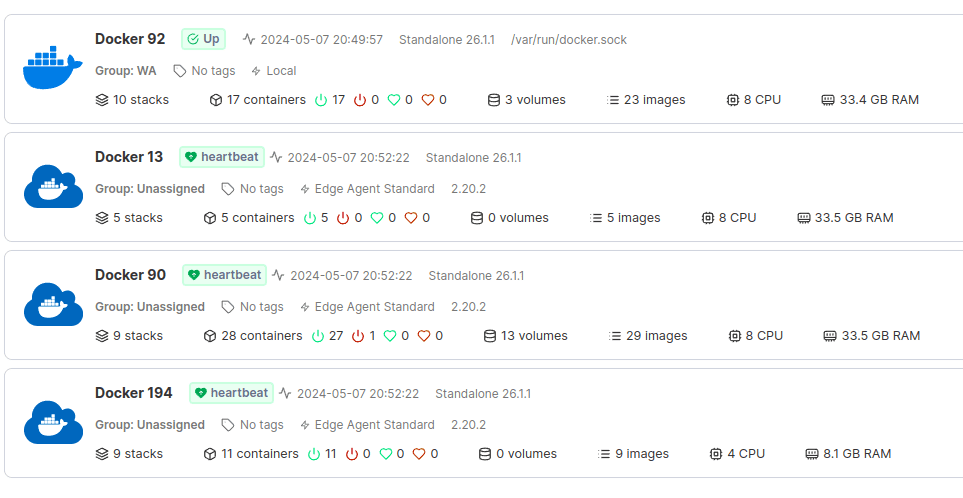
    After deploying the stack, your secondary portainer should be active and should appear on your primary portainer. Look like this:

    Continue to deploy and build Docker Portainer many more servers to benefit the future!

  • Unban IP Address in Fail2ban SSH: Step-by-Step

    IP address unban

    Fail2Ban is an intrusion prevention system that protects computer servers from brute-force attacks. It can monitor specific logs and block IP addresses that act like brute-force attacks.

    Fail2Ban particularly monitors the number of connection attempts. After 5 failed SSH connection attempts, Fail2Ban will ban the IP address from connecting via SSH for 10 minutes. If this address fails several times, it might be banned permanently until you contact admin@richardapplegate.io and explain why you are attacking my server.

    Unban an IP address

    To unblock an IP address, you must first access it from another IP (VPN) address or internet connection than the one that is blocked.

    Look at the Fail2Ban log to find out where the IP address was banned.jail

    sudo tail /var/log/fail2ban.log 
    2019-01-07 16:24:47 fail2ban.filter  [1837]: INFO    [sshd] Found 11.22.33.44 
    2019-01-07 16:24:49 fail2ban.filter  [1837]: INFO    [sshd] Found 11.22.33.44 
    2019-01-07 16:24:51 fail2ban.filter  [1837]: INFO    [sshd] Found 11.22.33.44 
    2019-01-07 16:24:54 fail2ban.filter  [1837]: INFO    [sshd] Found 11.22.33.44 
    2019-01-07 16:24:57 fail2ban.filter  [1837]: INFO    [sshd] Found 11.22.33.44 
    2019-01-07 16:24:57 fail2ban.actions [1837]: NOTICE  [sshd] Ban 11.22.33.44 
    2019-01-07 16:24:57 fail2ban.filter  [1837]: NOTICE  [recidive] Ban 11.22.33.44

    Here, the 11.22.33.44 IP address has been banned in the sshd and recidive jails.

    Then use the following commands to unban the IP address.

    sudo fail2ban-client set sshd unbanip 11.22.33.44
    sudo fail2ban-client set recidive unbanip 11.22.33.44
  • Docker Compose Backup & Restore: Safe Data Recovery

    When you’re running apps with Docker Compose, your data is the heart and soul of your services—databases, media files, configurations, and more. Without a solid backup and restore plan, a simple mistake (or disk failure!) can lead to a world of pain. Here’s a step-by-step guide to properly back up and restore data from Docker Compose environments, the right way.


    Why Back Up Docker Compose Volumes and Data?

    By default, Docker containers are ephemeral. Persistent data lives in volumes or bind mounts—which need explicit backup. Databases (Postgres, MySQL), app uploads, and configs are often stored here.

    If you lose a volume, your critical data is gone.


    🗂️ What Should You Back Up?

    1. Docker Volumes: Contents of named volumes managed by Docker.
    2. Bind Mounts: Data mapped to host folders.
    3. Database Dumps: Logical (SQL) dumps for easy portability & restore.
    4. Configs: Your docker-compose.yml, .env, TLS keys, and other setup files.

    🚀 Step-by-Step: Back Up Docker Compose Data

    1️⃣ Identify Your Data

    First, look at your docker-compose.yml for volumes/bind mounts:

    services:
      db:
        image: postgres
        volumes:
          - pgdata:/var/lib/postgresql/data
    
    volumes:
      pgdata:

    Here the named volume is pgdata.


    2️⃣ Stop the Compose Stack (Recommended)

    This ensures consistent backups (especially for databases):

    docker compose down

    3️⃣ Back Up Docker Volumes

    List all local volumes:

    docker volume ls

    To back up a volume (e.g., pgdata), run:

    docker run --rm 
      -v pgdata:/volume 
      -v $(pwd):/backup 
      busybox 
      tar czvf /backup/pgdata_backup.tar.gz -C /volume .

    Repeat for each volume you want to back up.

    Bind mounts?

    Just copy the folder on the host:

    cp -a /absolute/path/to/mount /your/backup/location

    4️⃣ Logical Database Backups (Recommended for Portability)

    For MySQL:

    docker exec <db_container> mysqldump -u root -p<pass> <database> > mysql_backup.sql

    For PostgreSQL:

    docker exec -t <db_container> pg_dump -U <user> <db> > pg_backup.sql

    💾 Restoring Your Data

    1️⃣ Restore a Docker Volume from Backup

    Create the volume if needed:

    docker volume create pgdata

    Unpack the tarball:

    docker run --rm 
      -v pgdata:/volume 
      -v $(pwd):/backup 
      busybox 
      tar xzvf /backup/pgdata_backup.tar.gz -C /volume

    2️⃣ Restore a Bind Mount

    Just reverse your earlier copy:

    cp -a /your/backup/location /absolute/path/to/mount

    3️⃣ Restore Database from Dump

    For MySQL:

    docker exec -i <db_container> mysql -u root -p<pass> <database> < mysql_backup.sql

    For PostgreSQL:

    cat pg_backup.sql | docker exec -i <db_container> psql -U <user> <db>

    4️⃣ Bring the Stack Up

    docker compose up -d

    🔐 Pro Tips

    • Automate backups! Use cron or a backup script.
    • Store backups offsite (cloud, external drive, etc).
    • Test your backups regularly! A backup you can’t restore isn’t a backup.

    📚 Resources


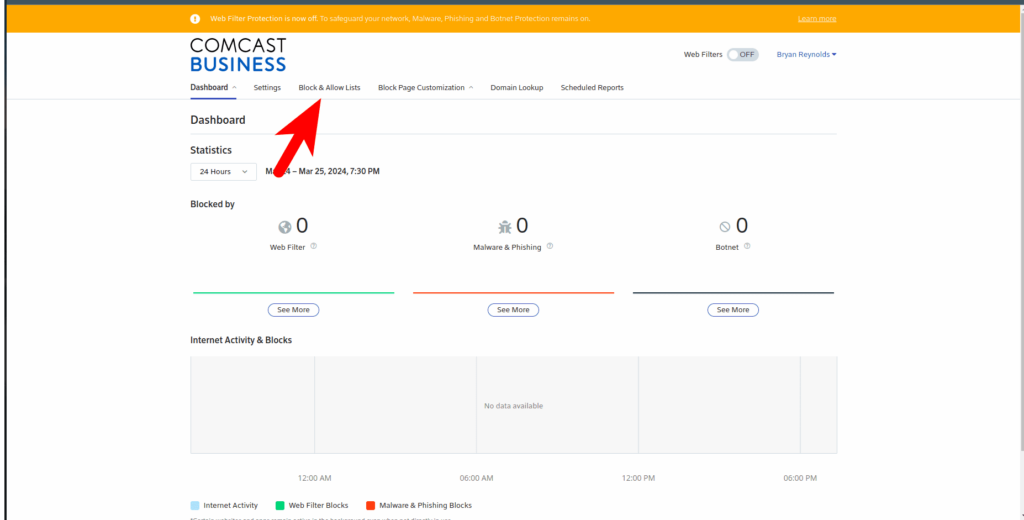
  • Whitelist Your Website in Comcast SecurityEdge

    Log in to your Comcast Business Account.

    https://business.comcast.com/connectivity/internetdashboard/

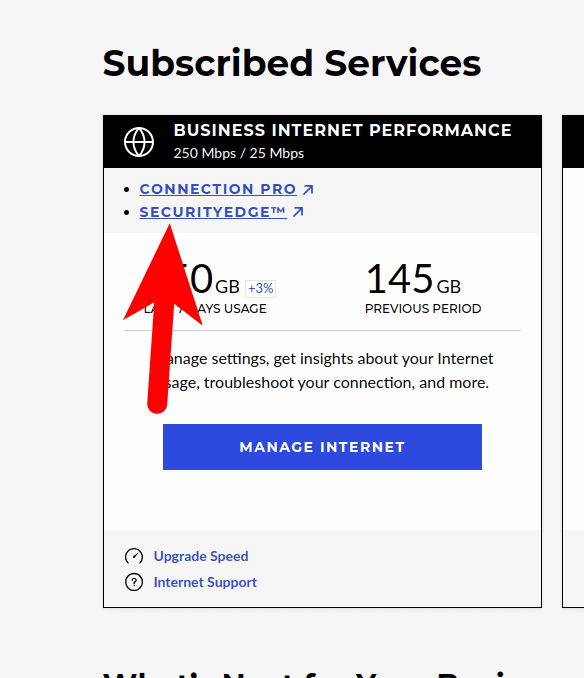
    After you log in, go to the correct location to update your internet. Scrolling down to Subscribed Services ⇾ SecuirtyEdge.

    After you click that SecuirtyEdge(https://securityedge.comcast.com/#home)

    You can go over to the Block and Allow list.

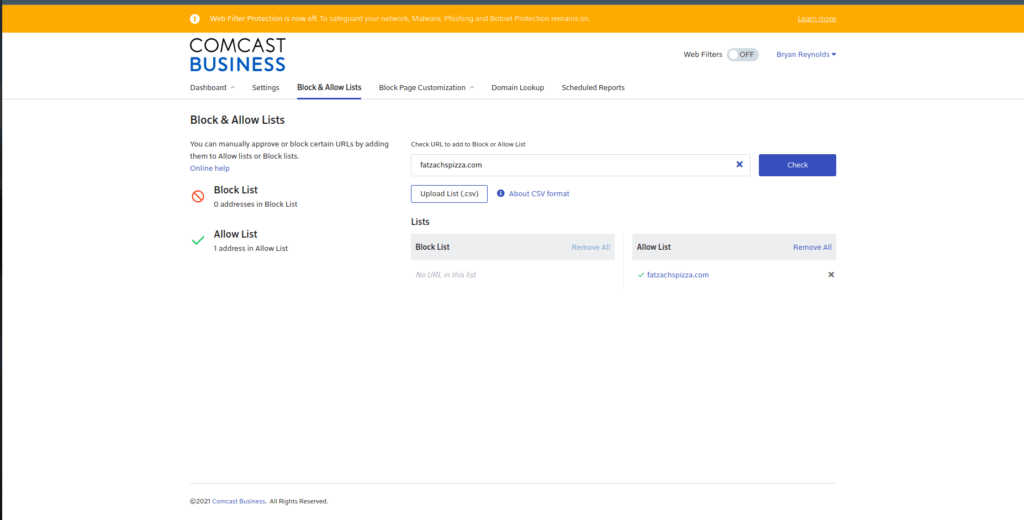
    Place your website into the Check URL text box and then click Check.

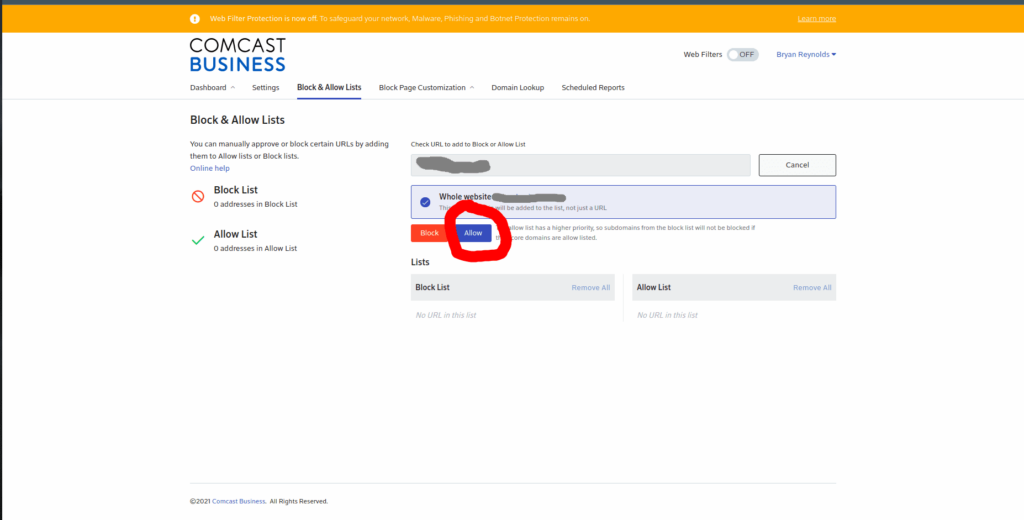
    Make sure that you click allow, so we can access your site from your stores or office.

    So yes you notice we disable our SecuirtyEdge because we had our own 3 DNS Server .

    After you publish and save, it will take about 30 min for your store’s or office’s modem to update, and then it will unblock/SSL invalid won’t show that anymore.

    If you still face the issue, I am happy to swing by and work that out for you to get it to success on the website for every customer view..

  • Deploy Immich v1.99.0 on Docker with Portainer

    This document presents Docker compose version 3.8 for Immich Latest (1.99.0). I just changed the volume to the correct path because I want them to save in our large storage data and permission user so that any users can’t see our file except root.

    I added networks because they’re going to be proxied by Nginx Proxy Manager and own Redis.

    version: "3.8"
    
    services:
      immich-server:
        container_name: immich_server
        image: ghcr.io/immich-app/immich-server:${IMMICH_VERSION:-release}
        command: [ "start.sh", "immich" ]
        volumes:
          - ${UPLOAD_LOCATION}:/usr/src/app/upload
          - /etc/localtime:/etc/localtime:ro
        env_file:
          - stack.env
        networks:
          - nginx
          - personalphotos
        labels:
          - com.centurylinklabs.watchtower.enable=false
        depends_on:
          - redis
          - database
        restart: always
    
      immich-microservices:
        container_name: immich_microservices
        image: ghcr.io/immich-app/immich-server:${IMMICH_VERSION:-release}
        command: [ "start.sh", "microservices" ]
        volumes:
          - ${UPLOAD_LOCATION}:/usr/src/app/upload
          - /etc/localtime:/etc/localtime:ro
        env_file:
          - stack.env
        networks:
          - personalphotos
        labels:
          - com.centurylinklabs.watchtower.enable=false
        depends_on:
          - redis
          - database
    
        restart: always
    
      immich-machine-learning:
        container_name: immich_machine_learning
        image: ghcr.io/immich-app/immich-machine-learning:${IMMICH_VERSION:-release}
        volumes:
          - ${MODEL_CACHE}:/cache
        labels:
          - com.centurylinklabs.watchtower.enable=false
        env_file:
          - stack.env
        networks:
          - personalphotos
        restart: always
    
    
      redis:
        container_name: immich_redis
        image: redis:6.2-alpine
        env_file:
          - stack.env
        labels:
          - com.centurylinklabs.watchtower.enable=false
        networks:
          - personalphotos
        restart: always
    
      database:
        container_name: immich_postgres
        image: registry.hub.docker.com/tensorchord/pgvecto-rs:pg14-v0.2.0@sha256:90724186f0a3517cf6914295b5ab410db9ce23190a2d9d0b9dd6463e3fa298f0
        labels:
          - com.centurylinklabs.watchtower.enable=false
        environment:
          POSTGRES_PASSWORD: ${DB_PASSWORD}
          POSTGRES_USER: ${DB_USERNAME}
          POSTGRES_DB: ${DB_DATABASE_NAME}
        networks:
          - personalphotos
        volumes:
          - ${PGDATA}:/var/lib/postgresql/data
    
        restart: always
    networks:
      nginx:
         external: true
      personalphotos:
         external: true
    

    Here is Environment variables

    DB_HOSTNAME=immich_postgres
    DB_USERNAME=postgres
    DB_PASSWORD=postgres
    DB_DATABASE_NAME=immich
    TZ=America/Los_Angeles
    REDIS_HOSTNAME=immich_redis
    UPLOAD_LOCATION=changeyourpath/data
    TYPESENSE_API_KEY=Your own create random letter
    PUBLIC_LOGIN_PAGE_MESSAGE=
    IMMICH_MACHINE_LEARNING_URL=http://immich-machine-learning:3003
    MODEL_CACHE=/changeyourpath/model_cache
    PGDATA=/changeyourpath/postgresqlbackup
    TSDATA=/changeyourpath/tsdata
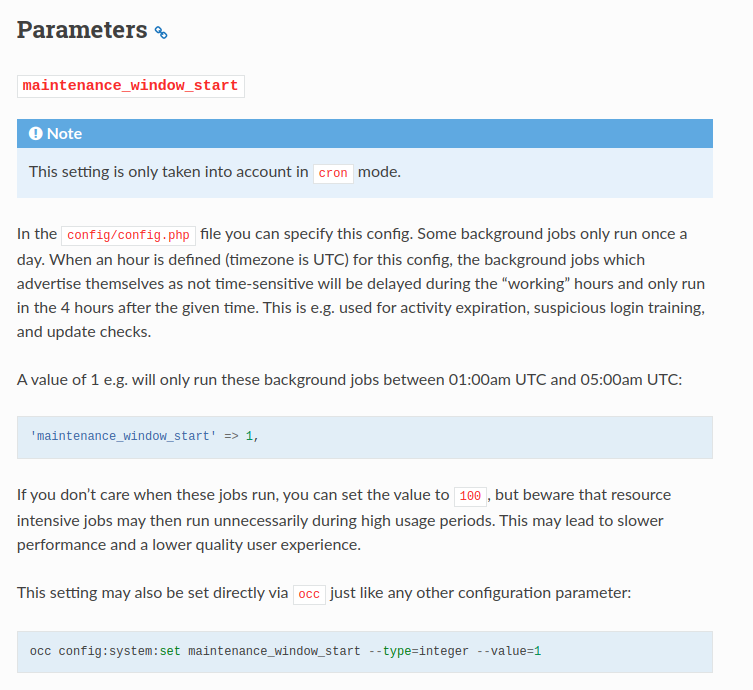
  • Fix Nextcloud Maintenance Window Error: Configure Start Time

    Nextcloud Version: 28.0.3

    There’s a link in the warning message to the documentation

    You have to add the following line to your config.php:'maintenance_window_start' => 1,

    Nextcloud Documentation:
    https://docs.nextcloud.com/server/28/go.php?to=admin-background-jobs

Secret Link