Blog

  • 🔄 How to Safely Back Up & Restore Docker Compose Data

    When you’re running apps with Docker Compose, your data is the heart and soul of your services—databases, media files, configurations, and more. Without a solid backup and restore plan, a simple mistake (or disk failure!) can lead to a world of pain. Here’s a step-by-step guide to properly back up and restore data from Docker Compose environments, the right way.


    Why Back Up Docker Compose Volumes and Data?

    By default, Docker containers are ephemeral. Persistent data lives in volumes or bind mounts—which need explicit backup. Databases (Postgres, MySQL), app uploads, and configs are often stored here.

    If you lose a volume, your critical data is gone.


    🗂️ What Should You Back Up?

    1. Docker Volumes: Contents of named volumes managed by Docker.
    2. Bind Mounts: Data mapped to host folders.
    3. Database Dumps: Logical (SQL) dumps for easy portability & restore.
    4. Configs: Your docker-compose.yml, .env, TLS keys, and other setup files.

    🚀 Step-by-Step: Back Up Docker Compose Data

    1️⃣ Identify Your Data

    First, look at your docker-compose.yml for volumes/bind mounts:

    services:
      db:
        image: postgres
        volumes:
          - pgdata:/var/lib/postgresql/data
    
    volumes:
      pgdata:

    Here the named volume is pgdata.


    2️⃣ Stop the Compose Stack (Recommended)

    This ensures consistent backups (especially for databases):

    docker compose down

    3️⃣ Back Up Docker Volumes

    List all local volumes:

    docker volume ls

    To back up a volume (e.g., pgdata), run:

    docker run --rm 
      -v pgdata:/volume 
      -v $(pwd):/backup 
      busybox 
      tar czvf /backup/pgdata_backup.tar.gz -C /volume .

    Repeat for each volume you want to back up.

    Bind mounts?

    Just copy the folder on the host:

    cp -a /absolute/path/to/mount /your/backup/location

    4️⃣ Logical Database Backups (Recommended for Portability)

    For MySQL:

    docker exec <db_container> mysqldump -u root -p<pass> <database> > mysql_backup.sql

    For PostgreSQL:

    docker exec -t <db_container> pg_dump -U <user> <db> > pg_backup.sql

    💾 Restoring Your Data

    1️⃣ Restore a Docker Volume from Backup

    Create the volume if needed:

    docker volume create pgdata

    Unpack the tarball:

    docker run --rm 
      -v pgdata:/volume 
      -v $(pwd):/backup 
      busybox 
      tar xzvf /backup/pgdata_backup.tar.gz -C /volume

    2️⃣ Restore a Bind Mount

    Just reverse your earlier copy:

    cp -a /your/backup/location /absolute/path/to/mount

    3️⃣ Restore Database from Dump

    For MySQL:

    docker exec -i <db_container> mysql -u root -p<pass> <database> < mysql_backup.sql

    For PostgreSQL:

    cat pg_backup.sql | docker exec -i <db_container> psql -U <user> <db>

    4️⃣ Bring the Stack Up

    docker compose up -d

    🔐 Pro Tips

    • Automate backups! Use cron or a backup script.
    • Store backups offsite (cloud, external drive, etc).
    • Test your backups regularly! A backup you can’t restore isn’t a backup.

    📚 Resources


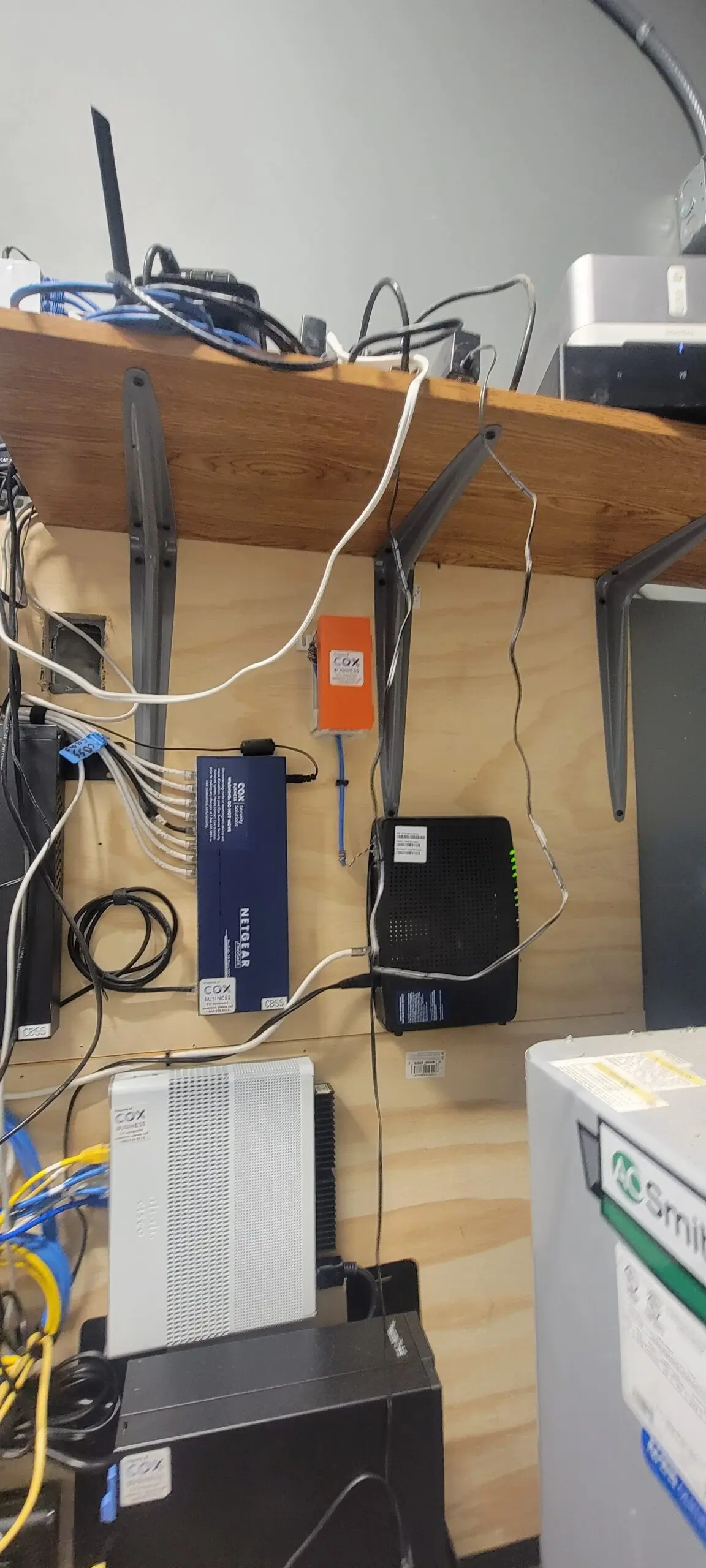
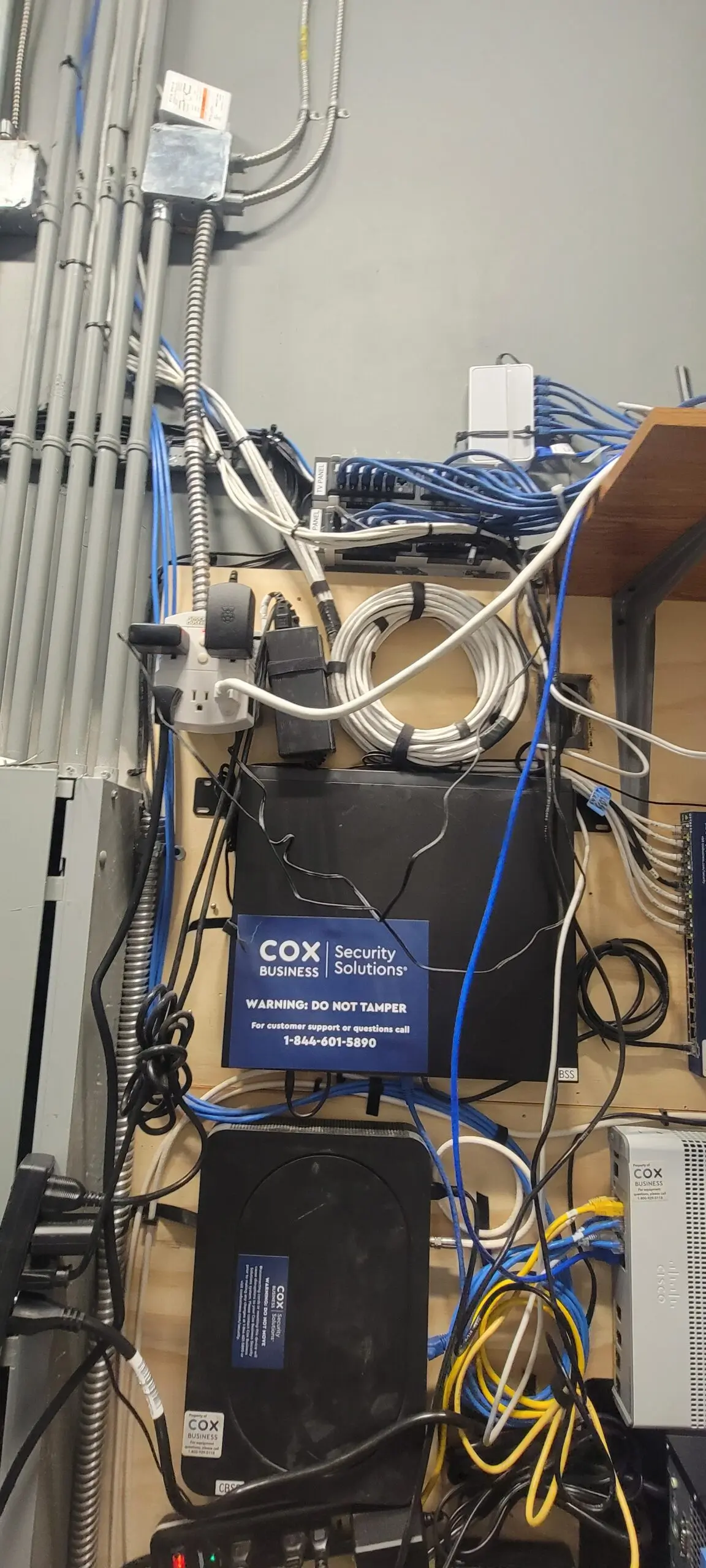
  • How to add SecurityEdge to allow our site on our business Internet? Here is how,

    Log in to your Comcast Business Account.

    https://business.comcast.com/connectivity/internetdashboard/

    After you log in, go to the correct location to update your internet. Scrolling down to Subscribed Services ⇾ SecuirtyEdge.

    After you click that SecuirtyEdge(https://securityedge.comcast.com/#home)

    You can go over to the Block and Allow list.

    Place your website into the Check URL text box and then click Check.

    Make sure that you click allow, so we can access your site from your stores or office.

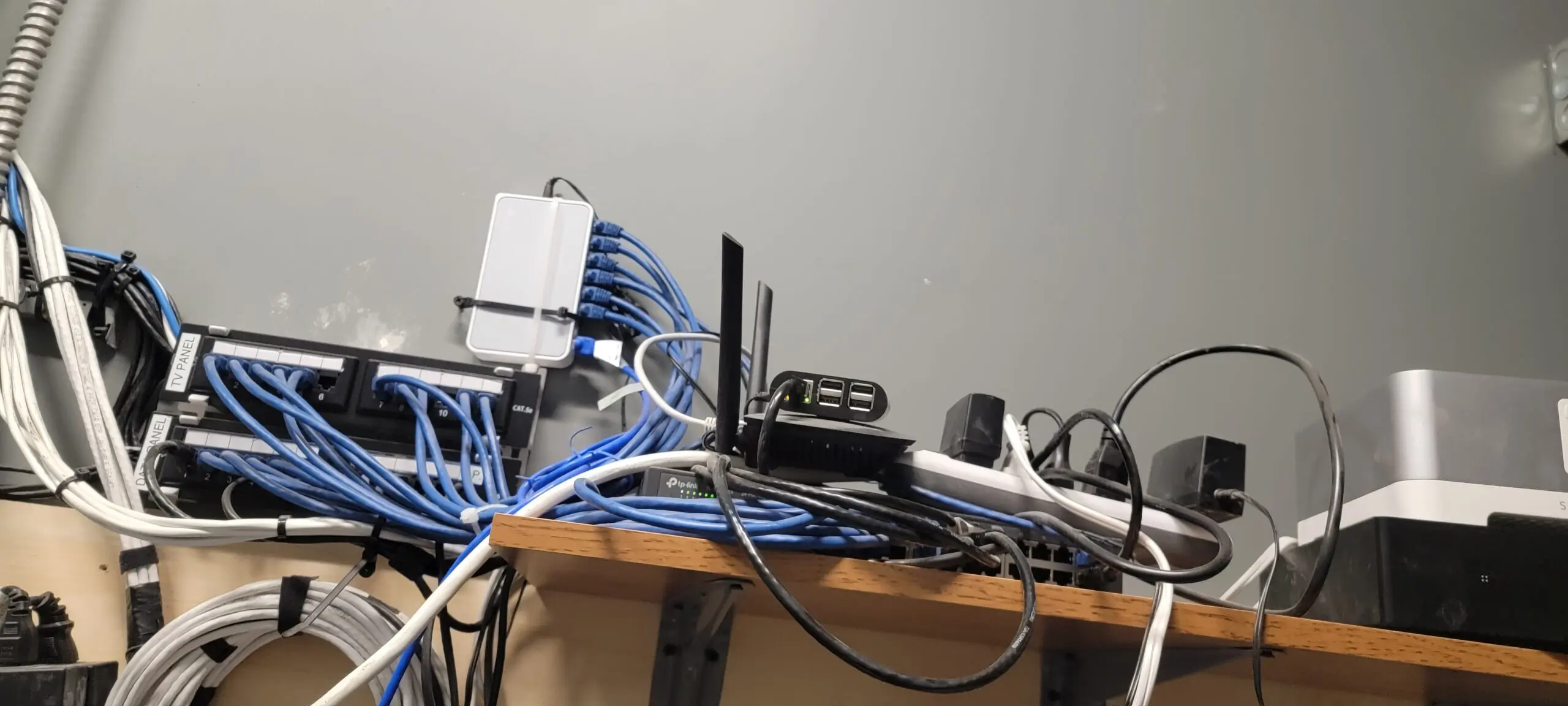
    So yes you notice we disable our SecuirtyEdge because we had our own 3 DNS Server .

    After you publish and save, it will take about 30 min for your store’s or office’s modem to update, and then it will unblock/SSL invalid won’t show that anymore.

    If you still face the issue, I am happy to swing by and work that out for you to get it to success on the website for every customer view..

  • How to Install Immich(v1.99.0) on Docker Portainer with Nginx Proxy Manager

    This document presents Docker compose version 3.8 for Immich Latest (1.99.0). I just changed the volume to the correct path because I want them to save in our large storage data and permission user so that any users can’t see our file except root.

    I added networks because they’re going to be proxied by Nginx Proxy Manager and own Redis.

    version: "3.8"
    
    services:
      immich-server:
        container_name: immich_server
        image: ghcr.io/immich-app/immich-server:${IMMICH_VERSION:-release}
        command: [ "start.sh", "immich" ]
        volumes:
          - ${UPLOAD_LOCATION}:/usr/src/app/upload
          - /etc/localtime:/etc/localtime:ro
        env_file:
          - stack.env
        networks:
          - nginx
          - personalphotos
        labels:
          - com.centurylinklabs.watchtower.enable=false
        depends_on:
          - redis
          - database
        restart: always
    
      immich-microservices:
        container_name: immich_microservices
        image: ghcr.io/immich-app/immich-server:${IMMICH_VERSION:-release}
        command: [ "start.sh", "microservices" ]
        volumes:
          - ${UPLOAD_LOCATION}:/usr/src/app/upload
          - /etc/localtime:/etc/localtime:ro
        env_file:
          - stack.env
        networks:
          - personalphotos
        labels:
          - com.centurylinklabs.watchtower.enable=false
        depends_on:
          - redis
          - database
    
        restart: always
    
      immich-machine-learning:
        container_name: immich_machine_learning
        image: ghcr.io/immich-app/immich-machine-learning:${IMMICH_VERSION:-release}
        volumes:
          - ${MODEL_CACHE}:/cache
        labels:
          - com.centurylinklabs.watchtower.enable=false
        env_file:
          - stack.env
        networks:
          - personalphotos
        restart: always
    
    
      redis:
        container_name: immich_redis
        image: redis:6.2-alpine
        env_file:
          - stack.env
        labels:
          - com.centurylinklabs.watchtower.enable=false
        networks:
          - personalphotos
        restart: always
    
      database:
        container_name: immich_postgres
        image: registry.hub.docker.com/tensorchord/pgvecto-rs:pg14-v0.2.0@sha256:90724186f0a3517cf6914295b5ab410db9ce23190a2d9d0b9dd6463e3fa298f0
        labels:
          - com.centurylinklabs.watchtower.enable=false
        environment:
          POSTGRES_PASSWORD: ${DB_PASSWORD}
          POSTGRES_USER: ${DB_USERNAME}
          POSTGRES_DB: ${DB_DATABASE_NAME}
        networks:
          - personalphotos
        volumes:
          - ${PGDATA}:/var/lib/postgresql/data
    
        restart: always
    networks:
      nginx:
         external: true
      personalphotos:
         external: true
    

    Here is Environment variables

    DB_HOSTNAME=immich_postgres
    DB_USERNAME=postgres
    DB_PASSWORD=postgres
    DB_DATABASE_NAME=immich
    TZ=America/Los_Angeles
    REDIS_HOSTNAME=immich_redis
    UPLOAD_LOCATION=changeyourpath/data
    TYPESENSE_API_KEY=Your own create random letter
    PUBLIC_LOGIN_PAGE_MESSAGE=
    IMMICH_MACHINE_LEARNING_URL=http://immich-machine-learning:3003
    MODEL_CACHE=/changeyourpath/model_cache
    PGDATA=/changeyourpath/postgresqlbackup
    TSDATA=/changeyourpath/tsdata
Secret Link