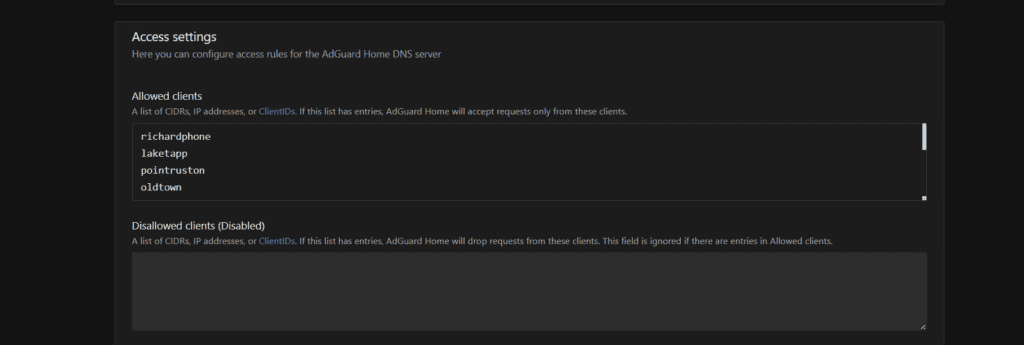
I finally got DNS-over-HTTPS (DoH) working with Cloudron AdGuard Home. The key issue is that AdGuard Home will not accept connections on the encrypted DNS port until you add an IP address or Client ID to the Allowed Clients list. In this guide I use a Client ID. Follow the steps below to configure DoH on your TP-Link Omada controller with AdGuard Home as your upstream DNS resolver.
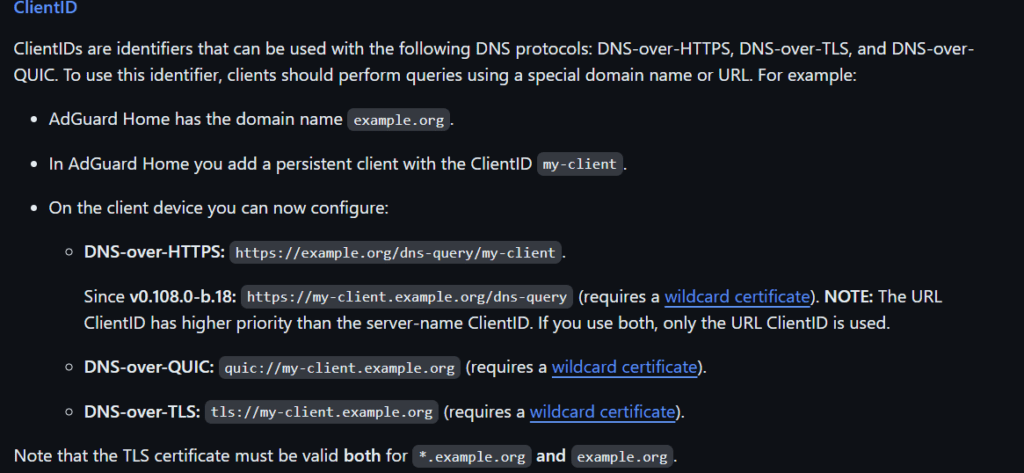
What Are Client IDs?
AdGuard Home supports Client IDs as a way to identify devices or services that are allowed to use its encrypted DNS endpoints. DNS-over-HTTPS is especially useful on internal networks when you already hold a wildcard TLS certificate, because every client can reach the resolver over a secure, authenticated channel.
Step 1 — Add a Client ID in AdGuard Home
Open AdGuard Home and sign in to your admin account. Navigate to Settings → DNS Settings and locate the Allowed Clients field. Enter the Client ID you want to use for your Omada controller — in this example the ID is laketapp (a nickname for the store). Click Save when finished.
Step 2 — Log In to the TP-Link Omada Controller
Open the TP-Link Omada Controller web GUI and log in with your admin credentials. Select the site (location) where you want to enable DNS-over-HTTPS.
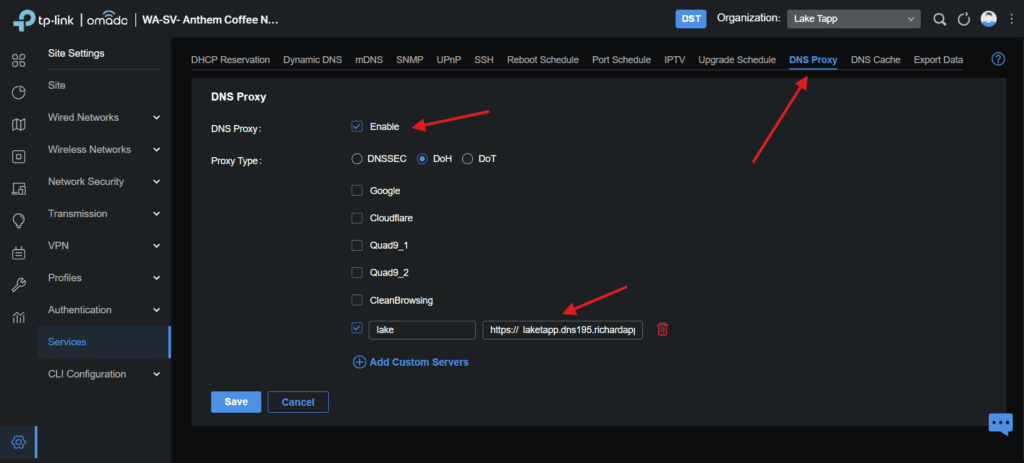
Step 3 — Navigate to Services → DNS Proxy
In the left-hand navigation panel, click Services, then select DNS Proxy. Enable the DNS Proxy toggle, choose DoH (DNS-over-HTTPS) as the protocol, and enter your AdGuard Home DoH server URL. In this example the URL is:
https://laketapp.dns195.richardapplegate.ioThe Client ID (laketapp) is embedded in the subdomain, which is how AdGuard Home identifies and authorises the request.
Step 4 — Verify Queries Are Reaching AdGuard Home
Return to the AdGuard Home dashboard and open the Query Log. You should immediately see queries appearing from your Omada router, confirming that all DNS traffic is now flowing through AdGuard Home over an encrypted DoH connection.

Your TP-Link Omada router is now communicating with your self-hosted AdGuard Home DNS server over an encrypted, authenticated DoH connection.
Leave a Reply