Blog

  • Upgrade network Shelf to cabinet network

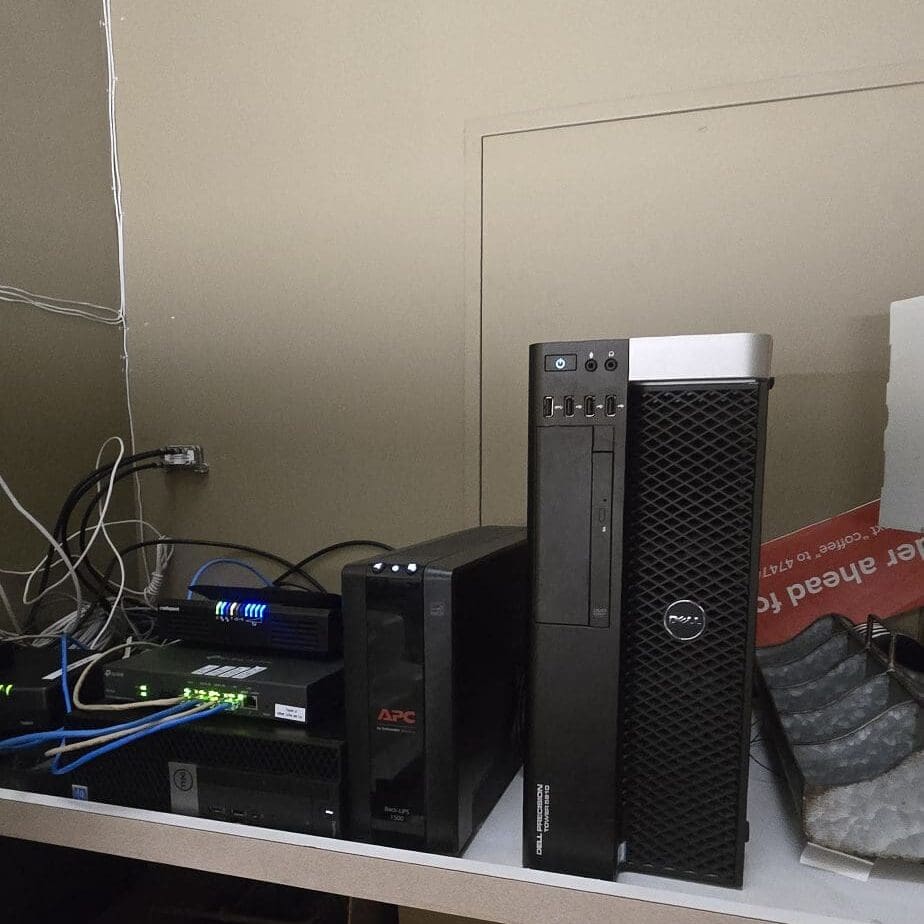
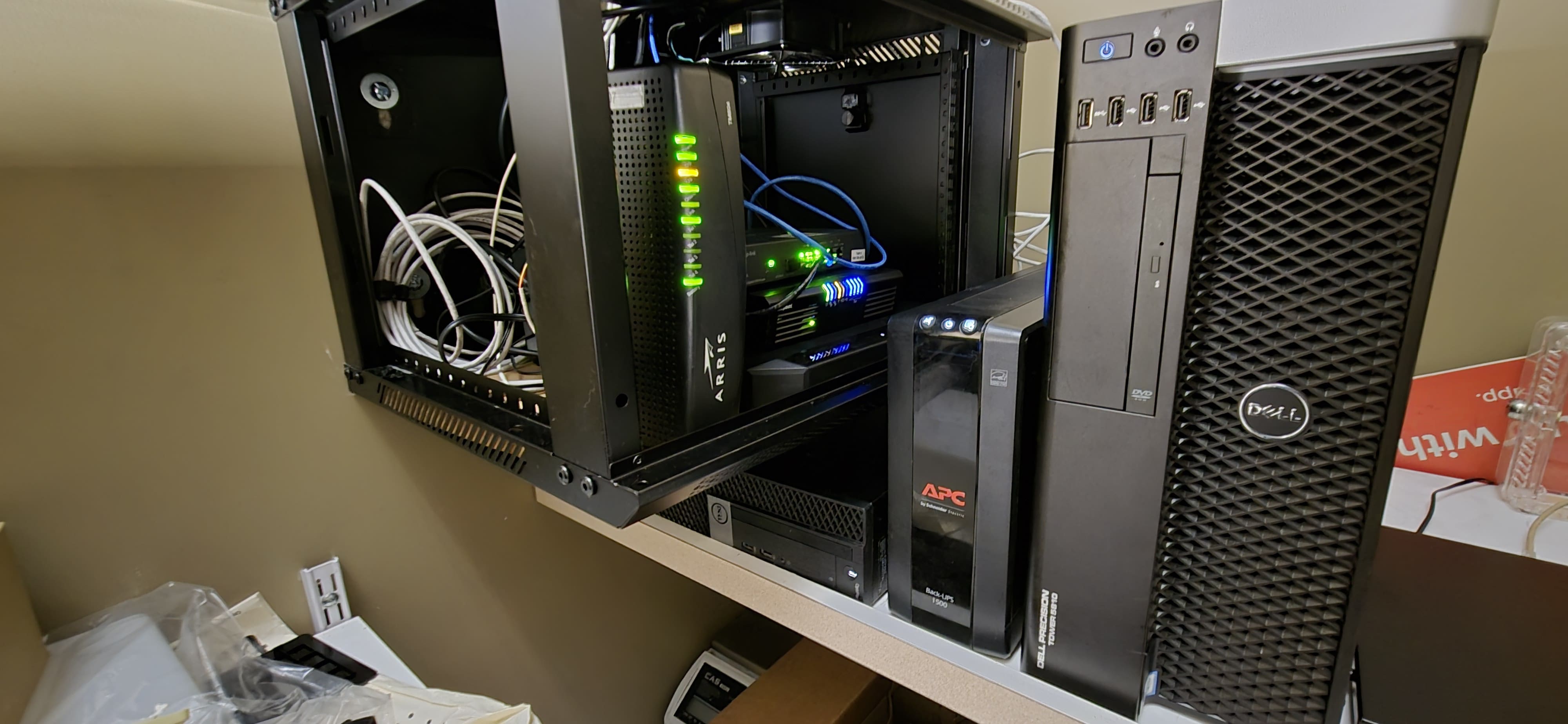
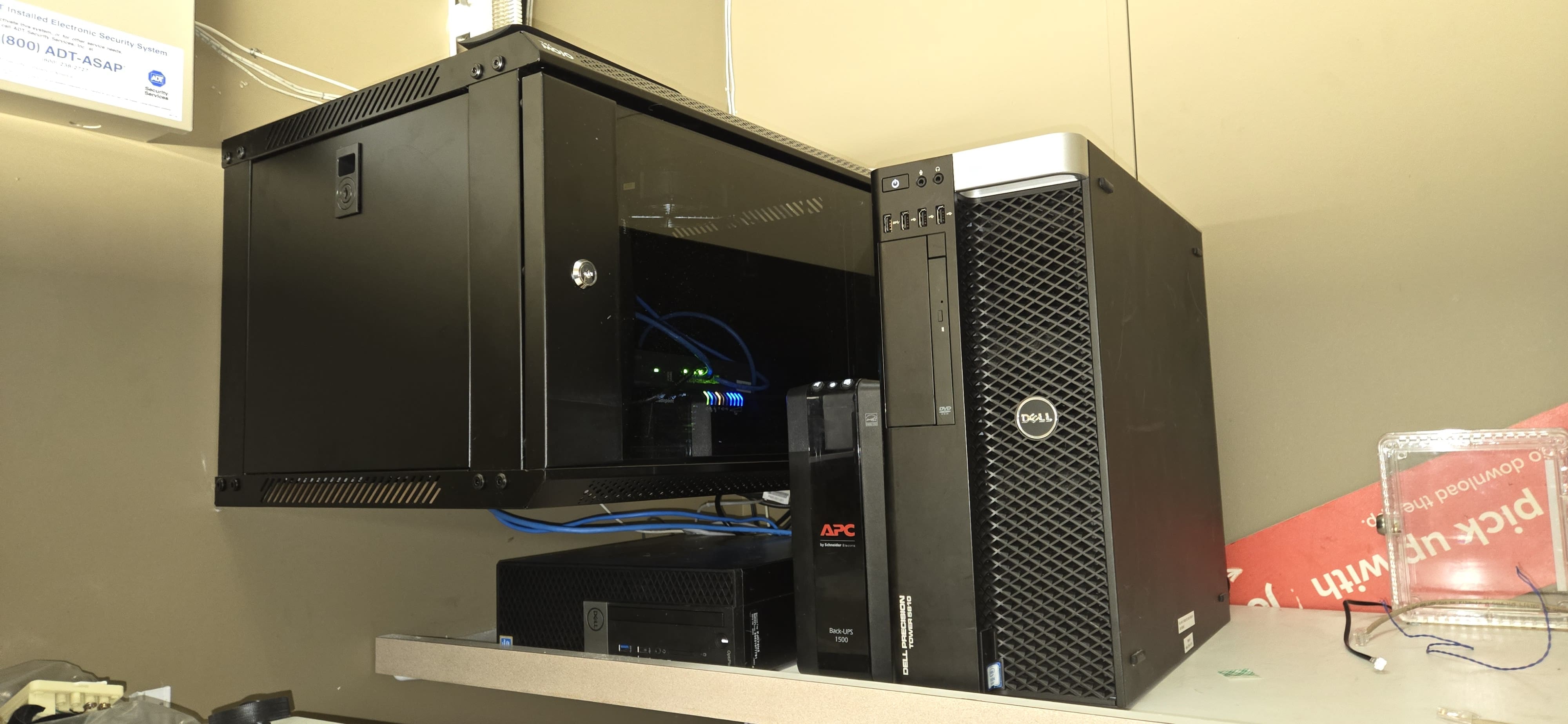
    The excessive wiring and the way everything was stacked weren’t viable long-term solutions. I approached my supervisor to request an upgrade to a more secure and durable setup. Installing a network cabinet would help cut down on dust buildup and prevent overheating. Plus, adding an exhaust fan to the cabinet would efficiently vent hot air, making it easier to keep the system cool. We still have three more locations to take care of before the network cabinet installations are fully finished.

    Before
    I intend to rewire and cable everything next month to ensure proper cable management.
    After.


    More Picture of another stores:

    https://richardapplegate.io/network-experience/
  • How to get to know your Linux operating system.

    This command line can be used to look up the operating system.

    The command is here.

    hostnamectl
  • Automated Docker Updates with Watchtower and Ntfy Notifications (via Portainer)


    Maintaining Docker containers is easy—in theory. In practice, keeping your stack up-to-date with the latest images can be tedious and time-consuming. Here’s a solution: Watchtower can update containers automatically, and with Ntfy, you get real-time notifications right on your phone or desktop whenever an update occurs!

    Best of all: you can set it all up through Portainer’s GUI. In this tutorial, I’ll walk you through a complete setup: no command line required.


    Why automate Docker updates?

    Manual container updates aren’t just inconvenient, they can lead to missed security patches and downtime. Watchtower eliminates this pain, pulling new images and restarting containers automatically, all on a schedule you control.

    But automation can be a little scary—how do you know what’s happening? That’s where Ntfy comes in. With just a few lines of configuration, Watchtower can send push notifications to your phone or browser. You’re always in the loop, wherever you are.


    What you need

    • Docker running on your server.
    • Portainer set up for easy container management.
    • (Optional) Ntfy self-hosted or use ntfy.sh free public service.

    Step 1: Pick (or create) your ntfy topic

    Think of a topic as a notification channel. For this setup, I’ll use watchtower-notify as my topic. You can pick whatever you like. If you want privacy, choose a hard-to-guess topic or set up authentication (see ntfy docs).


    Step 2: Build your Watchtower stack

    In Portainer:

    1. Go to “Stacks” and click “Add Stack”.
    2. Give your stack a name, e.g., watchtower.
    3. Enter the following Docker Compose configuration, replacing the topic with yours:
      yaml version: "3" services: watchtower: image: containrrr/watchtower container_name: watchtower restart: unless-stopped environment: - WATCHTOWER_WATCHDOG=true - WATCHTOWER_CLEANUP=true - WATCHTOWER_NOTIFICATIONS=ntfy - WATCHTOWER_NOTIFICATION_NTFY_TOPIC=watchtower-notify - WATCHTOWER_NOTIFICATION_NTFY_URL=https://ntfy.sh volumes: - /var/run/docker.sock:/var/run/docker.sock
    • If using a private ntfy topic with token:
      Add
      - WATCHTOWER_NOTIFICATION_NTFY_TOKEN=your-ntfy-token
      under environment.
    1. Click Deploy the stack.

    Step 3: Subscribe to your notifications

    You’re almost done! To receive updates:

    • On your phone: Install the Ntfy app (iOS or Android), and subscribe to your topic, e.g. watchtower-notify.
    • In your browser: Visit ntfy.sh/your-topic-name.

    When Watchtower pulls an updated image and restarts your containers, you’ll get a message right away!


    What does a notification look like?

    Example:

    watchtower
    The container xyz was updated and restarted.

    You can fine-tune both your notification topic and Watchtower’s update schedule in your docker-compose.yml file.


    Extras and Security


    Conclusion

    With Watchtower, Docker containers stay up-to-date, and with Ntfy, you’re always up-to-speed on every change. Combine both with Portainer’s user-friendly interface, and managing containers becomes almost effortless.

    Did you try it? Have tips or questions? Let me know in the comments!


    Resources:


    Happy automating! 🚀

Secret Link