Tag: Final

  • How to Fix VMware Module Errors When Secure Boot Is Enabled on Linux

    If you’ve ever tried to start VMware on a Linux machine and hit an error about vmmon or vmnet modules failing to load, there’s a good chance Secure Boot is the culprit. This guide walks you through exactly what’s happening and gives you two ways to fix it — the quick-and-easy way and the cleaner long-term approach.


    What’s Going On?

    Secure Boot is a UEFI firmware feature that prevents unsigned code from loading during boot. It’s a legitimate security protection — but it also means that kernel modules like VMware’s vmmon and vmnet won’t load unless they’re signed with a trusted key.

    When VMware installs or rebuilds those modules, it doesn’t automatically sign them. So if Secure Boot is enabled, Linux refuses to load them, and VMware fails to start.

    You can confirm this is your issue by running:

    mokutil --sb-state
    

    If it returns SecureBoot enabled, you’ve found your problem.


    Option 1 — The Quick Fix: Disable Secure Boot

    If you don’t have a specific reason to keep Secure Boot enabled, this is the fastest path back to a working VMware setup.

    1. Reboot your machine and enter your BIOS/UEFI settings (usually F2, F10, Del, or Esc on startup)
    2. Find the Secure Boot option and disable it
    3. Save and boot into Linux
    4. Rebuild and load the VMware modules:
    sudo vmware-modconfig --console --install-all
    sudo modprobe vmmon
    sudo modprobe vmnet
    
    1. Start VMware normally

    Pros: Fast, simple, no ongoing maintenance.
    Cons: You lose the security protections that Secure Boot provides.

    If that trade-off is fine for your environment, you’re done. If not, read on.


    Option 2 — The Right Way: Sign the Modules and Enroll a MOK

    Machine Owner Keys (MOK) let you sign your own kernel modules so they’re trusted by Secure Boot. This approach keeps your security posture intact and is the recommended long-term solution.

    Step 1: Install the Required Tools

    On Ubuntu or Debian:

    sudo apt update
    sudo apt install openssl mokutil build-essential dkms linux-headers-$(uname -r)
    

    Step 2: Generate a Signing Key

    mkdir -p ~/module-signing
    cd ~/module-signing
    
    openssl req -new -x509 -newkey rsa:2048 \
      -keyout MOK.priv \
      -outform DER \
      -out MOK.der \
      -nodes -days 36500 \
      -subj "/CN=VMware Module Signing/"
    

    This creates two files:

    • MOK.priv — your private signing key (keep this safe)
    • MOK.der — the public certificate you’ll enroll into the firmware

    Step 3: Enroll the Key

    sudo mokutil --import ~/module-signing/MOK.der
    

    You’ll be asked to create a one-time password — remember it, you’ll need it on the next boot.

    Step 4: Complete Enrollment at Boot

    Reboot your machine. You’ll be presented with the MOK Manager screen. Navigate through:

    1. Enroll MOK
    2. Continue
    3. Yes
    4. Enter the password you just created
    5. Reboot

    Step 5: Locate the VMware Module Files

    modinfo -n vmmon
    modinfo -n vmnet
    

    If those commands don’t return paths yet, find them manually:

    find /lib/modules/$(uname -r) -type f | grep -E 'vmmon|vmnet'
    

    Typical paths look like:

    /lib/modules/<kernel-version>/misc/vmmon.ko
    /lib/modules/<kernel-version>/misc/vmnet.ko
    

    Step 6: Sign the Modules

    First, find the kernel’s signing tool:

    find /usr/src/linux-headers-$(uname -r) -name sign-file
    

    Then sign both modules:

    sudo /usr/src/linux-headers-$(uname -r)/scripts/sign-file sha256 \
      ~/module-signing/MOK.priv \
      ~/module-signing/MOK.der \
      $(modinfo -n vmmon)
    
    sudo /usr/src/linux-headers-$(uname -r)/scripts/sign-file sha256 \
      ~/module-signing/MOK.priv \
      ~/module-signing/MOK.der \
      $(modinfo -n vmnet)
    

    If modinfo -n doesn’t return a path, replace $(modinfo -n vmmon) with the full path you found in Step 5.

    Step 7: Load the Modules and Start VMware

    sudo depmod -a
    sudo modprobe vmmon
    sudo modprobe vmnet
    

    Verify they loaded:

    lsmod | grep -E 'vmmon|vmnet'
    

    Then restart VMware:

    sudo systemctl restart vmware
    

    One Important Caveat

    The module signatures don’t survive automatically. If any of the following happen, you’ll need to re-sign vmmon and vmnet:

    • A kernel update is installed
    • A VMware update rebuilds the modules
    • You manually run vmware-modconfig again

    Keep your MOK.priv and MOK.der files in a safe location so you can re-sign quickly when needed.


    Which Option Should You Choose?

    Disable Secure BootSign with MOK
    Setup time~5 minutes~20 minutes
    Ongoing maintenanceNoneRe-sign after kernel/VMware updates
    SecurityReducedMaintained
    Best forDev machines, home labsProduction, security-conscious setups

    Wrapping Up

    VMware and Secure Boot can absolutely coexist — it just takes a bit of extra setup. If you’re running this on a personal dev box, disabling Secure Boot is a perfectly reasonable call. If you want to keep your system locked down, the MOK signing approach gives you VMware plus full Secure Boot protection.

    Either way, run mokutil --sb-state first — it’ll confirm in seconds whether Secure Boot is actually the root cause before you dig deeper.

  • Watchtower Fork: Fixing Abandoned Docker Auto-Update Tool

    If you’ve ever relied on Watchtower to automatically update your Docker containers, you may have noticed something alarming: the project was officially abandoned in late 2024. The maintainers posted a deprecation notice and walked away, leaving thousands of homelab enthusiasts and self-hosters without a maintained solution for automatic Docker container updates.

    I decided to do something about it. This post documents everything I did to fork, fix, and modernize Watchtower — turning a dead project back into a working, production-ready tool. The result is X4Applegate/watchtower, an actively maintained fork you can drop into your stack today.

    What Is Watchtower?

    Watchtower is a Docker container that monitors your running containers, automatically pulls updated images when new versions become available, and restarts them in place — all without manual intervention. It’s a “set it and forget it” solution widely used by homelab enthusiasts and small teams who want their self-hosted services to stay current without constant babysitting. When the upstream project went unmaintained, it began breaking against modern Docker versions and newer SDK releases. That’s exactly the problem this fork solves.

    Phase 1: Code Audit and Bug Fixes

    lifecycle.go — Three Bugs, One File

    The container lifecycle management code had three distinct issues. First, a nil pointer dereference panic — under certain conditions, the code attempted to dereference a pointer without first confirming it was non-nil, causing a hard crash. Second, errors returned from container stop operations were silently swallowed rather than logged or surfaced, turning production debugging into a guessing game. Third, log messages were emitted in the wrong order, making the event timeline genuinely confusing when reviewing logs after the fact. All three issues are now resolved.

    registry.go — Log Ordering Fix

    The registry code had log statements that fired out of sequence. When Watchtower checked for image updates, the log output made it appear as though operations completed before they actually started. A straightforward reordering of the log calls restored sensible, chronological output.

    go.mod — Dependency Updates and Version Mismatch Fix

    The go.mod file had roughly 30 outdated dependencies, some of them years behind their current releases. I upgraded Go itself from 1.20 to 1.22 and updated all packages accordingly. This process also uncovered a tricky major-version mismatch: go.mod referenced ginkgo/v2 and robfig/cron/v3, but the actual source code still used v1 import paths. Mixing major versions this way causes compile failures in Go modules. I reverted both to their v1-compatible releases (ginkgo v1.16.5 and robfig/cron v1.2.0) to align with what the source code actually imports.

    Phase 2: Documentation Updates

    Good documentation matters, especially for a community-maintained tool. I created a CHANGELOG.md that documents every change made in the fork, giving users full transparency into what’s different from the upstream project. I also updated README.md with a prominent fork notice clearly stating this version is actively maintained, and removed the upstream “this project is no longer maintained” warning that had been left in place — because it simply no longer applies.

    Phase 3: Building from Source with Docker

    The original project’s Dockerfiles were designed to use pre-built binaries — they expected a compiled watchtower binary to already exist on disk and simply copied it into a scratch image. There was no path to building from source without a full local Go toolchain installed. I solved this by creating a new root Dockerfile with a proper multi-stage build that handles compilation entirely inside Docker:

    # Build stage
    FROM golang:1.22-alpine AS builder
    WORKDIR /app
    COPY go.mod go.sum ./
    RUN GOFLAGS="-mod=mod" go mod download
    COPY . .
    RUN CGO_ENABLED=0 GOOS=linux \
        go build \
        -ldflags="-X github.com/X4Applegate/watchtower/internal/meta.Version=${VERSION}" \
        -o watchtower ./cmd/watchtower/
    
    # Final stage
    FROM alpine:latest
    RUN apk --no-cache add ca-certificates tzdata
    WORKDIR /
    COPY --from=builder /app/watchtower .
    ENTRYPOINT ["/watchtower"]

    Note the GOFLAGS="-mod=mod" flag. Because the go.sum file was stale after the dependency updates — and cannot be regenerated through GitHub’s web editor — this flag instructs Go to resolve and update module requirements on the fly during the build, bypassing the stale checksum issue entirely without requiring a local environment.

    Phase 4: Docker SDK v26 Migration

    Building against a modern Docker SDK (v26+) failed immediately with undefined: types.ContainerListOptions, types.ContainerRemoveOptions, and types.ContainerStartOptions. Docker SDK v26 significantly reorganized its type system — these types were moved out of the top-level types package and into a types/container sub-package with new names.

    Old (SDK v25 and Earlier)New (SDK v26+)
    types.ContainerListOptionscontainer.ListOptions
    types.ContainerRemoveOptionscontainer.RemoveOptions
    types.ContainerStartOptionscontainer.StartOptions

    After adding the correct import for github.com/docker/docker/api/types/container and updating all three usages in pkg/container/client.go, the build completed successfully.

    Phase 5: Docker API Version Fix

    After a successful build, the first test run produced: “client version 1.25 is too old. Minimum supported API version is 1.40.” The culprit was a hardcoded constant in internal/flags/flags.go that had never been updated since the project’s early days in 2017. The fix was a single-line change — easy to overlook, but critical to get right:

    // Before
    const DockerAPIMinVersion string = "1.25"
    
    // After
    const DockerAPIMinVersion string = "1.41"

    Modern Docker daemons (version 20.10 and later) require API version 1.40 at minimum. Setting the constant to 1.41 puts the fork in a safe range that works reliably with any Docker installation from the past several years.

    How to Use the Fork

    This fork is designed as a drop-in replacement for upstream Watchtower — no configuration changes required. Here’s a Docker Compose example to get started:

    version: "3.8"
    services:
      watchtower:
        image: x4applegate/watchtower:latest
        container_name: watchtower
        restart: unless-stopped
        volumes:
          - /var/run/docker.sock:/var/run/docker.sock
        environment:
          - WATCHTOWER_CLEANUP=true
          - WATCHTOWER_POLL_INTERVAL=3600
          - TZ=America/Los_Angeles

    Prefer to build from source? That’s now fully supported with no local Go toolchain required:

    git clone https://github.com/X4Applegate/watchtower.git
    cd watchtower
    docker build -t x4applegate/watchtower:latest .

    Summary of All Changes

    • lifecycle.go — Fixed nil pointer panic, silent error swallowing, and log ordering
    • registry.go — Fixed log statement ordering
    • go.mod — Upgraded Go 1.20 → 1.22, bumped ~30 packages, fixed ginkgo/cron major version mismatch, renamed module path to X4Applegate
    • Dockerfile — Created new multi-stage build from scratch, eliminating the need for a pre-compiled binary
    • pkg/container/client.go — Migrated three container types for Docker SDK v26 compatibility
    • internal/flags/flags.go — Updated DockerAPIMinVersion from 1.25 to 1.41
    • CHANGELOG.md — Created to document all changes transparently
    • README.md — Added fork notice, removed upstream deprecation warning

    What’s Next

    The fork is working and tested against current Docker releases. Planned improvements include setting up GitHub Actions for automated builds and Docker Hub image pushes, migrating the test suite from Ginkgo v1 to v2, and completing a full module path rename across all source files to finalize the fork’s independence from the upstream codebase.

    If you find this useful, give the repo a star at github.com/X4Applegate/watchtower, or open an issue if you run into any problems. Watchtower is alive again — let’s keep it that way.

    Update: v1.0.1 Released — April 6, 2026

    Since the initial fork, I’ve continued working on the project and have now shipped v1.0.1 — the first proper release of the fork. Here’s a summary of everything that changed.

    Dockerfile Fixes

    All four Dockerfiles had alpine:3.19.0 pinned to a December 2023 patch release. I bumped all of them to alpine:3.21 (current stable) to pull in up-to-date CA certificates and tzdata. The two legacy Dockerfiles in dockerfiles/ also had deeper issues: Dockerfile.dev-self-contained had the wrong module path in the ldflags (still pointing to containrrr/watchtower instead of X4Applegate/watchtower), meaning the version string was silently never injected into builds. The golang:alpine base was also completely unpinned, which would break on any future Go release. Both files now pin golang:1.22-alpine, use the correct module path, drop the dead GO111MODULE=on flag (a no-op since Go 1.17), and add a git describe fallback for untagged builds. Dockerfile.self-contained had an even more critical bug: it was cloning the abandoned upstream containrrr/watchtower repo instead of this fork.

    Docker Compose and Environment Variable Cleanup

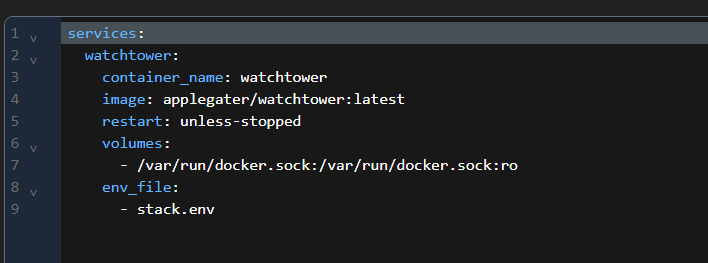
    The docker-compose.yml was simplified significantly. Watchtower has no web GUI — port 8080 only exists for an optional HTTP API (metrics and update trigger) that most homelab users don’t need. I removed the ports: section entirely so nothing is exposed. The image now points to applegater/watchtower:v1.0.1 and all config is loaded from a .env file via env_file: .env.

    A companion example.env file was added as a reference template. The HTTP API variables (WATCHTOWER_HTTP_API_METRICS, WATCHTOWER_HTTP_API_UPDATE, WATCHTOWER_HTTP_API_TOKEN) were removed since they only matter when a port is exposed. The file now focuses on the core use case: polling interval, cleanup, log level, optional notifications, and behaviour flags.

    README and Documentation

    The README was updated with a new Running with Docker Compose section and a full Environment Variables reference table covering every WATCHTOWER_* variable. A Changelog section was also added directly to the README so the most recent changes are visible without having to dig into CHANGELOG.md.

    Getting v1.0.1

    The easiest way to deploy is to grab the two config files from the v1.0.1 release page and run:

    cp example.env .env
    # edit .env as needed
    docker compose up -d

    Or build from source directly on your server:

    git pull
    docker build --build-arg VERSION=v1.0.1 -t applegater/watchtower:v1.0.1 .
    docker compose up -d
  • Install Docker & Docker Compose on Ubuntu 24.04

    Platform: Ubuntu Server 24.04.4 LTS — Intel / AMD (x86_64)

    This guide walks you through installing Docker Engine, Docker Compose v2, and Docker Buildx on Ubuntu Server 24.04.4 LTS (Intel / AMD). It also configures Docker to start automatically at boot, so your containers are always ready after a reboot.

    Overview

    By the end of this guide, you will have the following installed and running:

    • Docker Engine
    • Docker Compose v2
    • Docker Buildx
    • Automatic Docker startup on boot

    Step 1 — Update Ubuntu

    Start by updating the package list and upgrading any outdated packages on your system.

    sudo apt update
    sudo apt upgrade -y

    Step 2 — Install Required Dependencies

    Install the packages needed to securely download and add Docker’s official repository.

    sudo apt install -y ca-certificates curl gnupg

    Step 3 — Create the Docker Keyring Directory

    Create the directory where Docker’s GPG key will be stored. This directory is used to verify the authenticity of packages downloaded from Docker’s repository.

    sudo install -m 0755 -d /etc/apt/keyrings

    Step 4 — Add Docker’s Official GPG Key

    Download Docker’s official GPG key and save it to the keyring directory you just created.

    curl -fsSL https://download.docker.com/linux/ubuntu/gpg | \
    sudo gpg --dearmor -o /etc/apt/keyrings/docker.gpg

    Then set the correct file permissions so the key is readable by the system:

    sudo chmod a+r /etc/apt/keyrings/docker.gpg

    Step 5 — Add the Docker Repository

    Add Docker’s official APT repository to your system’s package sources. This tells apt where to find Docker packages.

    echo "deb [arch=$(dpkg --print-architecture) signed-by=/etc/apt/keyrings/docker.gpg] \
    https://download.docker.com/linux/ubuntu \
    $(. /etc/os-release && echo $VERSION_CODENAME) stable" | \
    sudo tee /etc/apt/sources.list.d/docker.list > /dev/null

    Step 6 — Update the Package Index

    Refresh the package list so your system recognizes the newly added Docker repository.

    sudo apt update

    Step 7 — Install Docker Engine and Components

    Install Docker Engine along with all required plugins and tools.

    sudo apt install -y docker-ce docker-ce-cli containerd.io docker-buildx-plugin docker-compose-plugin

    Here is what each component does:

    Package Description
    docker-ce Docker Engine — the core service that runs containers
    docker-ce-cli Docker command-line interface for running Docker commands
    containerd.io Low-level container runtime that Docker depends on
    docker-buildx-plugin Advanced image build tool with multi-platform support
    docker-compose-plugin Docker Compose v2 — runs multi-container applications

    Step 8 — Enable Docker to Start Automatically

    Enable the Docker service so it starts automatically every time the server boots, then start it now.

    sudo systemctl enable docker
    sudo systemctl start docker

    Verify that Docker is running:

    systemctl status docker

    You should see active (running) in the output. Press Q to exit the status view.

    Step 9 — Verify the Installation

    Confirm that Docker Engine and Docker Compose were installed correctly by checking their versions.

    Check the Docker version:

    docker --version

    Expected output:

    Docker version 26.x.x, build xxxxxxx

    Check the Docker Compose version:

    docker compose version

    Expected output:

    Docker Compose version v2.x.x

    Step 10 — Test the Docker Installation

    Run the official Docker test container to confirm everything is working end-to-end.

    sudo docker run hello-world

    If Docker is installed correctly, you will see a message that starts with:

    Hello from Docker!

    Step 11 — (Optional) Run Docker Without sudo

    By default, Docker requires sudo to run commands. You can add your user to the docker group to avoid typing sudo every time.

    sudo usermod -aG docker $USER

    Log out and log back in (or reboot the server) for the group change to take effect. Then test it:

    docker ps

    If no error appears, you can now run Docker commands without sudo.


    Example — Test Docker Compose

    This is a quick end-to-end test to confirm Docker Compose is working correctly. It spins up an Nginx web server using a simple Compose file.

    1. Create a Test Directory

    mkdir ~/docker-test
    cd ~/docker-test

    2. Create the Compose File

    nano docker-compose.yml

    Paste the following content into the file:

    services:
      nginx:
        image: nginx:latest
        ports:
          - "8080:80"

    Save and exit: press Ctrl+X, then Y, then Enter.

    3. Start the Container

    docker compose up -d

    4. Verify the Container Is Running

    docker ps

    You should see the nginx container listed with a status of Up.

    5. Open in Your Browser

    Navigate to the following URL, replacing SERVER-IP with your server’s actual IP address:

    http://SERVER-IP:8080

    You should see the default Nginx welcome page. This confirms Docker Compose is running correctly.

    6. Stop the Container

    docker compose down

    Useful Docker Commands

    Here are some everyday Docker commands you will use often:

    Command Description
    docker ps List all currently running containers
    docker ps -a List all containers, including stopped ones
    docker logs CONTAINER_NAME View the logs for a specific container
    docker stop CONTAINER_NAME Stop a running container
    docker rm CONTAINER_NAME Remove a stopped container
    docker images List all locally downloaded Docker images
    docker pull IMAGE_NAME Download a Docker image from Docker Hub

    Recommended Tools for Docker Servers

    Once Docker is up and running, these tools are highly recommended for managing your server environment:

    Tool Purpose
    Portainer Web-based UI for managing Docker containers, images, and volumes
    Nginx Proxy Manager Easy reverse proxy management with built-in SSL support
    Watchtower Automatically keeps your running containers updated
  • Speed Up AppImages on Ubuntu: GPU Acceleration Guide

    If you are running a powerful Linux setup with an Intel Core Ultra 9 (Evo Edition) paired with an NVIDIA RTX 5050, you expect your apps to open instantly. Yet AppImages often feel surprisingly sluggish — even on high-end hardware. The reason is straightforward: by default, AppImages are compressed SquashFS bundles that extract themselves into memory every single time you launch them, wasting precious CPU cycles before your app even appears on screen.

    In this guide, you will learn how to bypass that compression overhead entirely, resolve common sandbox permission errors, and force your dedicated NVIDIA GPU to handle rendering — so your AppImages launch in under a second and run at full performance.


    The Problem: Slow Default AppImage Behavior

    Standard AppImages use SquashFS compression to keep file sizes small. While that is convenient for distribution, it comes at a real cost: every launch requires the entire bundle to be decompressed on the fly. Even on a blazing-fast Intel Core Ultra 9 processor, that decompression step introduces a noticeable delay. On top of that, many AppImages default to the integrated Intel GPU rather than your dedicated NVIDIA card — leaving significant performance on the table every time you open an app.


    The Solution: Extract the AppImage for Direct Execution

    Instead of running the compressed AppImage directly, we extract it to a permanent folder on disk. This allows your NVMe SSD to feed files straight to the CPU with zero decompression overhead at startup — resulting in near-instant AppImage launch times on Ubuntu.

    Step 1 – Extract and Rename the AppImage

    Open a terminal, navigate to the folder containing your AppImage, and run the following commands. Replace your-app.AppImage with your actual file name:

    ./your-app.AppImage --appimage-extract
    mv squashfs-root MyOptimizedApp

    The --appimage-extract flag unpacks the entire bundle into a folder called squashfs-root. Renaming it keeps things tidy and easy to manage.


    Step 2 – Fix the Chromium Sandbox Error

    When you extract an AppImage, the Chromium sandbox component — used by popular apps like Discord, VS Code, and Obsidian — loses its required system permissions. Without them, these apps will refuse to launch and display a setuid sandbox or FATAL error. Restore the correct permissions with these two commands:

    sudo chown root:root ./MyOptimizedApp/chrome-sandbox
    sudo chmod 4755 ./MyOptimizedApp/chrome-sandbox

    This sets the chrome-sandbox binary to be owned by root and grants it the setuid bit — exactly what the Chromium security model requires.


    Step 3 – Force GPU Acceleration with the NVIDIA RTX 5050

    To ensure your app uses the dedicated NVIDIA GPU instead of falling back to integrated Intel graphics, leverage NVIDIA PRIME Render Offload. When creating your desktop launcher (.desktop file), prepend the following environment variables to the Exec line:

    env __NV_PRIME_RENDER_OFFLOAD=1 __GLX_VENDOR_LIBRARY_NAME=nvidia ./AppRun

    These two variables instruct the system to route all OpenGL rendering through the NVIDIA driver, giving your app full access to the RTX 5050’s hardware capabilities.


    Automation Script: Optimize Any AppImage in One Step

    If you have several AppImages to optimize, repeating these steps manually gets tedious fast. The Bash script below automates the entire workflow: it extracts the AppImage, renames the output folder, fixes sandbox permissions, and creates a GPU-accelerated desktop launcher — all in a single command.

    #!/bin/bash
    # High-Performance AppImage Optimizer for Ubuntu
    
    APP_DIR="/home/$USER/Applications"
    DESKTOP_DIR="/home/$USER/.local/share/applications"
    NEW_APP_PATH=$(readlink -f "$1")
    
    # 1. Extract and rename
    read -p "Enter App Name (e.g., Discord): " APP_NAME
    read -p "Enter Folder Name (e.g., Discord_Extracted): " FOLDER_NAME
    
    cd "$APP_DIR"
    "$NEW_APP_PATH" --appimage-extract
    mv squashfs-root "$FOLDER_NAME"
    
    # 2. Fix sandbox permissions
    sudo chown root:root "$APP_DIR/$FOLDER_NAME/chrome-sandbox"
    sudo chmod 4755 "$APP_DIR/$FOLDER_NAME/chrome-sandbox"
    
    # 3. Create high-performance desktop launcher
    echo "Done! $APP_NAME is now optimized for RTX 5050!"

    Save this script as optimize-appimage.sh, make it executable with chmod +x optimize-appimage.sh, and run it with your AppImage as the argument: ./optimize-appimage.sh your-app.AppImage.


    Before vs. After: Summary of Benefits

    Here is a quick comparison of the real-world differences you can expect after applying this AppImage optimization method on Ubuntu:

    FeatureDefault AppImageOptimized Method
    Startup Speed3 to 5 secondsInstant (under 1 second)
    GPU UsedIntegrated IntelNVIDIA RTX 5050
    CPU Impact at LaunchHigh (decompression overhead)Low (direct file execution)
    Sandbox CompatibilityWorks out of the boxRequires permission fix (one-time)

    Conclusion

    There is no reason to let SquashFS compression slow down your high-end hardware. By extracting your AppImages, restoring sandbox permissions, and enabling NVIDIA PRIME GPU offloading, you transform a sluggish compressed bundle into a fast, desktop-integrated application that fully utilizes your Intel Core Ultra 9 and NVIDIA RTX 5050. The one-time setup takes just a few minutes, and the performance improvement is immediate and permanent.

    Have questions about Linux optimization or AppImage performance on Ubuntu? Drop a comment below — we would love to help!

  • T7 GSC Injector Black Ops 3 GoldHEN PS4 Guide

    Purpose

    This guide walks you through installing and configuring the T7 GSC Injector plugin for Call of Duty: Black Ops 3 on a GoldHEN-enabled PS4 console. Follow each step carefully to get your custom GSC scripts running in multiplayer or Zombies lobbies.

    How It Works

    The T7 GSC Injector is a GoldHEN plugin that loads custom GSC (Game Script Code) files into Black Ops 3 at runtime. GSC is the scripting language Black Ops 3 uses to control core gameplay logic — including menus, player abilities, and game rules. By injecting your own scripts, you can extend or modify that logic without altering the game’s original files.

    Here is what happens behind the scenes:

    1. GoldHEN loads the plugin — When your console boots with GoldHEN active, it automatically loads any .prx plugin files found in its plugins folder.
    2. The injector watches for the game — Once Black Ops 3 launches, the T7 GSC Injector detects the game process and prepares to inject your custom scripts.
    3. Custom scripts are injected — The plugin reads your compiled .gscc menu file (renamed to gssc_0) from the injector directory and loads it directly into the game’s script engine.
    4. The menu appears in-game — Once you enter a multiplayer or Zombies lobby, the injected script activates and a notification will appear on screen telling you how to open the custom menu.

    Requirements

    Before you begin, make sure you have everything listed below ready to go:

    • A PS4 console with GoldHEN enabled
    • FTP access to the console (e.g., using FileZilla)
    • The T7_GSC_Injector.prx plugin file
    • A compatible compiled .gscc menu file

    Installation Steps

    Step 1: Download the Plugin

    1. Download the T7_GSC_Injector.prx file to your computer and keep it somewhere easy to find.

    Step 2: Transfer the Plugin to Your Console

    1. Open FileZilla and connect to your console via FTP.
    2. Navigate to the GoldHEN plugins directory:
    /data/GoldHEN/plugins/
    1. Upload T7_GSC_Injector.prx into this folder.
    2. Do not rename the .prx file. It must keep its original filename exactly as downloaded.

    Step 3: Create the Injector Directory

    1. In FileZilla, navigate to:
    /data/
    1. Create a new folder named exactly:
    T7 GSC Injector

    Important: The folder name is case-sensitive and must include the spaces exactly as shown above. An incorrect folder name will prevent the plugin from finding your scripts.

    Step 4: Add and Rename the Menu File

    If you do not already have a .gscc menu file, you can use the Muzzman menu as a starting point:

    1. Upload your .gscc menu file into:
    /data/T7 GSC Injector/
    1. Rename the file to:
    gssc_0

    Important notes about renaming:

    • Remove the file extension completely. The final filename must be gssc_0 — not gssc_0.gscc.
    • If you are loading multiple menu files, increment the number for each additional file (e.g., gssc_1, gssc_2).

    Step 5: Launch the Game

    1. Start Call of Duty: Black Ops 3 on your console.
    2. Enter a multiplayer or Zombies lobby.
    3. A notification should appear on screen telling you how to open the injected menu. If no notification appears, work through the verification checklist below before making any other changes.

    Verification Checklist

    If the menu is not appearing or the injection does not seem to be working, confirm each of the following:

    • The T7_GSC_Injector.prx file is inside /data/GoldHEN/plugins/ and has not been renamed.
    • The folder /data/T7 GSC Injector/ exists and is named exactly as shown, including spaces and correct capitalization.
    • The menu file inside that folder has been renamed to gssc_0 with no file extension.
    • GoldHEN was active and fully loaded before you launched Black Ops 3.
    • An in-game notification appears when you enter a lobby. No notification typically means the plugin did not load or the script file was not found.
  • PS4 Jailbreak Guide: Vue-After-Free Exploit

    A massive thank you to EarthOnion for developing and sharing Vue-after-Free for the PS4. Thanks to this ingenious tool, I was able to restore a system backup, launch PS Vue, and successfully run the jailbreak exploit on my console. Everything worked flawlessly — I genuinely appreciate the time, skill, and dedication that went into contributing this to the PS4 homebrew scene!

    PS4 Jailbreak Guide: Vue-after-Free System Backup Method

    How It Works

    Vue-after-Free is a PS4 jailbreak exploit that takes advantage of the discontinued PS Vue streaming app. Because PS Vue is no longer available on the PlayStation Store, the exploit uses a pre-built system backup to sideload the app — along with specially crafted save data — directly onto your console, completely bypassing the need for a PSN download.

    Once the backup is restored, your PS4 will have a fake-activated user account with PS Vue and all required exploit data already in place. Simply open PS Vue, press the Jailbreak button, and the exploit executes a payload — such as GoldHEN or HEN — that fully unlocks your console. After the first successful run, the payload is cached to the console’s internal storage (/data/), so your USB drive is no longer needed for future jailbreak sessions.

    The only ongoing requirement is a network connection. No internet access is needed — a simple local network is sufficient.

    Official Repository

    Complete instructions, source files, and the latest system backup downloads are available on the official GitHub repository:

    https://github.com/Vuemony/vue-after-free

    What You Will Need

    • A PS4 console (not already jailbroken)
    • A USB drive (all existing data on it will be erased)
    • A local network connection (internet access is not required)
    • A payload file — either GoldHEN or HEN

    Step 1 — Prepare Your USB Drive

    1. Format your USB drive to exFAT.

    ⚠️ Warning: Formatting will permanently erase all data on the drive. Back up any important files before proceeding.

    Step 2 — Download the System Backup

    Download one of the following backup files from the official GitHub repository:

    • VueSystemBackup.7z — Full version with manual exploit launch, giving you complete control over when the jailbreak runs.
    • VueLiteSystemBackup.7z — Lite version that automatically launches the exploit after dismissing the initial PSN prompt, for a faster and more streamlined experience.
    1. Extract the contents of the downloaded archive directly onto your formatted USB drive.
    2. Safely eject the drive and plug it into your PS4.

    Step 3 — Back Up Your Data (Optional but Strongly Recommended)

    Restoring the Vue system backup will overwrite your existing user data. If you have a real PSN account on the console, back up the following before proceeding to avoid losing any progress.

    Save Data:

    1. Go to Settings → Application Saved Data Management → Saved Data in System Storage.
    2. Copy your save data to the USB drive. Ensure the drive has enough free space.

    If you cannot access your saved data, your console likely does not have a real PSN account or is not currently activated. In that case, saves cannot be backed up until after the console has been jailbroken.

    Captures (Screenshots and Video Clips):

    1. Go to Settings → Storage → System Storage → Capture Gallery → All.
    2. Copy all captures to the USB drive.

    Step 4 — Restore the System Backup

    1. Go to Settings → System → Back Up and Restore → Restore PS4.
    2. Select the Vue system backup from your USB drive.
    3. Confirm your selection and wait for the restore process to complete. Your console will automatically reboot when finished.

    After the reboot, your PS4 will have the following ready to go:

    • A fake-activated user account
    • PS Vue installed and configured
    • All exploit data in place and ready to use

    Step 5 — Prepare the Payload

    1. Place your chosen payload file (GoldHEN or HEN) in the root directory of your USB drive.
    2. Rename the file exactly as shown below:
    payload.bin

    After the first successful jailbreak, the payload is automatically cached to /data/ on the console’s internal storage. From that point on, you will not need the USB drive for future sessions.

    Step 6 — Run the Exploit

    1. Ensure your PS4 is connected to a network. A local connection is perfectly fine — no internet access is required.
    2. Open PS Vue from the home screen.
    3. A prompt will appear stating:

    “This service requires you to sign in to PlayStation Network”

    Press OK to dismiss the prompt and continue.

    1. Press the Jailbreak button to execute the exploit. For a smoother experience on future boots, you can optionally configure the Auto Loader and Auto Close settings at this stage.

    ⚙️ Important Note for HEN Users

    If you are using HEN (rather than GoldHEN) and wish to enable the Auto Close feature, you must first increase the close delay. Without this adjustment, the app may close before HEN has finished loading, interrupting the jailbreak process.

    1. Open and edit the config.js file.
    2. Set the close delay value to 20000 (equivalent to 20 seconds).
    3. Back up the updated save file to your USB drive via the console’s settings to ensure the change is preserved after reboots.

    Optional — Suppress the PSN Sign-In Pop-Up

    After successfully jailbreaking, you can run the np-fake-signin payload to permanently suppress the PSN sign-in pop-up that appears on every boot. This step is entirely optional, but highly recommended if the repeated prompt becomes a nuisance during daily use.

    User Account Information

    The restored backup creates a default user account with the following Account ID:

    1111111111111111

    This Account ID is fixed and cannot be changed. However, you have the following options to customise your setup after jailbreaking:

    1. Create a new user account on the console.
    2. Fake-activate the new account using a homebrew tool.
    3. While jailbroken, configure PS Vue to run under the newly activated account.
    4. If the exploit save data ever becomes corrupted, you can resign an OnlineSave to fully restore it.

    Whether you are new to the PS4 homebrew scene or a seasoned enthusiast, Vue-after-Free offers one of the most accessible and reliable jailbreak methods available today. Good luck, and enjoy everything the homebrew community has to offer!

  • Fail2Ban SSH Ban Integration with n8n Webhooks

    Document Owner: IT / Network

    Scope: Linux servers running OpenSSH where Fail2Ban enforces bans and notifies n8n via webhook.

    Goal: Permanently ban brute-force SSH IPs locally (bantime = -1) and send events to n8n for enrichment and alerting.


    Table of Contents

    1. How It Works
    2. Architecture
    3. Prerequisites
    4. SOP 1 — Install Fail2Ban
    5. SOP 2 — Create n8n Webhook Action
    6. SOP 3 — Configure SSH Jail (Permanent Ban + Multi-Action)
    7. SOP 4 — Validate and Test
    8. SOP 5 — Operations (Monitoring and Health Checks)
    9. SOP 6 — Manual Unban
    10. SOP 7 — Incident Recovery (Accidental Self-Ban)
    11. SOP 8 — Secure the Webhook (Production Standard)
    12. SOP 9 — Change Control

    How It Works

    Every SSH server on the internet faces constant brute-force login attempts. Fail2Ban monitors your SSH log files for repeated authentication failures and automatically blocks offending IP addresses at the firewall level. In this configuration, bans are permanent (bantime = -1), meaning an attacker does not get a second chance.

    On its own, Fail2Ban only protects the individual server it runs on. This setup extends it by adding a webhook action that sends ban and unban events to an n8n workflow. n8n acts as the centralized brain — it can enrich each event with threat intelligence (such as IP geolocation or abuse reports), send notifications to Slack or email, and correlate attacks across multiple servers. The result is a two-layer system: Fail2Ban handles real-time local enforcement, and n8n handles visibility and alerting across your entire fleet.

    The webhook is designed to be failure-safe. If n8n is unreachable, the curl command times out after 8 seconds and exits silently. The firewall ban still applies regardless. Enforcement never depends on the webhook succeeding.


    Architecture

    Fail2Ban serves as the local enforcement layer, while n8n provides centralized alerting and intelligence. The data flows as follows:

    • sshd writes authentication failures to /var/log/auth.log (or journald, depending on your distribution).
    • Fail2Ban detects brute-force patterns based on the jail’s maxretry and findtime thresholds, then applies a local firewall ban.
    • n8n receives webhook events and can enrich them with IP intelligence, send notifications to Slack, and correlate bans across multiple servers.
    sshd logs → Fail2Ban jail → firewall ban (%(action_)s)
                             ↘︎ webhook notify → n8n workflow

    Prerequisites

    Before starting, confirm the following are in place:

    • Ubuntu/Debian server (or a compatible distribution)
    • OpenSSH installed and running
    • SSH authentication log available at /var/log/auth.log
    • Outbound HTTPS traffic allowed to your n8n domain
    • An n8n webhook endpoint created and set to accept POST requests

    SOP 1 — Install Fail2Ban

    Procedure

    1. Install the package and enable the service:
    sudo apt update
    sudo apt install -y fail2ban
    sudo systemctl enable --now fail2ban

    Validation

    Confirm that Fail2Ban is running and responsive:

    systemctl is-active fail2ban
    sudo fail2ban-client ping

    You should see active and pong in the output, respectively.


    SOP 2 — Create n8n Webhook Action

    This step creates a custom Fail2Ban action that sends a webhook to n8n whenever an IP is banned or unbanned. The action does not replace the firewall ban — it runs alongside it.

    Procedure

    1. Create the action definition file:
    sudo nano /etc/fail2ban/action.d/n8n-webhook.conf
    1. Paste the following configuration:
    [Definition]
    
    # NOTE:
    # - actionban/actionunban are all we need for webhook notifications.
    # - actionstart/actionstop/actioncheck are intentionally omitted
    #   because webhooks do not require lifecycle setup.
    
    actionban = curl -sS -m 8 -X POST "<n8n_url>" \
      -H "Content-Type: application/json" \
      -d '{"event":"fail2ban_ban","jail":"<name>","ip":"<ip>","fq_hostname":"<fq_hostname>","failures":"<failures>","time":"<time>","token":"<token>"}' \
      >/dev/null 2>&1 || true
    
    actionunban = curl -sS -m 8 -X POST "<n8n_url>" \
      -H "Content-Type: application/json" \
      -d '{"event":"fail2ban_unban","jail":"<name>","ip":"<ip>","fq_hostname":"<fq_hostname>","time":"<time>","token":"<token>"}' \
      >/dev/null 2>&1 || true
    
    [Init]
    n8n_url =
    token =
    fq_hostname =

    Design Notes

    • No actionstart/stop/check: Webhooks do not require lifecycle hooks. Only ban and unban events matter for alerting.
    • Timeout (-m 8): Limits the curl request to 8 seconds so Fail2Ban does not hang if n8n is slow or unreachable.
    • Failure safety (|| true): Ensures that a webhook failure never prevents the firewall ban from being applied. The ban always succeeds, even if the notification does not.

    SOP 3 — Configure SSH Jail (Permanent Ban + Multi-Action)

    This jail tells Fail2Ban to watch for SSH brute-force attempts, permanently ban offending IPs, and notify n8n at the same time.

    Procedure

    1. Edit the jail configuration:
    sudo nano /etc/fail2ban/jail.local
    1. Add or replace the SSH jail with the following:
    [sshd]
    enabled = true
    port = 22
    filter = sshd
    logpath = /var/log/auth.log
    backend = auto
    
    maxretry = 5
    findtime = 600
    bantime = -1
    
    # Multi-action:
    # 1) %(action_)s = default firewall ban action
    # 2) n8n-webhook = notify n8n
    action = %(action_)s
             n8n-webhook[n8n_url="https://YOUR_N8N_DOMAIN/webhook/fail2ban", token="YOUR_TOKEN", fq_hostname="YOURSERVER.example.com"]

    Replace the three placeholder values with your actual n8n webhook URL, authentication token, and server hostname.

    Key Settings Explained

    • maxretry = 5: An IP is banned after 5 failed login attempts.
    • findtime = 600: Those 5 failures must occur within 600 seconds (10 minutes).
    • bantime = -1: Bans are permanent. The IP stays blocked until manually unbanned (see SOP 6).
    • Multi-action: Two actions run on every ban — the default firewall rule and the n8n webhook notification.

    Critical Token Warning

    Avoid using the # character in your token. Fail2Ban’s configuration parser treats # as the start of a comment, which will silently truncate your token value.

    • Safe: SecureToken_ABC123
    • If you must use #: Escape it with a backslash (e.g., abc\#123)

    Apply the Changes

    sudo systemctl restart fail2ban

    SOP 4 — Validate and Test

    Check the SSH jail status

    sudo fail2ban-client status sshd

    You should see the jail listed as active with the correct filter and action count.

    Review Fail2Ban logs

    sudo tail -n 200 /var/log/fail2ban.log

    Look for any configuration errors or warnings. A clean startup means the jail loaded correctly.

    Trigger a test ban

    To test the full pipeline without locking yourself out:

    1. Use a separate source IP — not your admin IP.
    2. Attempt several failed SSH logins from that IP to exceed the maxretry threshold.
    3. Confirm the ban appears in fail2ban-client status sshd.

    Verify the n8n webhook

    • Open your n8n workflow and confirm the webhook executed.
    • Check that the payload includes event, ip, fq_hostname, and jail.

    SOP 5 — Operations (Monitoring and Health Checks)

    Daily health checks

    Run the following commands to verify that Fail2Ban is active and the SSH jail is functioning:

    systemctl is-active fail2ban
    sudo fail2ban-client status sshd

    Investigate suspicious spikes

    If you notice a sudden increase in bans, review the most recent activity:

    sudo tail -n 200 /var/log/fail2ban.log
    sudo grep "Ban" /var/log/fail2ban.log | tail -n 50

    Expected behavior

    • Fail2Ban remains active across reboots.
    • Banned IPs accumulate gradually over time.
    • No repeated curl or webhook failures appear in the logs.

    SOP 6 — Manual Unban

    Because bantime = -1 makes bans permanent, you will need to unban IPs manually when necessary.

    List currently banned IPs

    sudo fail2ban-client status sshd

    Unban a specific IP

    sudo fail2ban-client set sshd unbanip 1.2.3.4

    Replace 1.2.3.4 with the actual IP address you want to unban. This also triggers the actionunban webhook, so n8n will be notified of the unban.


    SOP 7 — Incident Recovery (Accidental Self-Ban)

    If you accidentally lock yourself out by triggering the ban threshold from your own IP, follow these steps.

    Recovery steps

    1. Access the server through an alternative method — cloud provider console, physical access, or out-of-band management.
    2. Unban your IP:
    sudo fail2ban-client set sshd unbanip YOUR.PUBLIC.IP.ADDRESS

    Prevention: Whitelist your admin IP

    If your admin IP address is static, you can prevent accidental self-bans by adding it to the ignoreip list in your jail configuration:

    [sshd]
    ignoreip = 127.0.0.1/8 YOUR.PUBLIC.IP.ADDRESS

    Do not add dynamic IPs to ignoreip — if your IP changes, the old address would remain whitelisted and could be reassigned to someone else.


    SOP 8 — Secure the Webhook (Production Standard)

    The webhook endpoint should be hardened before deploying to production. At minimum, implement the following:

    • Validate the token: The n8n workflow should check the token field as its first step and reject requests with an invalid or missing token by returning a 401 or 403 response.
    • Rate-limit the endpoint: Apply rate limiting at your reverse proxy (Nginx, Traefik, or Cloudflare) to prevent abuse.
    • Restrict source IPs: Optionally, limit inbound access to the webhook URL to only the IP addresses of your servers.

    SOP 9 — Change Control

    Always follow this process when modifying the Fail2Ban configuration.

    Before making changes

    Create a timestamped backup of the entire configuration directory:

    sudo cp -a /etc/fail2ban /etc/fail2ban.bak.$(date +%F)

    After making changes

    Restart the service and verify that the jail is still healthy:

    sudo systemctl restart fail2ban
    sudo fail2ban-client status sshd
    sudo tail -n 100 /var/log/fail2ban.log

    Document every change: Record the date and time, what was changed, why it was changed, and the expected impact. Keep this record alongside your configuration backups.


    End of SOP.

  • Move Docker to Separate Drive on Ubuntu

    Every Linux server failure I’ve witnessed from disk issues starts the same way: the root filesystem slowly fills up. No alarms. No drama. Just creeping usage until something breaks.

    On this Ubuntu server, / was sitting at a seemingly safe percentage — but something felt off. A quick disk usage scan revealed the real problem:

    /opt  141G

    A single directory consuming 141 GB on the root partition is a serious warning sign. On Docker hosts, the usual culprit is container storage — images, volumes, and build cache quietly accumulating under /var/lib/docker. Left unchecked, this growth will eventually take down your server.

    Rather than wait for the root partition to fill and crash critical services, I made a structural fix: I moved Docker completely off the root disk. Here is exactly how I did it — and why every Ubuntu server running Docker should do the same.


    How Docker Uses Disk Space

    By default, Docker stores everything under a single directory on the root filesystem:

    /var/lib/docker

    This directory holds images, running and stopped containers, named and anonymous volumes, the build cache, and the overlay filesystem layers that make up each container’s writable layer. On an active system running multiple services, this storage can easily grow into hundreds of gigabytes without any obvious warning.

    The core problem is that /var/lib/docker lives on the same partition as your operating system. When that partition fills up, the consequences cascade quickly: Docker stops launching containers, systemd cannot write state files, log rotation fails, and SSH may stop accepting new connections. In severe cases, the server becomes completely unresponsive and requires direct console access to recover — a nightmare scenario in production.

    The fix is straightforward: move Docker’s data directory to a dedicated separate disk so that container storage growth can never starve the OS of the disk space it needs to function.


    The Approach

    Instead of periodically pruning images and hoping for the best, the right long-term solution is to relocate Docker’s data root to a secondary disk. Docker supports this natively through a single configuration option — data-root — in /etc/docker/daemon.json. No third-party tools required.

    In this case, the secondary drive was already mounted at:

    /mnt/1TB

    The new Docker data path was set to:

    /mnt/1TB/docker-data

    Step-by-Step: Move Docker to Another Drive on Ubuntu


    Step 1 — Confirm the Secondary Drive Is Mounted

    Before making any changes, verify that your secondary disk is mounted and configured to remain mounted after a reboot. Skipping this check is the most common cause of failed migrations.

    Check current mounts:

    df -h

    Confirm that your secondary disk appears at the intended mount path. Then verify it has a UUID-based entry in /etc/fstab so it mounts automatically on every boot:

    cat /etc/fstab

    If the drive is not listed in /etc/fstab, add it before continuing. Without a persistent mount entry, Docker will fail to start after the next reboot — and you may lose access to your containers entirely.


    Step 2 — Stop Docker

    Stop both the Docker daemon and its socket to ensure no containers are running and no processes are actively writing to /var/lib/docker. Copying live data can result in corruption.

    sudo systemctl stop docker
    sudo systemctl stop docker.socket

    Step 3 — Create the New Docker Directory

    Create the target directory on the secondary disk and apply the same ownership and permissions that Docker expects:

    sudo mkdir -p /mnt/1TB/docker-data
    sudo chown root:root /mnt/1TB/docker-data
    sudo chmod 711 /mnt/1TB/docker-data

    Step 4 — Copy Existing Docker Data

    Use rsync to copy everything from the original directory to the new location. The -a flag preserves permissions, ownership, timestamps, and symlinks. The -P flag displays real-time progress, which is helpful given how large Docker data directories can be:

    sudo rsync -aP /var/lib/docker/ /mnt/1TB/docker-data/

    Important: The trailing slashes on both paths matter. Without them, rsync will create a nested docker subdirectory inside the target instead of copying the contents directly into it — causing Docker to fail on startup.


    Step 5 — Configure Docker to Use the New Location

    Edit Docker’s daemon configuration file:

    sudo nano /etc/docker/daemon.json

    Add the data-root setting pointing to the new directory:

    {
      "data-root": "/mnt/1TB/docker-data"
    }

    If daemon.json already contains other settings — such as GPU runtime configuration or logging drivers — merge the data-root key into the existing JSON object rather than replacing the file. Save and close when done.


    Step 6 — Rename the Old Docker Directory as a Backup

    Rename — do not delete — the original directory. This preserves a rollback path in case anything goes wrong during the first restart:

    sudo mv /var/lib/docker /var/lib/docker.bak

    Step 7 — Start Docker

    sudo systemctl start docker

    Step 8 — Verify the New Location

    Confirm that Docker is now reading from the new data root:

    docker info | grep "Docker Root Dir"

    The output should show:

    Docker Root Dir: /mnt/1TB/docker-data

    Then verify that your containers, images, and volumes all migrated successfully:

    docker ps -a
    docker images
    docker volume ls

    If anything looks missing or Docker fails to start, stop the service, restore /var/lib/docker.bak to /var/lib/docker, and troubleshoot before proceeding.


    Step 9 — Clean Up After Verification

    Once you have confirmed that everything is running correctly from the new location, remove the backup to reclaim space on the root partition:

    sudo rm -rf /var/lib/docker.bak

    Do not rush this step. Run your containers for at least a full day — ideally through a complete reboot cycle — before deleting the backup. There is no recovering the backup once it is gone.


    Production-Safe Boot Protection

    There is one critical issue that most migration guides overlook: boot order. If Docker starts before the secondary drive has finished mounting, it will silently recreate /mnt/1TB/docker-data as an empty directory on the root partition. Your containers will appear to have vanished, and you will be right back to filling up the root disk — except now the actual data is stranded on the secondary drive.

    To prevent this, create a systemd drop-in override that explicitly tells Docker to wait for the secondary mount before starting:

    sudo mkdir -p /etc/systemd/system/docker.service.d
    sudo nano /etc/systemd/system/docker.service.d/override.conf

    Add the following:

    [Unit]
    RequiresMountsFor=/mnt/1TB

    Reload systemd to apply the change:

    sudo systemctl daemon-reload

    With this override in place, Docker will not start until the secondary drive is fully mounted. If the drive fails to mount for any reason — hardware fault, filesystem error, or misconfigured fstab — Docker stays stopped rather than silently corrupting your setup. This single safeguard has saved many production environments from confusing, hard-to-diagnose failures.


    Final Result

    After completing this migration:

    • The root partition stays stable regardless of how many images, containers, or volumes you accumulate over time.
    • Docker storage is fully isolated on its own dedicated disk, where it cannot interfere with OS operations.
    • Disk growth becomes predictable and easy to monitor independently.
    • Server stability improves significantly because the OS partition is no longer at risk from container sprawl.

    This is not a cleanup tactic or a temporary fix — it is a deliberate infrastructure decision that eliminates the root cause of the problem entirely.


    Takeaway

    If you run Docker on Ubuntu and care about server uptime, do not leave /var/lib/docker on your root partition. Move it to a separate mounted volume using the data-root option, enforce a systemd mount dependency so Docker cannot start without the disk, and protect your OS partition from runaway container storage growth.

    Disk space problems rarely announce themselves. They accumulate quietly in the background until something critical fails at the worst possible moment. Moving Docker to a dedicated drive is one of the simplest, most effective infrastructure improvements you can make — and it only takes about 20 minutes to implement correctly.

  • Uptime Kuma to Slack Alerts via n8n

    Uptime Kuma → n8n → Slack Alert Workflow

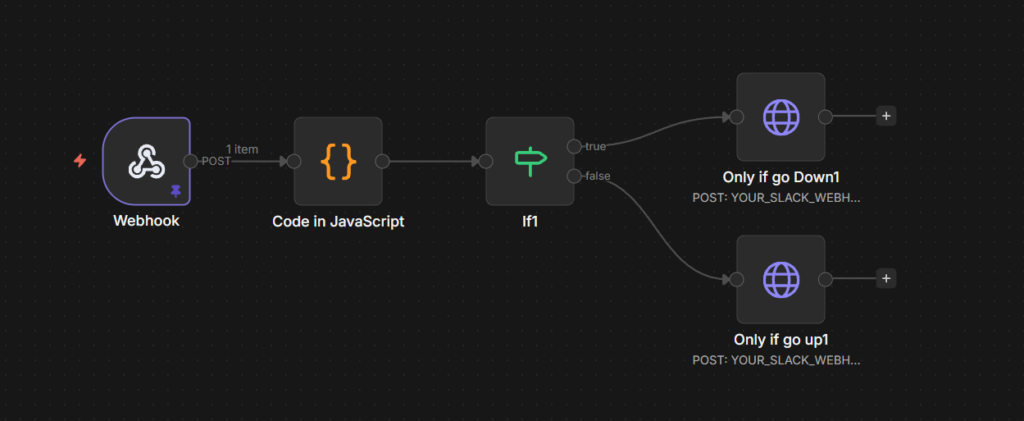
    This n8n workflow receives status-change webhooks from Uptime Kuma and posts formatted alerts directly to Slack. When a monitored service goes down, your team gets an immediate red alert with full context. When it recovers, they get a clear green recovery notice — all without any manual polling or additional SaaS dependencies.

    n8n workflow diagram showing Uptime Kuma webhook to Slack alert automation

    How It Works

    Uptime Kuma is a powerful, self-hosted monitoring tool that continuously checks the availability of your services — including websites, REST APIs, DNS records, TCP ports, and more. Whenever a monitored service changes state (from UP to DOWN, or from DOWN back to UP), Uptime Kuma fires a JSON payload to a configured webhook URL.

    This n8n workflow listens on that webhook endpoint around the clock. When a payload arrives, the workflow parses the raw data into clean, structured fields, determines whether the event represents a DOWN or UP transition, and sends a color-coded Slack message containing the service name, target host, timestamp, and a human-readable summary of the event.

    The end result is real-time Slack alerting for every service state change — with no manual polling, no missed incidents, and no third-party SaaS dependency beyond Slack itself. It’s a lightweight but highly effective addition to any self-hosted infrastructure monitoring stack.


    Workflow Flow

    The workflow follows a simple, reliable branching pattern:

    Webhook → Code (parse payload) → IF condition
                                        ├── True (DOWN)  → Slack: red alert
                                        └── False (UP)   → Slack: green recovery

    Node Reference

    1. Webhook (Trigger)

    This is the entry point of the workflow. It listens for incoming POST requests sent by Uptime Kuma whenever a monitor changes state.

    • Endpoint: POST /webhook/Anthemnetworkstatus
    • Expected payload: A JSON object containing body.heartbeat (status, ping, time, message) and body.monitor (name, hostname, URL, type).

    Configure this webhook URL in Uptime Kuma under the notification settings for each monitor you want to receive alerts for.


    2. Code (JavaScript — Payload Parser)

    This node takes the raw Uptime Kuma webhook payload and transforms it into clean, structured fields that downstream nodes can reliably consume.

    Input fields read:

    • body.heartbeat — contains status, ping, time, and msg
    • body.monitor — contains name, hostname, url, and type

    Output fields created:

    • isDown — boolean, set to true when heartbeat.status === 0 (Uptime Kuma uses 0 for DOWN and 1 for UP)
    • name — the monitor’s display name
    • hostnameOrURL — the monitor’s hostname or URL, whichever is available
    • time — the heartbeat timestamp, with a fallback to the current time if the field is missing
    • status — a human-friendly string: either "Down" or "Up"
    • msg — a human-readable summary of the state change event

    The original heartbeat and monitor objects are also passed through for reference or future use.


    3. IF (Condition — Route by Status)

    This node evaluates the isDown field and routes the execution into one of two branches:

    • True (service is DOWN) → routes to the DOWN alert node
    • False (service is UP) → routes to the UP recovery alert node

    The condition evaluates {{ $json.isDown }}.


    4. DOWN Alert (Slack — HTTP Request)

    This node fires whenever a monitored service goes down. It sends a POST request to a Slack Incoming Webhook URL with a red-themed alert message designed to grab immediate attention.

    • Header: 🚨 Service is DOWN
    • Color: #e01e5a (red)
    • Fields included: Service name, Status, Target (hostname or URL), Time
    • Details: The raw heartbeat message and the formatted msg summary

    5. UP Alert (Slack — HTTP Request)

    This node fires when a previously downed service recovers. It sends a POST request to the same Slack Incoming Webhook URL with a green-themed recovery message to confirm the service is healthy again.

    • Header: ✅ Service is UP
    • Color: #2eb886 (green)
    • Fields included: Service name, Status, Target (hostname or URL), Time
    • Details: The formatted msg summary

    Setup Notes

    • In Uptime Kuma, add a notification of type Webhook and point it to the n8n webhook URL shown above. Apply this notification to every monitor you want covered.
    • In n8n, update both Slack HTTP Request nodes with your actual Slack Incoming Webhook URL. You can use the same webhook URL for both DOWN and UP alerts, or route them to separate channels for better visibility.
    • Test the full workflow by temporarily pausing or toggling a monitor in Uptime Kuma. Confirm that both the DOWN and UP alerts appear correctly formatted in your Slack channel before relying on it in production.
  • Caddy Reverse Proxy for Mailu: Dual HTTPS Setup

    Goal

    Set up Caddy as the public-facing reverse proxy for a Dockerized Mailu mail server, with both services sharing the same Sectigo wildcard TLS certificate. The end result:

    • https://my.richardapplegate.io/webmail and /admin are accessible through Caddy on public port 443.
    • Mailu’s front container serves HTTPS internally on port 443 within the Docker network.
    • SMTP, IMAP, and POP3 ports (465, 993, 995, 587) use the same Sectigo wildcard certificate.
    • There are no port conflicts and no redirect loops.

    How It Works

    Running Caddy in front of Mailu introduces a dual-TLS architecture. Caddy terminates TLS for web traffic on public port 443 and then proxies requests to Mailu’s front container over an internal HTTPS connection. Mailu also needs its own copy of the certificate because its mail services (SMTP on port 465, IMAP on port 993, POP3 on port 995) terminate TLS directly — Caddy is not involved in mail protocol traffic.

    The key challenge is avoiding redirect loops. When Mailu is configured with TLS_FLAVOR=cert, its front container enforces HTTPS on all connections. If Caddy proxies to Mailu over plain HTTP (http://front:80), Mailu responds with a redirect to HTTPS, which Caddy forwards to the client, which sends the request back to Caddy, creating an infinite loop. The fix is to have Caddy proxy to https://front:443 instead, so Mailu sees an HTTPS connection and serves the content directly.

    Both Caddy and Mailu mount the same certificate files from a shared host path. This ensures that the certificate presented on port 443 (web) matches the certificate presented on ports 465, 993, and 995 (mail), which is important for clients that validate hostnames across protocols.


    Configuration

    1. Certificates on the Host

    You need two files from your Sectigo wildcard certificate: the full chain and the private key. Store them in a stable host path that both Caddy and Mailu can mount as read-only volumes:

    • /mnt/volumes/certs/fullchain.pem
    • /mnt/volumes/certs/privkey.pem

    Before proceeding, verify that the certificate and private key match by comparing their modulus hashes:

    openssl x509 -noout -modulus -in fullchain.pem | openssl md5
    openssl pkey -noout -modulus -in privkey.pem  | openssl md5

    Both commands should output the same MD5 hash. If they do not match, the certificate and key are from different pairs and TLS will fail.


    2. Caddy Docker Compose

    Caddy publishes the public HTTP and HTTPS ports and mounts the certificate directory as read-only:

    services:
      caddy:
        image: caddy:2
        restart: unless-stopped
        networks:
          - caddy
        ports:
          - "80:80"
          - "443:443/tcp"
          - "443:443/udp"
        volumes:
          - ./Caddyfile:/etc/caddy/Caddyfile:ro
          - ./data:/data
          - ./config:/config
          - /mnt/volumes/certs:/certs:ro
    networks:
      caddy:
        external: true

    The caddy network is defined as external so that other compose stacks (including Mailu) can join it.


    3. Mailu Environment Variables (mailu.env)

    These are the settings that must be correct for this setup to work:

    DOMAIN=richardapplegate.io
    HOSTNAMES=my,mail
    
    PORTS=25,465,587,993,995,4190
    
    TLS_FLAVOR=cert
    TLS_CERT_FILENAME=fullchain.pem
    TLS_KEYPAIR_FILENAME=privkey.pem
    
    WEB_ADMIN=/admin
    WEB_WEBMAIL=/webmail
    WEBSITE=https://my.richardapplegate.io

    Important notes:

    • DOMAIN is the apex domain (richardapplegate.io), not a subdomain.
    • HOSTNAMES contains labels only (my,mail) — do not include dots or the full domain.
    • TLS_FLAVOR must be cert (not certs — this is a common mistake).
    • Do not include ports 80 or 443 in the PORTS list. Caddy owns those ports publicly. Including them here will cause a port conflict.

    4. Mailu Docker Compose — Networking and Certificate Mounts

    4.1 Attach the front container to both networks

    Mailu’s front container needs to be on two networks: the internal Mailu network (so it can communicate with the SMTP, IMAP, and other backend containers) and the external Caddy network (so Caddy can reach it for reverse proxying):

    services:
      front:
        networks:
          - mailu
          - caddy

    4.2 Mount the certificates into the containers that need them

    At minimum, the front, smtp, and imap containers need the certificate files. The mount paths must match the filenames specified in TLS_CERT_FILENAME and TLS_KEYPAIR_FILENAME:

    services:
      front:
        volumes:
          - /mnt/volumes/certs/fullchain.pem:/certs/fullchain.pem:ro
          - /mnt/volumes/certs/privkey.pem:/certs/privkey.pem:ro
    
      smtp:
        volumes:
          - /mnt/volumes/certs/fullchain.pem:/certs/fullchain.pem:ro
          - /mnt/volumes/certs/privkey.pem:/certs/privkey.pem:ro
    
      imap:
        volumes:
          - /mnt/volumes/certs/fullchain.pem:/certs/fullchain.pem:ro
          - /mnt/volumes/certs/privkey.pem:/certs/privkey.pem:ro

    5. Caddyfile

    Caddy terminates TLS for incoming web traffic and proxies to Mailu’s front container over internal HTTPS. This is the critical part — proxying to https://front:443 instead of http://front:80 is what prevents redirect loops:

    my.richardapplegate.io {
      tls /certs/fullchain.pem /certs/privkey.pem
    
      # Optional: redirect the root path to webmail
      @root path /
      redir @root /webmail 302
    
      reverse_proxy https://front:443 {
        transport http {
          tls_server_name my.richardapplegate.io
          # Uncomment only if you encounter certificate chain issues:
          # tls_insecure_skip_verify
        }
    
        header_up Host {host}
        header_up X-Forwarded-Proto {scheme}
        header_up X-Forwarded-Host  {host}
        header_up X-Forwarded-For   {remote_host}
      }
    }

    Why proxy to HTTPS upstream? Because TLS_FLAVOR=cert tells Mailu’s front container to enforce HTTPS on all connections. If Caddy connects over plain HTTP, Mailu responds with a 301 redirect to HTTPS. The client follows the redirect back to Caddy, Caddy proxies over HTTP again, and the cycle repeats indefinitely. Connecting to https://front:443 avoids this entirely.


    6. Restart Order

    After making configuration changes, restart the services in this order. Mailu must come up first so that its front container is available when Caddy tries to proxy to it.

    6.1 Restart Mailu

    Use --force-recreate to ensure that environment variable and volume mount changes take effect:

    cd /mnt/volumes/SamsungSSD970EVOPlus2TB/mailu
    docker compose down
    docker compose up -d --force-recreate

    6.2 Reload Caddy

    Reload the Caddyfile without restarting the container:

    docker exec caddy caddy reload --config /etc/caddy/Caddyfile

    7. Verification Tests

    Run the following commands to confirm that every service is presenting the correct Sectigo wildcard certificate. All four tests should show CN=*.richardapplegate.io with a Sectigo issuer.

    7.1 Web certificate (public port 443 via Caddy)

    openssl s_client -connect my.richardapplegate.io:443 -servername my.richardapplegate.io </dev/null 2>/dev/null \
    | openssl x509 -noout -subject -issuer -dates

    7.2 Mailu front certificate (internal, from inside the Caddy container)

    docker exec caddy sh -lc \
    'openssl s_client -connect front:443 -servername my.richardapplegate.io </dev/null 2>/dev/null | openssl x509 -noout -subject -issuer -dates'

    7.3 SMTP TLS certificate (port 465)

    openssl s_client -connect my.richardapplegate.io:465 -servername my.richardapplegate.io </dev/null 2>/dev/null \
    | openssl x509 -noout -subject -issuer -dates

    7.4 IMAP TLS certificate (port 993)

    openssl s_client -connect my.richardapplegate.io:993 -servername my.richardapplegate.io </dev/null 2>/dev/null \
    | openssl x509 -noout -subject -issuer -dates

    All four commands should return the same certificate with CN=*.richardapplegate.io and a Sectigo issuer. If any test shows a different certificate or a self-signed certificate, check that the correct files are mounted into the corresponding container.

Secret Link