Tag: Final

  • Install Inkscape AppImage on Ubuntu: Step-by-Step

    If you want to install Inkscape on Ubuntu using an AppImage, this step-by-step guide covers everything you need — from installing the required FUSE dependency to creating a fully integrated desktop shortcut that appears in your application menu with the official Inkscape icon. Whether you are running Ubuntu 22.04, 23.10, or 24.04, these instructions will get you up and running quickly.

    The AppImage approach is especially useful when you need a version of Inkscape that is newer than what is available in the Ubuntu package repository, or when you prefer a self-contained installation that does not interfere with your system’s package state. It also makes it easy to run multiple versions of Inkscape side by side.


    Prerequisites

    • Download the Inkscape AppImage from the official Inkscape releases page. Choose the AppImage format for Linux from the latest stable release. The downloaded file will have a name similar to Inkscape-1.x.x.AppImage.
    • libfuse2 must be installed on your system. AppImages use FUSE (Filesystem in Userspace) to mount their contents at runtime. Ubuntu 22.04 and later ship with FUSE 3 by default, but most AppImages — including Inkscape’s — still require the older FUSE 2 library. Step 1 covers this installation in full.

    Step 1: Install the Required FUSE Dependency

    Open a terminal and run the following commands. The first command enables the Ubuntu Universe repository, which is where libfuse2 is hosted on Ubuntu 22.04 and later:

    sudo add-apt-repository universe
    sudo apt update
    sudo apt install libfuse2

    If libfuse2 is already installed, the last command will simply report that it is already at the newest version — no further action is needed. If you skip this step and attempt to run the AppImage directly, it will exit immediately with an error similar to dlopen(): error loading libfuse.so.2. Installing this dependency resolves that error entirely.


    Step 2: Extract the Inkscape AppImage

    Navigate to the directory where you downloaded the AppImage — typically your Downloads folder — and run the following commands. Replace Inkscape-xxx.AppImage with the exact filename of the file you downloaded:

    cd ~/Downloads
    chmod +x Inkscape-xxx.AppImage
    ./Inkscape-xxx.AppImage --appimage-extract

    The chmod +x command marks the file as executable, which is required before it can be run as a program. The --appimage-extract flag instructs the AppImage to unpack all of its contents into a new directory named squashfs-root in the current working directory, rather than launching Inkscape directly. This extraction approach eliminates any runtime dependency on FUSE, since Inkscape will be launched directly from the extracted files rather than being mounted on demand.


    Step 3: Move the Extracted Files to a System Directory

    Move the extracted squashfs-root directory to /opt/inkscape, which is the conventional location on Linux systems for self-contained, third-party application installations:

    sudo mv squashfs-root /opt/inkscape

    Placing the application in /opt makes it available to all users on the system, keeps it cleanly separated from both system packages (managed by apt under /usr) and personal user files (under ~), and ensures the path remains predictable for the desktop entry you will create in the next step. If you prefer a user-local installation, you can move the directory to ~/.local/opt/inkscape instead and adjust the paths in the desktop entry accordingly.


    Step 4: Create a Desktop Entry File

    A .desktop file is a standardized configuration file that tells GNOME and other Linux desktop environments how to display and launch an application in the application menu. Without this file, your desktop has no way of knowing that Inkscape is installed, so it will not appear in search results or the application launcher.

    Create the file in your home directory:

    nano ~/inkscape.desktop

    Paste the following content exactly as shown:

    [Desktop Entry]
    Name=Inkscape
    Type=Application
    Categories=Graphics;
    MimeType=image/svg+xml;
    Exec=/opt/inkscape/AppRun %F
    Icon=/opt/inkscape/inkscape.svg
    Terminal=false
    StartupNotify=true

    Here is what each field does:

    • Exec=/opt/inkscape/AppRun %F — Runs the AppRun entry point from the extracted files. The %F argument passes any files dragged onto the application icon or opened via the file manager directly to Inkscape as command-line arguments, enabling double-click-to-open for SVG files.
    • Icon=/opt/inkscape/inkscape.svg — Uses the official Inkscape SVG icon bundled inside the AppImage. Your desktop environment will render it at whatever resolution is required, ensuring a crisp icon at any display scale.
    • MimeType=image/svg+xml; — Registers Inkscape as a handler for SVG files, so the system can offer it as an option when you right-click an SVG file and choose “Open With”.
    • Terminal=false — Prevents the desktop from opening a terminal window when launching Inkscape.
    • StartupNotify=true — Tells the desktop environment to display a loading indicator while Inkscape is starting up.

    Save the file in nano by pressing Ctrl+O, then Enter to confirm the filename, and Ctrl+X to exit the editor.


    Step 5: Install the Desktop Entry

    Install the desktop file into the system-wide application registry so that all users on the system can see and launch Inkscape from their application menu:

    sudo desktop-file-install ~/inkscape.desktop

    The desktop-file-install command validates the desktop file format, copies it to /usr/share/applications/, and updates the desktop database automatically. If you see a minor validation warning about a missing optional field, it can generally be ignored as long as the command completes without a hard error.

    If you chose a user-local installation in Step 3, install the desktop file to your local applications directory instead:

    cp ~/inkscape.desktop ~/.local/share/applications/
    update-desktop-database ~/.local/share/applications/

    Launching Inkscape

    Inkscape is now fully installed and integrated with your Ubuntu desktop. You can launch it in any of the following ways:

    • Application menu — Open your application launcher and search for “Inkscape”. It will appear with the official icon under the Graphics category.
    • File manager — Double-click any SVG file. The system will offer Inkscape as an available application thanks to the MimeType registration in the desktop entry.
    • Terminal — Run /opt/inkscape/AppRun directly if you prefer to launch from the command line or need to pass additional arguments to Inkscape.

    If Inkscape does not appear in the application menu immediately after installation, log out and log back in, or run sudo update-desktop-database to force a refresh of the application registry. This is a common one-time issue on GNOME and resolves itself after the desktop re-indexes its application list.


  • Create Local Account in Windows 11 Setup

    Setting up a new Windows 11 PC almost always requires signing in with a Microsoft account during the out-of-box experience (OOBE). While a Microsoft account offers genuine benefits — syncing settings, files, and preferences across devices — many users have perfectly valid reasons to prefer a local account: privacy concerns, shared family devices, enterprise environments, or simply a preference for a self-contained setup without a mandatory internet dependency.

    Fortunately, a straightforward workaround bypasses the Microsoft account requirement during the initial Windows 11 setup process using a single registry entry and a reboot. This guide walks you through every step clearly, so you understand exactly what is happening and why before you make any changes.

    ⚠️ Important: This guide is intended for use on devices you own or are authorized to configure. The registry edit described below is a well-documented and widely used method, but any modification to the Windows registry should be performed carefully and only when you understand what it does. This guide explains every command so you can make an informed decision before proceeding.


    Step 1: Begin the Windows 11 Setup Process

    Power on your new PC or begin a fresh Windows 11 installation. Work through the initial setup screens as normal:

    • Select your region and preferred keyboard layout.
    • If prompted to connect to a Wi-Fi network, you may skip this step if your device allows it — though Windows 11 Home will often insist on a network connection before displaying the Microsoft account sign-in screen.

    Continue until you reach the screen asking you to sign in with a Microsoft account. This is the point at which you will pause and open a Command Prompt using the method described in Step 2. Do not attempt to sign in or dismiss this screen — leave it open and proceed to the next step.


    Step 2: Open a Command Prompt During Setup

    Windows makes a Command Prompt accessible during the OOBE setup process using a built-in keyboard shortcut. This is an intentional feature provided by Microsoft for setup and recovery purposes — it is not a hack or an exploit.

    1. Press Shift + F10 on your keyboard. On laptops where function keys require the Fn key to activate, press Shift + Fn + F10 instead.
    2. A black Command Prompt window will appear on top of the setup screen. If nothing happens after a few seconds, try the alternative key combination. On most desktop keyboards and the majority of laptop keyboards, Shift + F10 alone is sufficient.

    Step 3: Apply the Registry Bypass and Restart

    In the Command Prompt window, type the following three commands. You can enter them one at a time, pressing Enter after each line, or paste all three at once if your keyboard and setup environment support pasting:

    @echo off
    reg add HKLM\SOFTWARE\Microsoft\Windows\CurrentVersion\OOBE /v BypassNRO /t REG_DWORD /d 1 /f
    shutdown /r /t 0

    Here is exactly what each line does:

    • @echo off — Suppresses command echoing in the terminal output, keeping the display clean. This line is optional but included for clarity.
    • reg add HKLM\SOFTWARE\Microsoft\Windows\CurrentVersion\OOBE /v BypassNRO /t REG_DWORD /d 1 /f — Adds a registry value named BypassNRO (where NRO stands for “Network Requirement OOBE”) under the Windows OOBE configuration key. Setting this value to 1 instructs the Windows 11 setup process to offer a “limited setup” path that does not require a Microsoft account or an active internet connection. The /f flag applies the change without prompting for confirmation.
    • shutdown /r /t 0 — Restarts the computer immediately (/t 0 means a zero-second delay). The restart is necessary because the registry change must be read by the setup process on its next initialization — it cannot take effect without a reboot.

    After pressing Enter on the final command, your PC will restart automatically within a second or two. This is completely expected behavior — do not be alarmed.


    Step 4: Create a Local Account

    After the reboot, Windows 11 setup will resume from the beginning of the OOBE flow. Work through the region and keyboard layout screens again as before. When you reach the network and account setup screens, you will now see a new option at the bottom of the screen: “I don’t have internet” or “Continue with limited setup” — the exact wording varies slightly between Windows 11 versions and update builds.

    Select this option to continue without a Microsoft account. Windows will then present the local account creation screens:

    1. Enter your preferred username for the local account. This is the name that will appear on the login screen and in File Explorer.
    2. Set a password for the account. This step is technically optional — you can leave it blank if the device is strictly for personal use and you do not need login protection — but setting a strong password is strongly recommended for any shared or portable device.
    3. If a password is set, Windows will prompt you to select and answer three security questions. These are used for local account password recovery if you forget your credentials, so choose answers you will reliably remember.

    Complete the remaining setup screens — privacy settings, diagnostic data options, and any optional features — and Windows will finish configuring your desktop. You will be signed in to a fully functional Windows 11 local account with no Microsoft account required.


    After Setup: What You Gain and What You Give Up

    Understanding the practical trade-offs of a local account before completing setup will help you decide whether this approach is right for your situation. Neither option is universally better — it depends entirely on how you use your PC.

    What You Gain with a Local Account

    • Your account and login credentials exist entirely on the device — no Microsoft servers are involved in authentication.
    • Settings, browsing history, and files are not automatically synced to or from the cloud without your explicit action.
    • The account functions fully offline with no dependency on internet connectivity.
    • No Microsoft account password is required to log in, which can simplify access on devices shared among multiple family members.

    What You Give Up with a Local Account

    • Automatic settings sync across Windows devices — including wallpaper, accessibility preferences, and saved Wi-Fi passwords — is not available.
    • Microsoft Store app purchases and downloads require signing into a Microsoft account within the Store app separately.
    • OneDrive automatic backup and sync requires a separate sign-in as well.
    • Windows Hello face recognition and certain biometric features may have reduced functionality depending on your specific device hardware.

    Importantly, none of the above Microsoft account features are permanently lost. You can connect a Microsoft account at any time after setup by navigating to Settings → Accounts → Your info and signing in — choosing a local account during setup does not lock you out of these features indefinitely.

    Conclusion

    The requirement to sign in with a Microsoft account during Windows 11 setup is a default behavior, not a hard limitation of the operating system. The BypassNRO registry method documented here is a legitimate, well-established technique that restores the local account creation option that was standard in earlier versions of Windows — without complications or third-party tools required.

    Whether your motivation is privacy, simplicity, offline use, or a specific deployment scenario, a local account is a fully supported configuration in Windows 11. It simply takes a few extra steps to reach during the initial setup process — and now you know exactly how to get there.

  • Managing 5 Cats in Your Garage: Budget-Friendly Care Tips

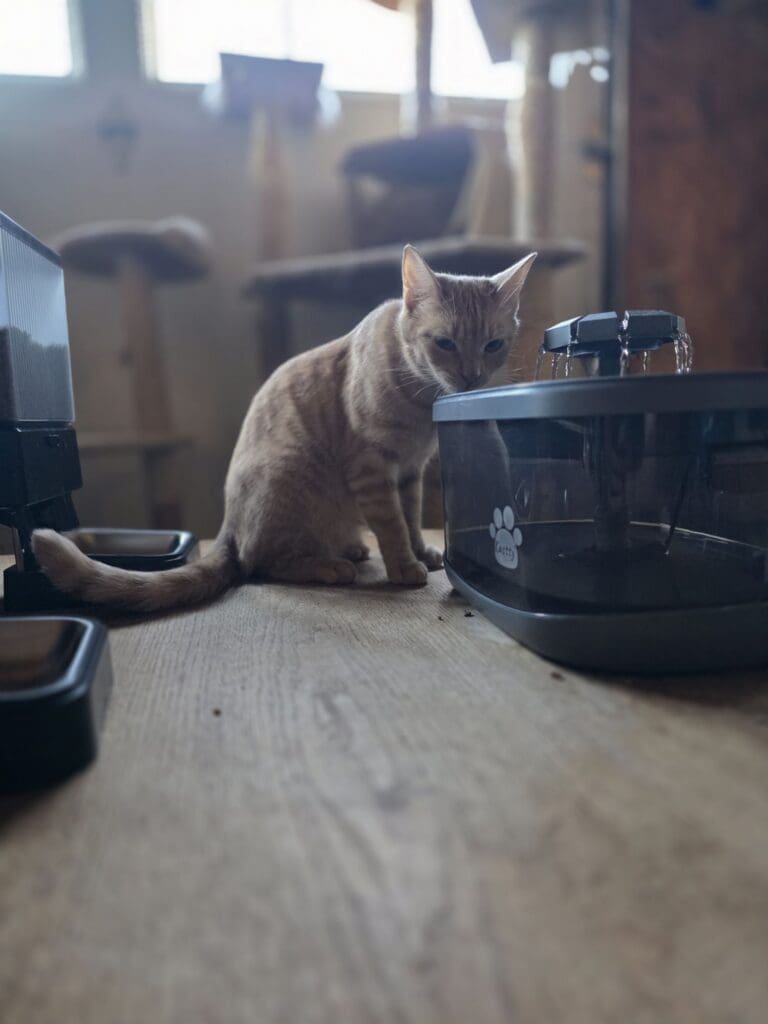
    Can you believe it? It’s been almost a year and a half since my cats moved in with Mom, and they’ve made themselves completely at home in the garage — complete with cozy napping spots, plenty of toys, and fresh food and water always within reach. They’ve truly settled in like they own the place. Once we finally bring all five cats into the main house, though, it’s going to be absolute, beautiful chaos. I can already picture tufts of fur drifting across every inch of the hardwood floors and tumbling down the stairs like tiny furry tumbleweeds!

    Let’s be real — cat life isn’t cheap. Between quality cat food, treats, scratching posts, cat toys, and veterinary care, the monthly expenses add up faster than you’d think. Mom has been an absolute lifesaver throughout this whole journey, pitching in with litter and surprising the cats with new toys every now and then. Caring for five cats truly takes a village, and I honestly couldn’t do any of it without her love and support. 🙏🙌❤️

    Scroll through the photos below for a peek at our adorable crew in action — fair warning: cuteness overload ahead!

  • Force Restart iPad & Enter Recovery Mode: iTunes/Finder

    How to Force Restart Your iPad (Hard Reset)

    A force restart is the quickest way to resolve common iPad problems — including a frozen screen, an unresponsive app, or sluggish performance — without erasing any of your data. It should always be your first step before attempting recovery mode. Most minor software glitches are fixed this way in under a minute.

    For iPads Without a Home Button (Face ID Models — iPad Pro and iPad Air 2020 and Later)

    1. Press and quickly release the Volume Up button.
    2. Press and quickly release the Volume Down button.
    3. Press and hold the Top button until the Apple logo appears, then release. The screen will go black briefly before the logo shows — this is completely normal.

    For iPads With a Home Button (iPad, iPad mini, and Older iPad Pro Models)

    1. Press and hold the Home button and the Top (or Side) button at the same time.
    2. Keep holding both buttons until the Apple logo appears, then release.

    Your iPad will restart normally. If the problem persists after a force restart, recovery mode is the next step — follow the instructions below.


    How to Recover Your iPad Using iTunes or Finder (Recovery Mode)

    Recovery mode is the go-to solution when a force restart does not fix the issue, or when your iPad is stuck on the Apple logo, showing a “connect to iTunes” screen, or refusing to turn on altogether. Using iTunes (on Windows or older Macs) or Finder (on macOS Catalina and later), recovery mode gives you two choices: reinstall iPadOS while keeping your data intact, or completely erase and restore the device to factory settings.

    Step 1: Open iTunes or Finder on Your Computer

    • On Windows or older Mac (macOS Mojave and earlier): Open iTunes. Make sure it is updated to the latest version before proceeding — an outdated version of iTunes may fail to recognise your iPad correctly, causing errors during recovery.
    • On Mac (macOS Catalina and later): Open Finder. iTunes is no longer available on these systems; Finder handles all device management, including iPad recovery, in its place.

    Step 2: Put Your iPad into Recovery Mode

    Connect your iPad to your computer using a Lightning or USB-C cable, then follow the button sequence for your specific model:

    • Face ID iPads (iPad Pro and iPad Air 2020 and later): Quickly press and release Volume Up, then quickly press and release Volume Down, then press and hold the Top button. Keep holding it even after the screen goes black — continue until the recovery mode screen appears (a cable and laptop icon on a dark background).
    • Home Button iPads: Press and hold both the Home button and the Top (or Side) button simultaneously. Keep holding both buttons until the recovery mode screen appears. If the Apple logo appears instead, you held the buttons too long — release and try again.

    Once recovery mode is active, iTunes or Finder will automatically detect your iPad and display a prompt with the option to Update or Restore.

    Step 3: Choose Update or Restore

    When the prompt appears in iTunes or Finder, you have two options:

    • Update — Reinstalls the latest version of iPadOS without erasing your data. Always try this option first. The process typically takes 10–15 minutes and requires an active internet connection to download the software package.
    • Restore — Completely erases your iPad and installs a clean copy of iPadOS. Use this option only if Update fails, or if you want to start completely fresh.

    ⚠️ Important: Choosing Restore will permanently erase all data on your iPad — including apps, photos, and settings. This cannot be undone. Only proceed with Restore if you have a current backup saved in iCloud or iTunes, or if you are prepared to lose the data on the device.

    Step 4: Set Up Your iPad After Recovery

    Once the Update or Restore process completes, your iPad will restart and display the initial setup screen. Follow the on-screen instructions to select your language, connect to Wi-Fi, and sign in with your Apple ID.

    If you performed a Restore and have a backup available, you will be offered the option to restore from an iCloud backup or from a local backup stored in iTunes or Finder. Select your most recent backup to recover your apps, settings, and personal data.


    Helpful Tips

    • Keep your iPad connected throughout the entire process. Disconnecting the cable during an Update or Restore can corrupt the installation and may require you to start the recovery process over from the beginning.
    • Ensure your computer has a stable internet connection. iTunes and Finder must download the full iPadOS software package during recovery, which can be several gigabytes. A dropped connection mid-download will cause the process to fail.
    • If recovery mode exits before you finish, your iPad may have timed out waiting for a response. Simply repeat the button sequence for your model to re-enter recovery mode and try again.
    • Back up regularly to protect your data. The simplest way to back up your iPad is to connect to Wi-Fi and go to Settings → [your name] → iCloud → iCloud Backup → Back Up Now. Getting into this habit before any troubleshooting gives you a reliable safety net if a full Restore becomes necessary.

    If you need help creating a backup, are unsure which iPad model you have, or run into an error during the recovery process, feel free to reach out — we are happy to walk you through it step by step.

  • Deploy Nextcloud with Cloudron in 30 Minutes

    Want to break free from Google Drive and Dropbox without drowning in server administration? This step-by-step guide walks you through deploying Nextcloud using Cloudron — a powerful server management platform that handles TLS certificates, automatic updates, and backups on your behalf, making self-hosted cloud storage genuinely practical to maintain long-term. By the end, you will have a fully operational, privately hosted Nextcloud instance running at your own domain, completely under your control.


    Step 1: Prepare Your Server

    Cloudron requires a clean Linux server with a public IP address. Start with a fresh installation rather than an existing server that already has Apache, Nginx, or another web server running — port conflicts will prevent Cloudron from installing correctly and are difficult to diagnose after the fact.

    • Recommended OS: Ubuntu 22.04 LTS. Cloudron officially supports this version, and it is the most thoroughly tested configuration.
    • Minimum hardware requirements:
      • 2 GB RAM (4 GB recommended if you plan to run multiple apps alongside Nextcloud)
      • 20 GB disk space for the OS and Cloudron itself — add significantly more depending on how much file storage you need in Nextcloud
      • Root SSH access to the server
    • Open ports: Ensure ports 80 (HTTP), 443 (HTTPS), and 22 (SSH) are accessible through your server’s firewall or cloud security group. Cloudron uses port 80 for Let’s Encrypt certificate validation and port 443 for all encrypted web traffic.

    Tip: Popular VPS providers such as Hetzner, DigitalOcean, and Vultr all offer Ubuntu 22.04 images that work well with Cloudron out of the box.


    Step 2: Set DNS Records

    Cloudron requires a dedicated subdomain for its own management interface, and your self-hosted Nextcloud instance will need its own subdomain as well. Configure these at your DNS provider before running the installer — Cloudron will attempt to issue TLS certificates during installation, and that process requires DNS to already be resolving correctly.

    • Log in to your DNS provider and navigate to the DNS management section for your domain.
    • Add an A record for the Cloudron management interface pointing to your server’s public IP address. A common convention is my.example.com, but you can use any subdomain you prefer.
    • You can also add a second A record for your intended Nextcloud subdomain now (e.g., nextcloud.example.com) pointing to the same IP, or add it later in Step 5 when you install Nextcloud.

    DNS propagation can take anywhere from a few minutes to several hours depending on your provider. Verify that your records are resolving correctly by running dig my.example.com from a terminal or using an online DNS lookup tool before proceeding to the next step.


    Step 3: Install Cloudron

    Connect to your server via SSH as root or a user with sudo privileges, then run the following commands to download and execute the Cloudron installer:

    wget https://cloudron.io/cloudron-setup
    chmod +x ./cloudron-setup
    ./cloudron-setup

    The installer will prompt you for your domain name (the subdomain you created in Step 2, such as my.example.com). It will then automatically install Docker, configure the system, and request a TLS certificate from Let’s Encrypt. The entire process typically takes five to ten minutes. Do not close your SSH session while it is running.

    When the installer finishes, it will display your Cloudron admin URL. Open it in a browser to proceed to the initial setup wizard.


    Step 4: Configure Cloudron

    Open your Cloudron admin URL in a browser. You will be guided through the initial configuration wizard with the following key steps:

    1. Create your admin account. Use a strong, unique password — this account has full control over every app running on your server, so treat it like the keys to your house.
    2. Configure email settings (SMTP). Cloudron uses email to send app notifications, user invitations, and backup alerts. You can use a transactional email service such as Mailgun, SendGrid, or Amazon SES, or configure any SMTP server you have access to. Skipping this step means you will not receive critical system alerts, so it is strongly worth completing now.
    3. Review the Backups tab and configure a backup destination — either a local path or an S3-compatible storage bucket. Cloudron supports fully automated, scheduled backups of all installed apps, including their data and configuration files.

    Step 5: Install Nextcloud via Cloudron

    With Cloudron configured, installing your self-hosted Nextcloud instance takes only a few clicks — no manual Docker commands or database configuration required:

    1. Log into the Cloudron dashboard and click App Store in the navigation menu.
    2. Search for “Nextcloud” and select it from the results.
    3. Click Install. You will be prompted to enter the subdomain where Nextcloud should be hosted (e.g., nextcloud.example.com). Make sure this subdomain already has an A record pointing to your server, as described in Step 2.
    4. Cloudron will pull the Nextcloud container image, configure the database, set up the subdomain, and issue a TLS certificate automatically. Installation typically completes within two to three minutes.

    Step 6: Access and Configure Nextcloud

    Once installation is complete, navigate to your Nextcloud URL (e.g., https://nextcloud.example.com) and log in using the admin credentials that Cloudron generated during installation. You can find these credentials in the Cloudron dashboard under the Nextcloud app entry.

    From the Nextcloud admin panel, work through the following settings to get your private cloud storage instance ready for everyday use:

    • Add users — navigate to the user management section to create accounts for anyone who will be using this Nextcloud instance. You can assign individual storage quotas per user to keep disk usage under control.
    • Configure sharing settings — under Administration → Sharing, set your preferred defaults for public link sharing, password requirements, and link expiry dates.
    • Install Nextcloud apps — the built-in Nextcloud App Store (accessible from the admin menu) offers integrations for calendars (CalDAV), contacts (CardDAV), document collaboration (Nextcloud Office), two-factor authentication, end-to-end encryption, and much more. Install only what you need to keep the instance lean and easy to maintain.
    • Connect desktop and mobile clients — download the Nextcloud desktop sync client for Windows, macOS, or Linux, or the mobile app for iOS and Android. Point them to your Nextcloud URL and log in with your credentials to begin syncing files across all your devices immediately.

    Step 7: Ongoing Maintenance and Backups

    One of the biggest advantages of deploying Nextcloud through Cloudron is that routine maintenance is largely handled for you — no late-night server babysitting required. Here is what runs automatically:

    • Automatic updates — Cloudron monitors for new Nextcloud releases and can apply updates automatically or notify you when one is available, depending on your update policy setting in the dashboard. Updates are applied cleanly to the container without any manual intervention or SSH commands.
    • TLS certificate renewal — Let’s Encrypt certificates are renewed automatically by Cloudron well before they expire. No cron jobs, certbot commands, or manual renewal steps are required.
    • Automated backups — if you configured a backup destination in Step 4, Cloudron will back up your entire Nextcloud instance — including all files, the database, and app configuration — on the schedule you defined. Periodically verify that backups are completing successfully by checking the Backups tab in the Cloudron dashboard.
    • Monitoring — the Cloudron dashboard displays real-time status, resource usage, and last backup time for each installed app. Review it occasionally to catch any issues before they escalate into problems.

    Your self-hosted Nextcloud instance is ready. You now have a privately hosted, TLS-secured file storage and collaboration platform that is straightforward to maintain, automatically backed up, and accessible from any device using the official Nextcloud desktop and mobile clients. Your files stay on your server — not on someone else’s.

  • Install Cloudron & WordPress: Complete Setup Guide

    This guide walks you through deploying a self-hosted WordPress site using Cloudron — a powerful server management platform that handles TLS certificates, automatic updates, and backups, so you can focus on building your site rather than maintaining infrastructure. By the end, you will have a fully operational WordPress installation running at your own domain, with automatic SSL certificate management, automated backups, and a clean, maintainable server setup that scales with your needs.


    Step 1: Prepare Your Server

    Start with a fresh, clean server — do not use an existing machine that already has Apache, Nginx, or another web server installed. Port conflicts will prevent Cloudron from configuring correctly and may cause the installation to fail entirely.

    • Operating system: Ubuntu 22.04 LTS. This is the version Cloudron officially supports and most thoroughly tests against — other distributions are not recommended.
    • RAM: 2 GB minimum. 4 GB or more is strongly recommended if you plan to run additional apps alongside WordPress, or if you expect moderate to high traffic volumes.
    • Disk space: 20 GB minimum for the operating system and Cloudron itself. Budget additional space based on your expected media uploads, plugin files, theme assets, and database growth over time.
    • Access: Root or sudo SSH access to the server is required throughout the installation process.
    • Open ports: Ensure ports 80 (HTTP), 443 (HTTPS), and 22 (SSH) are reachable through your server’s firewall or cloud provider security group. Port 80 is specifically required for Let’s Encrypt certificate validation during installation — without it, the installer will not be able to provision your TLS certificate.

    Step 2: Domain and DNS Setup

    Cloudron requires a dedicated subdomain for its management interface, and your WordPress site will need its own subdomain as well. It is essential to configure DNS before running the installer — Cloudron will attempt to issue a TLS certificate during installation, and that process requires your domain to already be resolving to your server’s public IP address.

    • Log into your DNS provider and navigate to the DNS management section for your domain.
    • Create an A record for the Cloudron management interface pointing to your server’s public IP address. A common convention is my.yourdomain.com, though any subdomain you prefer will work.
    • Optionally, create a second A record now for your WordPress subdomain (e.g., www.yourdomain.com or blog.yourdomain.com) pointing to the same IP address. You can also add this record later in Step 5 when you install WordPress — just ensure it is in place before that step.

    DNS propagation can take anywhere from a few minutes to several hours depending on your provider and TTL settings. Verify your records are resolving correctly before proceeding by running dig my.yourdomain.com in a terminal, or use an online DNS lookup tool such as dnschecker.org. The installer will fail to issue a TLS certificate if DNS has not yet propagated to your server’s IP.


    Step 3: Install Cloudron

    Connect to your server via SSH and run the following three commands to download and execute the Cloudron installer:

    wget https://cloudron.io/cloudron-setup
    chmod +x ./cloudron-setup
    ./cloudron-setup

    The installer will prompt you for your Cloudron domain (the subdomain you created in Step 2). It will then automatically install Docker, configure the system, and request a TLS certificate from Let’s Encrypt on your behalf. The full installation process takes approximately 10–15 minutes. Do not close or interrupt your SSH session while it is running — doing so may leave the installation in an incomplete state.

    When the installer completes successfully, it will display your Cloudron admin URL. Open that URL in a browser to proceed to the initial configuration wizard.


    Step 4: Initial Cloudron Configuration

    Open your Cloudron admin URL (e.g., https://my.yourdomain.com) in a browser and work through the setup wizard:

    1. Create your admin account. Use a strong, unique password — this account has full administrative control over every app running on your server, so treat it accordingly.
    2. Configure SMTP email. Cloudron uses outbound email to send system notifications, backup alerts, and user invitations. You can connect a transactional email provider such as Mailgun, SendGrid, or Amazon SES, or any SMTP server you have access to. Cloudron offers an automatic setup option for several supported providers. Do not skip this step — without SMTP configured, you will receive no system alerts and may miss critical warnings about failed backups or certificate issues.
    3. Configure backup storage. Navigate to the Backups tab and set a destination — either a local path on the server or an S3-compatible cloud storage bucket. Automated backups will not run until a valid destination is configured, so complete this before you have any data worth protecting.

    Step 5: Install WordPress via Cloudron App Store

    With Cloudron fully configured, installing WordPress takes only a few clicks through the built-in app store:

    1. Log into the Cloudron dashboard and click App Store in the navigation menu.
    2. Search for “WordPress Developer” and select it from the results. This is Cloudron’s officially maintained WordPress package, which includes WP-CLI and additional developer tooling alongside the standard WordPress installation — making it ideal for both production sites and development environments.
    3. Click Install. You will be prompted to enter the subdomain where your WordPress site should be hosted (e.g., www.yourdomain.com). Confirm that this subdomain already has a DNS A record pointing to your server, as outlined in Step 2.
    4. Cloudron will pull the WordPress container image, configure a dedicated database, set up the subdomain routing, and automatically provision a TLS certificate. The entire installation process typically completes within two to three minutes.

    Step 6: Access and Configure Your WordPress Site

    Once installation is complete, navigate to your WordPress URL in a browser and log in using the admin credentials that Cloudron generated during installation. You can always retrieve these credentials from the Cloudron dashboard by clicking on the WordPress app entry and viewing its configuration details.

    From the WordPress admin dashboard, work through the following initial configuration steps to get your site ready:

    • Set your site title and tagline under Settings → General. While there, confirm that both the WordPress Address and Site Address fields display your full domain with https:// — this ensures all internal links and assets are served securely.
    • Configure permalinks under Settings → Permalinks. Select your preferred URL structure (Post name is generally recommended for SEO) and click Save Changes to flush the rewrite rules. Skipping this step can cause 404 errors on post and page URLs.
    • Install a theme under Appearance → Themes. The default WordPress theme is functional, but choosing a theme suited to your site type will give you a much stronger starting point for design and layout.
    • Install essential WordPress plugins as needed. Common starting points for a well-rounded setup include a caching plugin for performance (such as W3 Total Cache or WP Super Cache), an SEO plugin (such as Yoast SEO or Rank Math), a security plugin, and a contact form plugin. Install only what you genuinely need — keeping the plugin count lean improves both performance and security.
    • Create additional users under Users → Add New if other people will be contributing to or managing the site. Always assign the minimum role necessary for each user’s responsibilities — avoid assigning the Administrator role unless it is truly required.

    Step 7: Ongoing Maintenance and Backups

    One of the most compelling advantages of running a self-hosted WordPress site through Cloudron is that the most time-consuming maintenance tasks are handled for you automatically:

    • Automatic updates — Cloudron monitors for new versions of the WordPress Developer package and can apply updates automatically or notify you when one is available, depending on your configured update policy. Updates are applied cleanly to the container without any manual intervention or risk of partial upgrades.
    • TLS certificate renewal — Let’s Encrypt SSL certificates are renewed automatically by Cloudron before they expire. No cron jobs, manual renewal commands, or Certbot configuration is required on your part.
    • Automated backups — if you configured a backup destination in Step 4, Cloudron automatically backs up your entire WordPress instance — including all files, the database, uploaded media, and app configuration — on the schedule you defined. Periodically verify that backups are completing successfully by reviewing the Backups tab in your Cloudron dashboard. A backup that silently fails provides no protection at all.
    • Resource monitoring — the Cloudron dashboard displays real-time CPU usage, RAM consumption, and disk usage for each installed app. Review these metrics occasionally to identify resource trends and catch potential issues before they begin to affect site performance or availability.

    Your self-hosted WordPress site is live and ready. You now have a secure, TLS-protected WordPress installation that is straightforward to maintain, automatically backed up, and entirely under your control — without the ongoing burden of managing raw server infrastructure by hand. Whether you are launching a personal blog, a business site, or a WordPress development environment, Cloudron gives you a reliable, production-ready foundation from day one.

  • Deploy 50 D3 Pro POS Terminals: Complete Setup

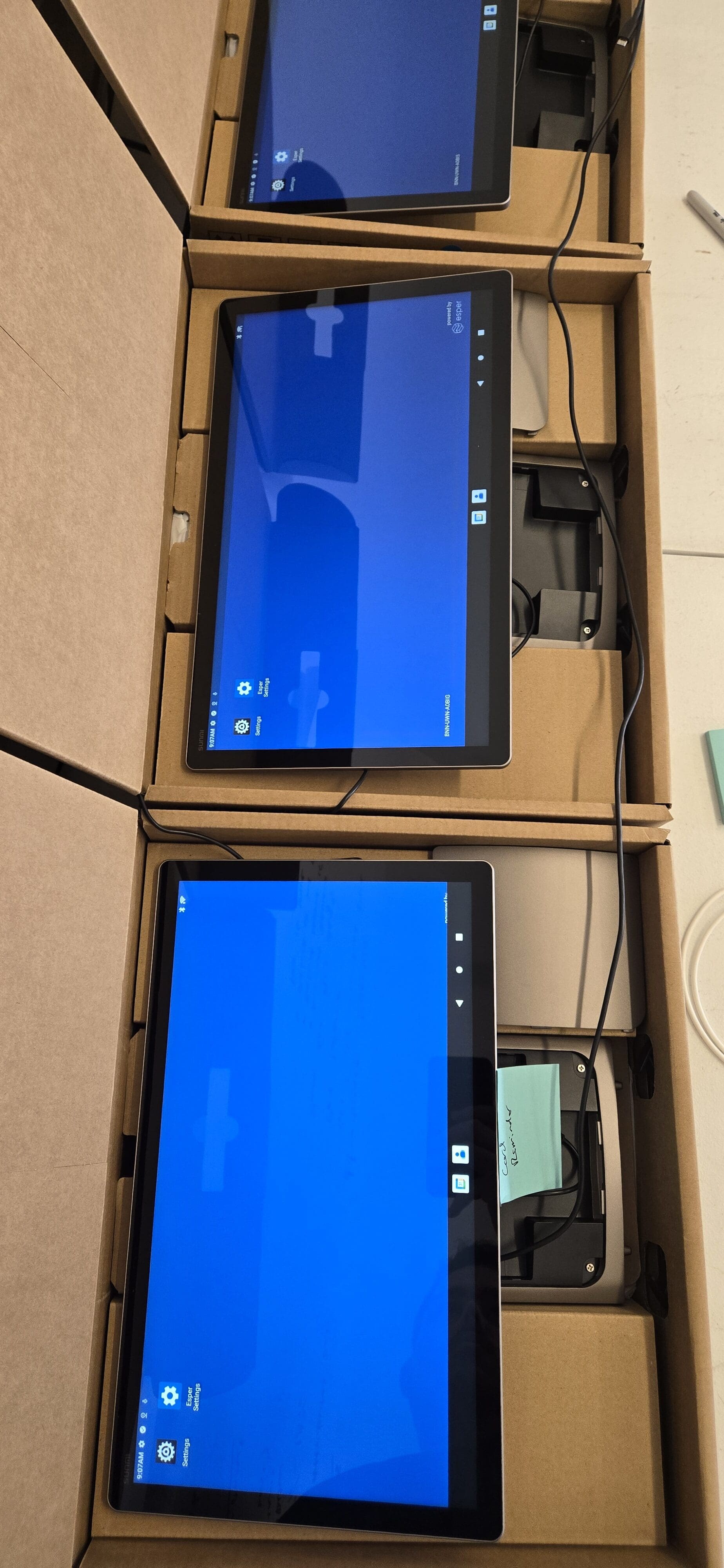
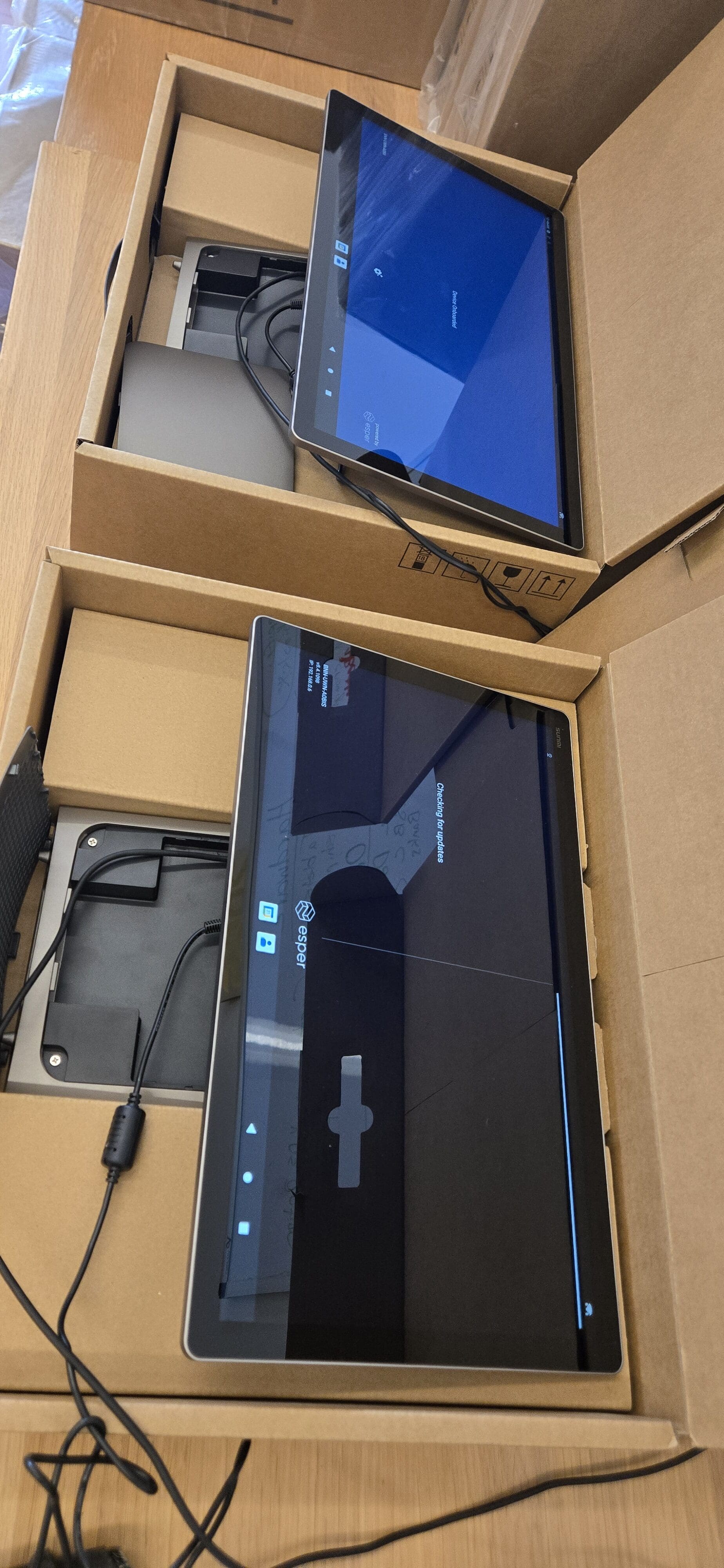
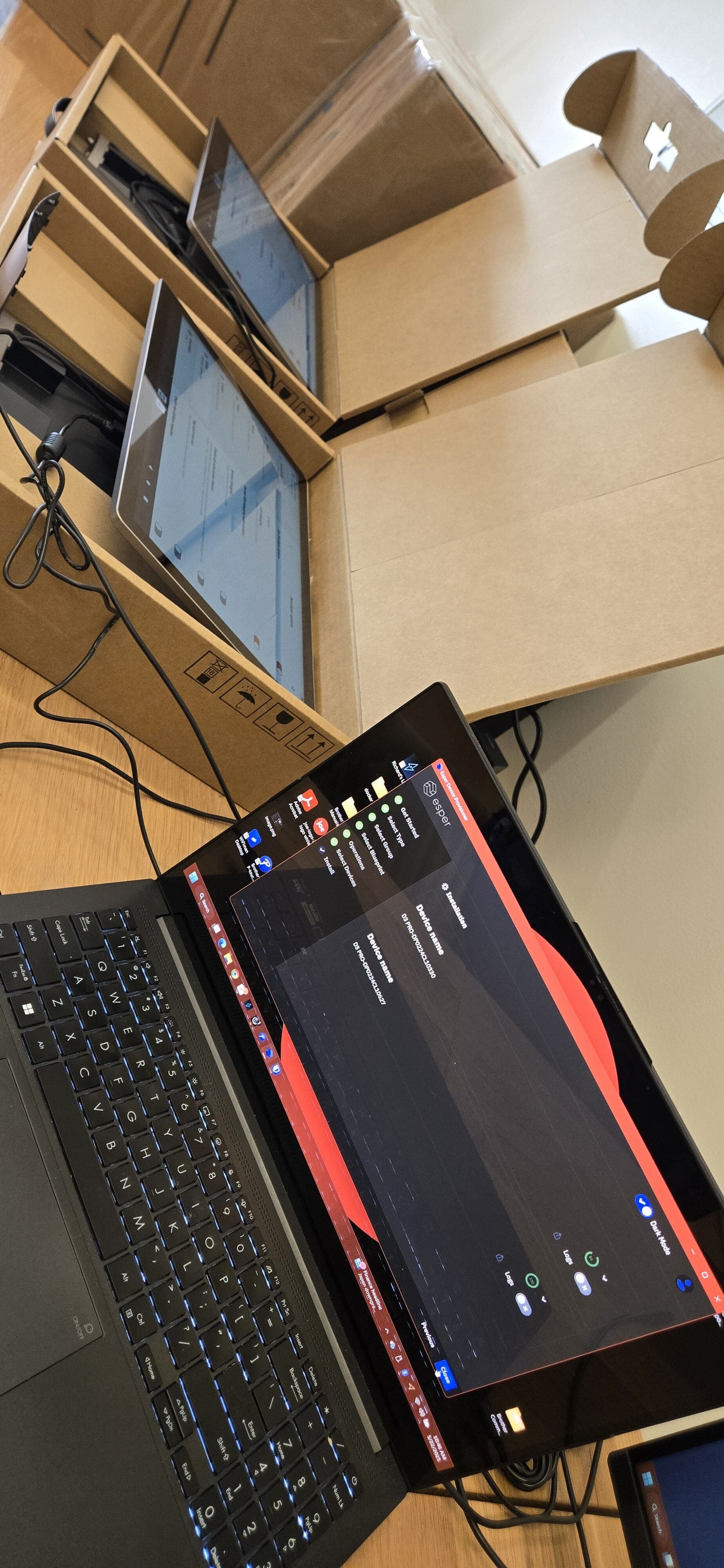
    Deploying 50 brand-new D3 Pro Point of Sale (POS) terminals in a single day is one of those projects that blends physical hustle with methodical technical execution. From hauling hardware out of storage to provisioning each device with Esper MDM and Joe Coffee OS, every step matters when you want a smooth, scalable rollout. Here’s a complete behind-the-scenes look at exactly how we took 50 POS terminals from boxes to battle-ready — before a single sale was ever processed.


    Step 1: The Big Move — Getting 50 D3 Pro Terminals to the Staging Area

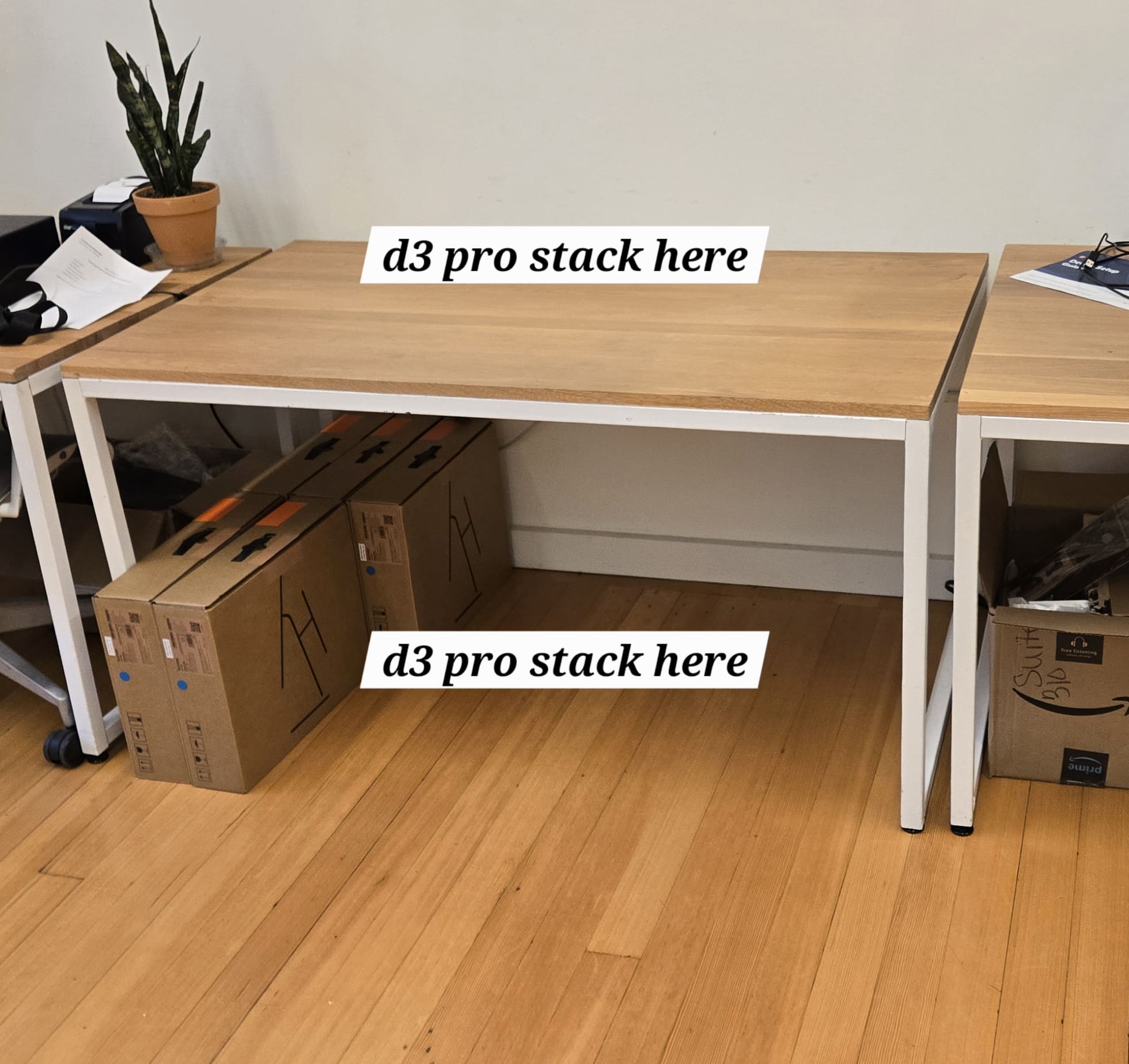
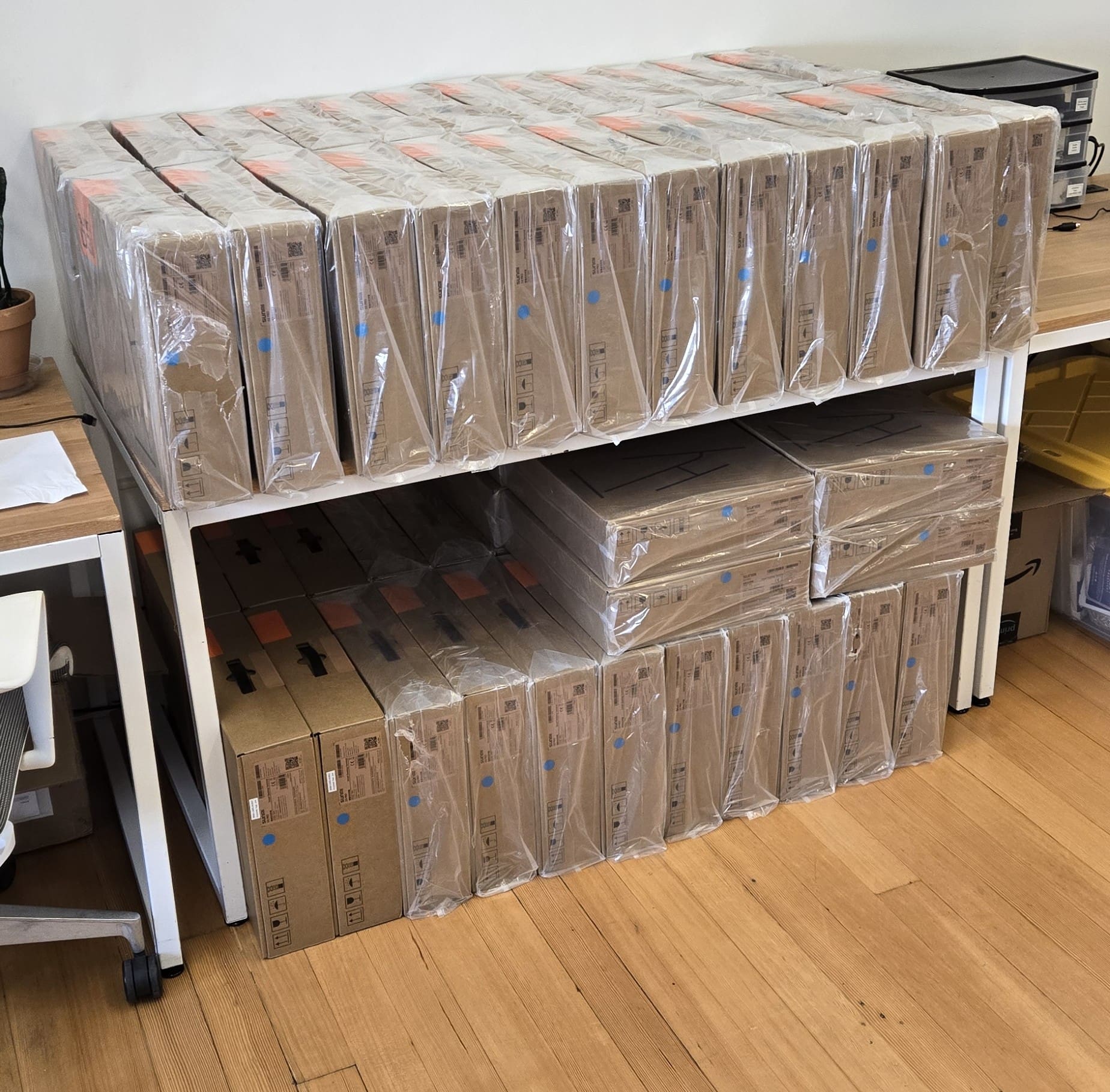
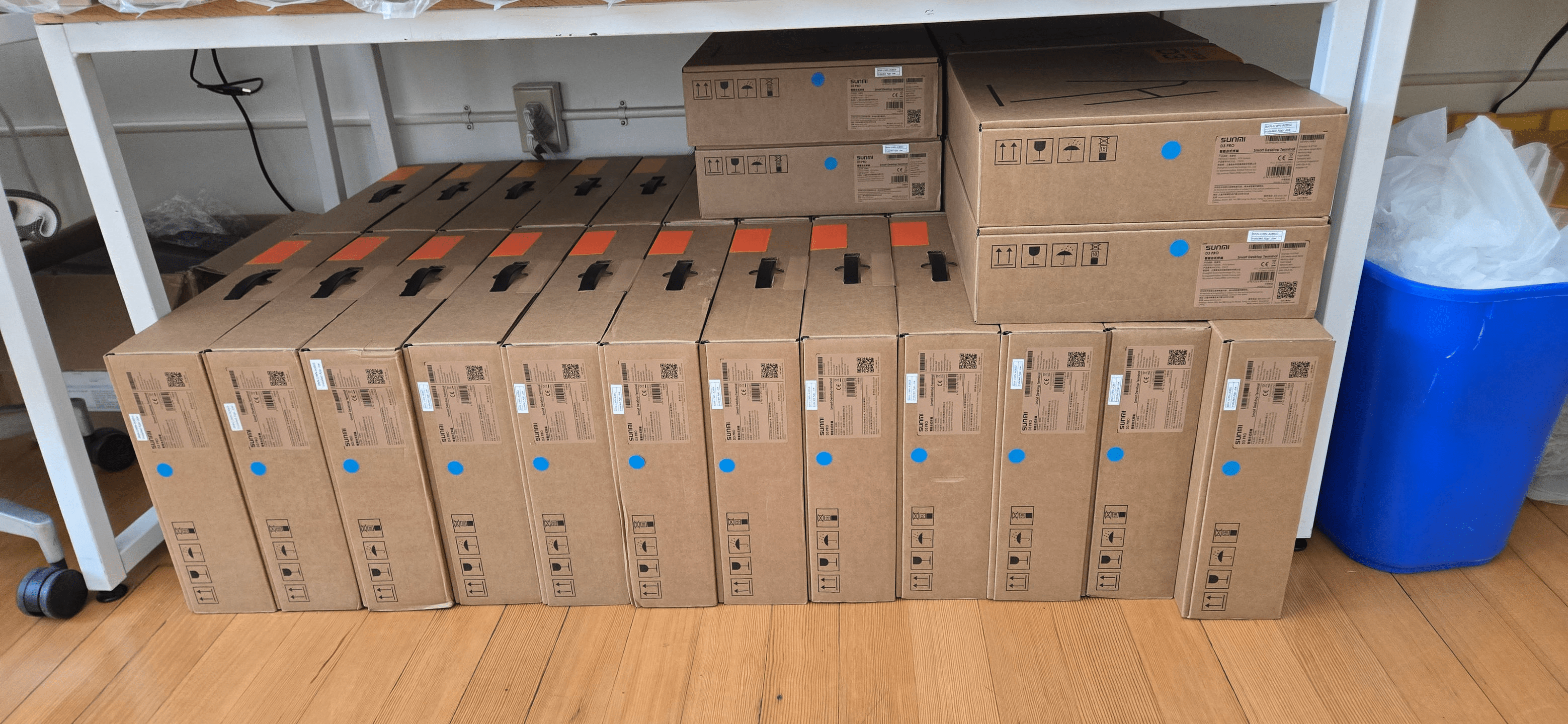
    Before any configuration could begin, all 50 D3 Pro POS machines had to move from downstairs storage up to the staging floor. Loading 12 D3 Pro boxes at a time onto a cart and using the elevator kept the process efficient and manageable. Here’s how the logistics broke down:

    • Load 12 D3 Pro terminals onto the transport cart.
    • Roll the cart into the elevator and ride up to the staging floor.
    • Unload and arrange boxes to keep the workspace organized.
    • Return downstairs and repeat until all 50 units were staged.

    Several trips and a respectable step count later, every unit was upstairs. When deploying hardware at scale, even the logistics of moving equipment deserve a deliberate plan.


    Step 2: Break Down the Packaging and Clear the Workspace

    With all 50 machines upstairs, the next task was tackling the inevitable mountain of packaging — cardboard boxes, foam inserts, and wooden crating material. Breaking it all down, hauling it out, and clearing the staging area consumed a solid chunk of time on its own. If large-scale IT deployments teach you one thing quickly, it is this: tech jobs are not always glamorous. Sometimes they are heavy lifting, recycling runs, and careful workspace management. Keeping the staging area clean and organized, however, pays real dividends once the configuration phase begins — fewer mix-ups, faster throughput, and a much lower chance of any device getting lost in the chaos.


    Step 3: Configuring Each D3 Pro POS Terminal

    With 50 terminals lined up and the workspace clear, it was time to get each device fully configured and ready for deployment. Here’s the exact setup workflow used for every unit:

    • Connect and power up: Plugged in each D3 Pro and confirmed it booted correctly before proceeding. Catching hardware defects out of the box — before investing time in provisioning — saves significant effort downstream.
    • Provision with Esper MDM: Enrolled each terminal into Esper, our mobile device management (MDM) platform, for centralized remote management. With Esper in place from day one, every D3 Pro can be monitored, updated, locked down, or troubleshot remotely — no need to physically track down individual devices later. For a fleet of 50 POS terminals, remote management is not a luxury; it is a necessity.
    • Install Joe Coffee OS: Deployed Joe Coffee OS as the POS platform on each device. Joe Coffee OS is purpose-built for coffee shop point-of-sale operations, providing the menu management, order flow, and payment processing functionality our locations depend on daily.
    • Label each device: Printed and applied a unique identifier label to every D3 Pro. Clear, consistent physical labeling is what makes a 50-device fleet manageable long-term — especially when matching a terminal to an inventory record, a support ticket, or a specific store location.
    • Log everything in inventory: Recorded each device’s serial number, label ID, and assigned configuration in the inventory system before moving on to the next unit. With 50 units in the field, accurate records from day one are what separate smooth remote management from a logistical nightmare six months later.

    Why This POS Deployment Workflow Matters

    It is worth stepping back to explain why each of these steps exists. Deploying POS hardware at scale is not just about getting devices turned on — it is about building a foundation that makes the entire fleet easy to support, update, and manage over its lifetime. Esper MDM handles the remote management layer, ensuring a technician never needs to roll to a location just to push a software update or resolve a configuration issue. Joe Coffee OS delivers a consistent, optimized experience across every terminal. And disciplined labeling and inventory logging mean that when something does go wrong — and eventually something always does — the team can respond quickly and accurately.


    Conclusion

    Moving and fully deploying 50 D3 Pro POS terminals in a single day is no small undertaking — it is equal parts physical logistics and careful technical execution, with a healthy dose of patience required throughout. But walking out at the end of the day knowing every device is powered on, labeled, provisioned with Esper MDM and Joe Coffee OS, and accurately logged in inventory is a genuinely satisfying result.

    If you have ever wondered what a real-world POS system deployment actually looks like behind the scenes, now you have a clear picture: deliberate logistics, repetitive but critical configuration steps, and the quiet confidence that comes from knowing 50 terminals are ready the moment they hit the floor. These behind-the-scenes deployment days are what keep everything running smoothly at scale — and honestly, they are some of my favorites.

  • Linux System Administrator: 5 Essential Lessons

    From Wide-Eyed Beginner to Confident Administrator

    Five years ago I stood wide-eyed and anxious in front of a humming server rack, watching status lights blink on and off and quietly wondering whether I actually knew what I was doing. Fast-forward to today, and I find myself reflecting on a journey packed with late-night alerts, frantic troubleshooting sessions, hard-won victories, and more than a few high-pressure moments keeping cyber threats at bay. Managing Linux servers for our business has never been just a job — it has been an education, a challenge, and one of the most rewarding adventures of my career.

    More Than Hardware

    A server rack is not just cables and blinking machines — it is a snapshot of what keeps an entire business running. Every service, every transaction, and every piece of critical data flows through this quiet, humming backbone. There is something genuinely satisfying about being the person responsible for ensuring none of that ever stops. Five years into Linux server administration, that feeling has not worn off one bit.

    Linux Administration Is Far More Than Typing Commands

    People often assume Linux system administration is simply a matter of typing cryptic commands into a black terminal window. In reality, it is far more involved. It is about understanding how every layer fits together — hardware, operating system, software, users, and data — and keeping all of it running in harmony. It means staying one step ahead of problems, patching vulnerabilities before they become incidents, and ensuring systems remain secure, stable, and reliable no matter what gets thrown at them.

    Disciplines like performance tuning, capacity planning, and backup strategy are just as important as knowing your way around the command line. The terminal is simply the tool. The real work is the critical thinking behind every command you execute.

    Cybersecurity: A Never-Ending Chess Match

    The toughest part — and perhaps the most intellectually exciting — has always been cybersecurity. Attackers do not take days off, and there is always someone probing for a new angle, searching for the slightest crack in your defenses. Every blocked intrusion attempt and every neutralized threat feels like a win, but more importantly, every new attack vector forces you to learn something you did not know before.

    It truly is a continuous chess match: you adapt your Linux server security posture, they probe a new approach, and you adapt again. After five years, I still find that dynamic genuinely engaging rather than exhausting — which tells me I am absolutely in the right field.

    From Reactive Firefighting to Proactive Infrastructure

    One of the professional shifts I am most proud of over these five years is moving from a purely reactive posture to a genuinely proactive one. Early on, the role was largely about putting out fires. Now, it is about building a foundation solid enough that fires become rare.

    • Overhauled monitoring and alerting pipelines for faster incident detection
    • Hardened server configurations against common attack surfaces
    • Implemented robust patch management workflows to close vulnerabilities before exploitation
    • Automated routine tasks that previously consumed hours every week

    The result is a resilient infrastructure our business can scale on confidently — and a team that spends far less time reacting and far more time innovating and improving.

    What Five Years Really Taught Me

    At its core, being a Linux system administrator is not really about servers or code. It is about trust, reliability, and being an essential part of something that depends on you showing up and getting it right, every single day. I am deeply grateful for everything the last five years have taught me, and genuinely excited to see what the next five bring.


    Filed under: Linux • Server Administration • Linux SysAdmin • Cybersecurity • IT Life • Tech

  • 7 Years at Anthem Coffee: Barback to Leader

    Seven years ago, I walked into Anthem Coffee and Tea for the first time as an employee — and my life hasn’t been the same since. The aroma of freshly ground beans, the steady hum of espresso machines, the electric buzz of a room full of regulars and newcomers alike: it became my world. In some ways those seven years feel like a blink, but when I look back, I see a journey absolutely packed with growth, connection, and a whole lot of heart.

    It all started as a Barback — a role that dropped me straight into the heart of the customer experience from day one. And honestly? It was an absolute blast. Getting to meet so many friendly faces every shift, keeping the tables clean and inviting, washing dishes, tackling the bathrooms — every task, no matter how small, contributed to the lively, welcoming atmosphere that makes Anthem Coffee and Tea what it is. Those early days gave me a deep appreciation for how much invisible, behind-the-scenes work goes into creating a space where people genuinely want to linger. I made some great memories, and I built a foundation I still stand on today.

    From there, I transitioned into my current roles in IT and maintenance repair — a fascinating blend of troubleshooting software glitches, keeping commercial espresso machines running smoothly, and making sure everything stays operational behind the scenes. It is a completely different world from clearing tables, but the core mission is exactly the same: make sure things just work so that every barista, manager, and guest can do what they came to do without a hitch. I am genuinely proud of the technical skills I have built in both areas, and the hands-on experience has proven invaluable in ways I never anticipated when I first started.

    Here is something I want anyone reading this to understand: Anthem Coffee and Tea is not just a job — it is a family. The atmosphere here is unlike anything I have experienced in any other workplace: spirited, loud, vibrant, and genuinely supportive all at once. We celebrate wins big and small, we show up for each other when things get hard, and we give each other the freedom to be completely, unapologetically ourselves. You can crack a joke mid-rush and know without a single doubt that you are part of something truly special. That culture does not happen by accident; it is built every single day by the people who choose to show up with that kind of energy.

    I have always placed a high value on continuous learning and personal growth, and Anthem has given me far more opportunities to do both than I ever could have anticipated. On a personal note, I am currently focused on paying down debt — a goal I am steadily working through — and once that milestone is behind me, I am looking forward to returning to school and finally finishing that English class I have had on my to-do list for a while now. Every goal feels more achievable when you are surrounded by people who genuinely root for you.

    But if I am being completely honest, what I am most proud of after seven years are the relationships. The camaraderie, the shared experiences, the laughter, the late shifts, the genuine care we have for one another — that is the real reward. That is what transforms a workplace into a family. I am deeply grateful for every single year, every lesson, and every person who has been part of this chapter. And I am genuinely excited for whatever comes next. If you have never experienced the warmth and energy of Anthem Coffee and Tea for yourself, come on in — I promise you will not be disappointed.

  • Barback to IT Manager: Unconventional Path to Tech Leadership

    When I look back on my career, I am amazed at how each role — even the ones that seemed completely unrelated to where I am now — helped shape who I am today. My path started far from servers and networks, in the fast-paced world of hospitality.

    Starting Out: Teamwork Behind the Bar

    In 2017, I got my start as a barback. I worked behind the bar restocking supplies, washing glasses, and helping bartenders serve guests quickly and efficiently. It was more than just keeping things running, though. That role taught me how critical teamwork really is, how much small details matter, and how to stay composed when things get hectic — skills I still use every single day.

    Into the Kitchen: Learning to Multitask

    After a year, I moved into the kitchen as a front-line cook. The job covered everything from preparing meals and managing inventory to maintaining food safety standards under pressure. The kitchen has a way of teaching you to juggle multiple priorities at once without dropping any of them — and to keep the quality high even during the busiest dinner rush. That discipline has followed me ever since.

    On the Road: Meeting Customers Face-to-Face

    Next came a stint as a delivery driver — a role that turned out to be more valuable than it might sound. Interacting with customers directly, handling unexpected situations on the fly, and delivering a good experience no matter the circumstances built my communication skills and my patience in ways that classroom training never could. Seeing a happy customer at the door at the end of a run never got old.

    Taking the Leap: Discovering IT

    Driven by genuine curiosity, I took on an unpaid IT internship. Short as it was, it turned out to be a turning point. I helped solve technical problems, supported staff with day-to-day issues, and got my first real look at what managing IT systems actually involves. That experience sparked something — a passion for technology that has only grown since — and it opened doors I did not even know existed at the time.

    Stepping Up: Leading in IT

    Since 2018, I have served as IT and Network Manager and Linux Server Administrator at my company. The role covers a wide range: overseeing network security, coordinating software updates, managing vendor relationships, and making sure technology runs smoothly for everyone who depends on it. I also lead projects and train staff, which has pushed me to grow as both a leader and a problem-solver in ways I did not anticipate when I started.

    Expanding My Role: Managing Multiple Locations

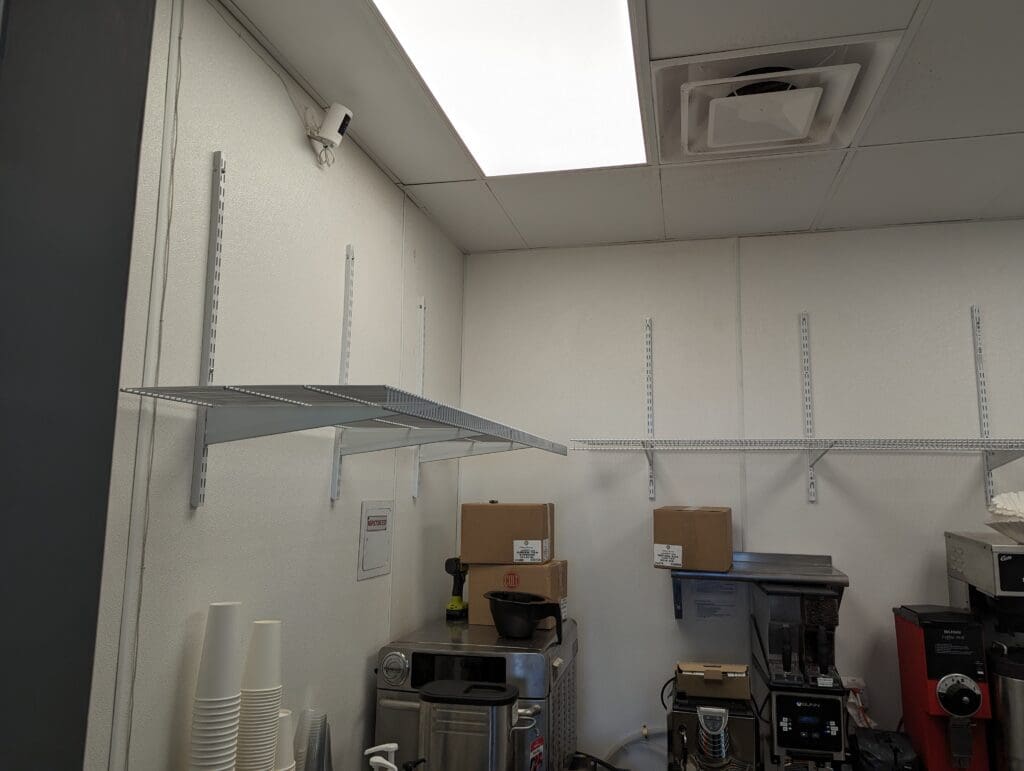
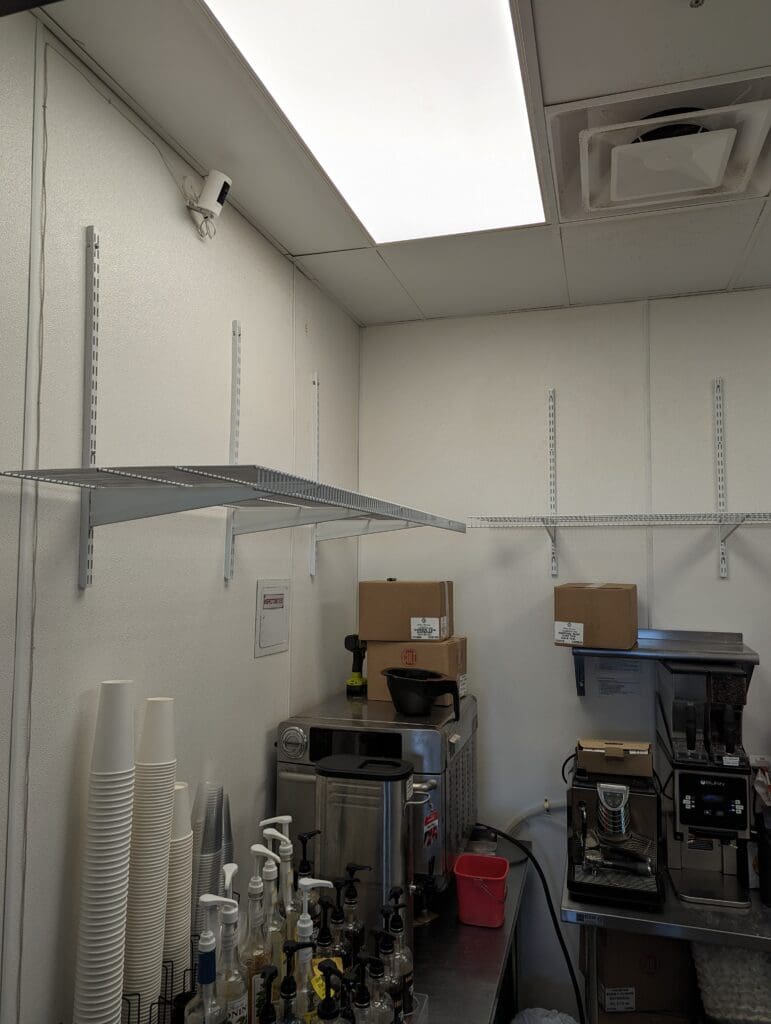
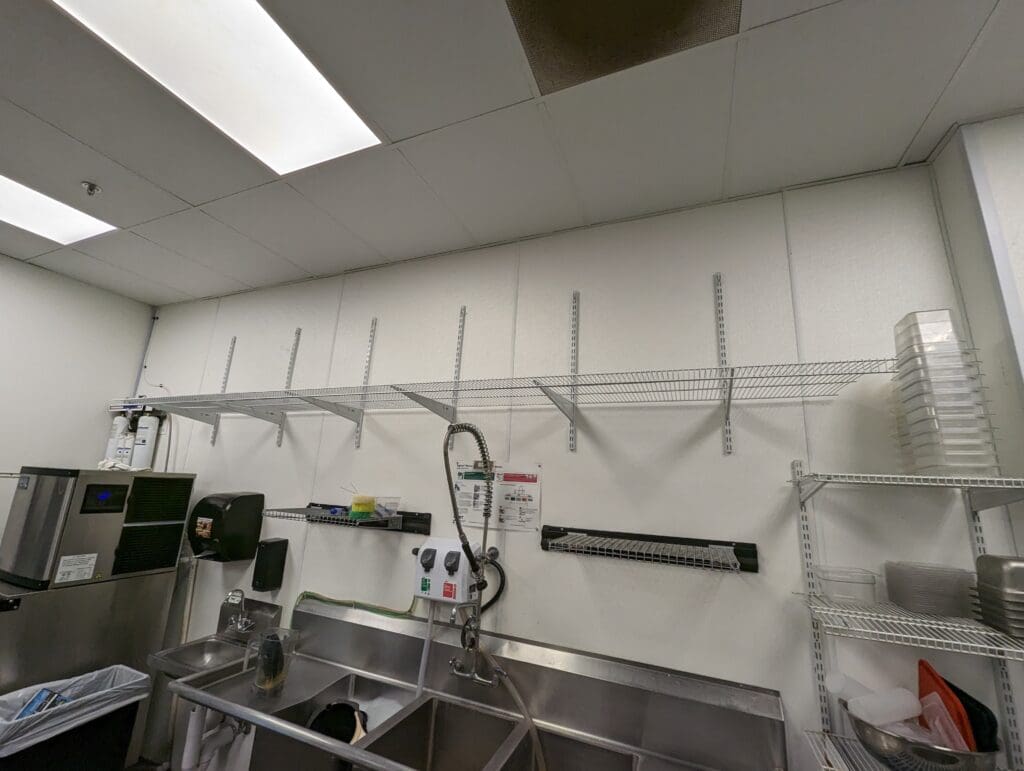
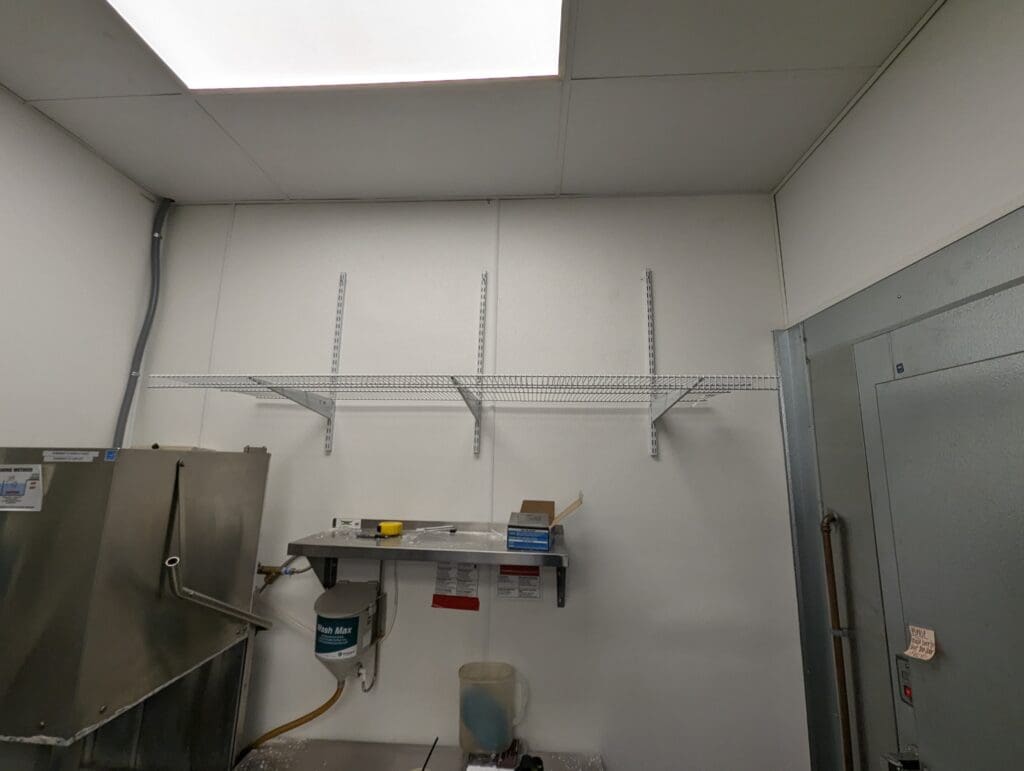
    More recently, I took on oversight of maintenance across six Anthem Coffee locations in Washington. The work spans equipment troubleshooting, facilities upkeep, and making sure each location stays fully operational day to day. Balancing this alongside my IT responsibilities has sharpened my organizational skills and my ability to adapt quickly — and I am genuinely proud of what that combined role has become.

    Looking Back — and Looking Ahead

    My career has never followed a straight line, but every step taught me something I carry forward. Adaptability, curiosity, and a genuine love of learning have been the constants throughout. Whether I was washing glasses, plating food, or securing a network, each experience added something real to who I am professionally.

    I am grateful for a career built on growth and discovery. Looking ahead, I am excited to keep learning, keep improving, and keep contributing — wherever the path leads next.


    Curious about my journey or want to connect? I am always happy to share stories or help however I can.


    Video of My Work

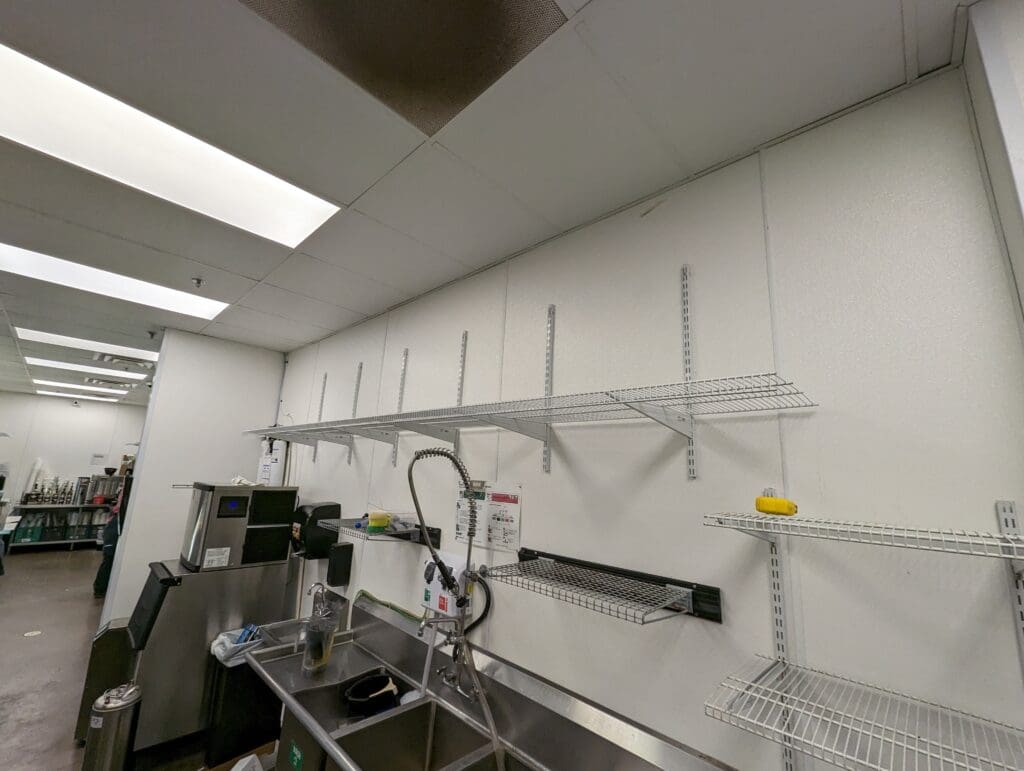
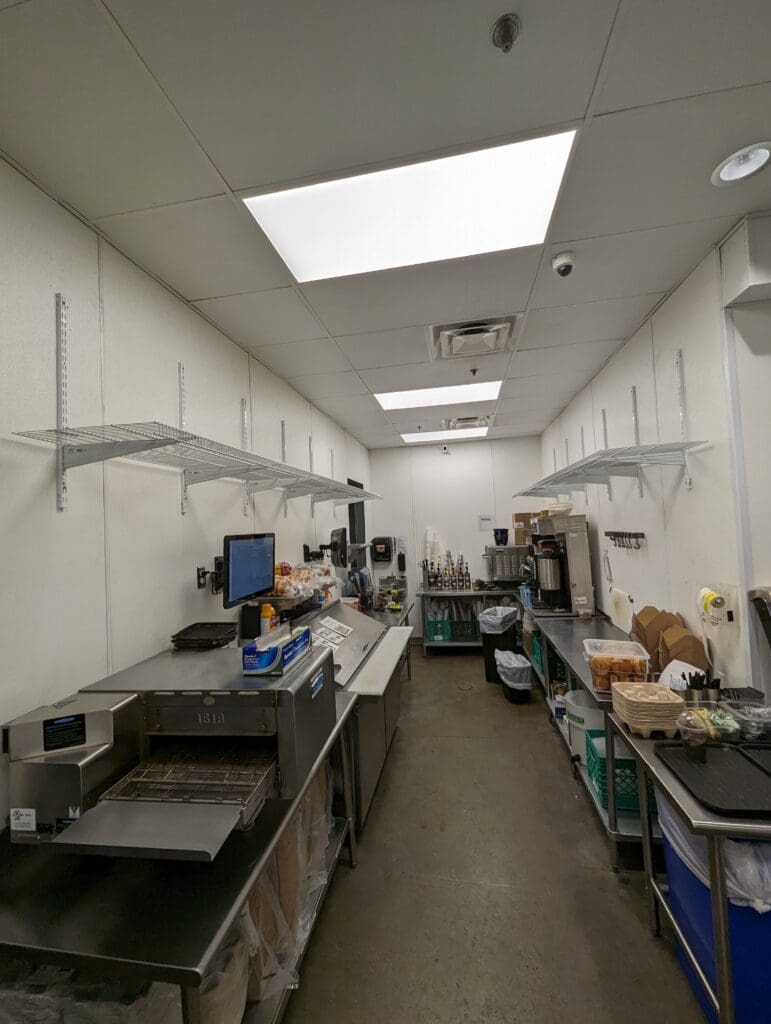
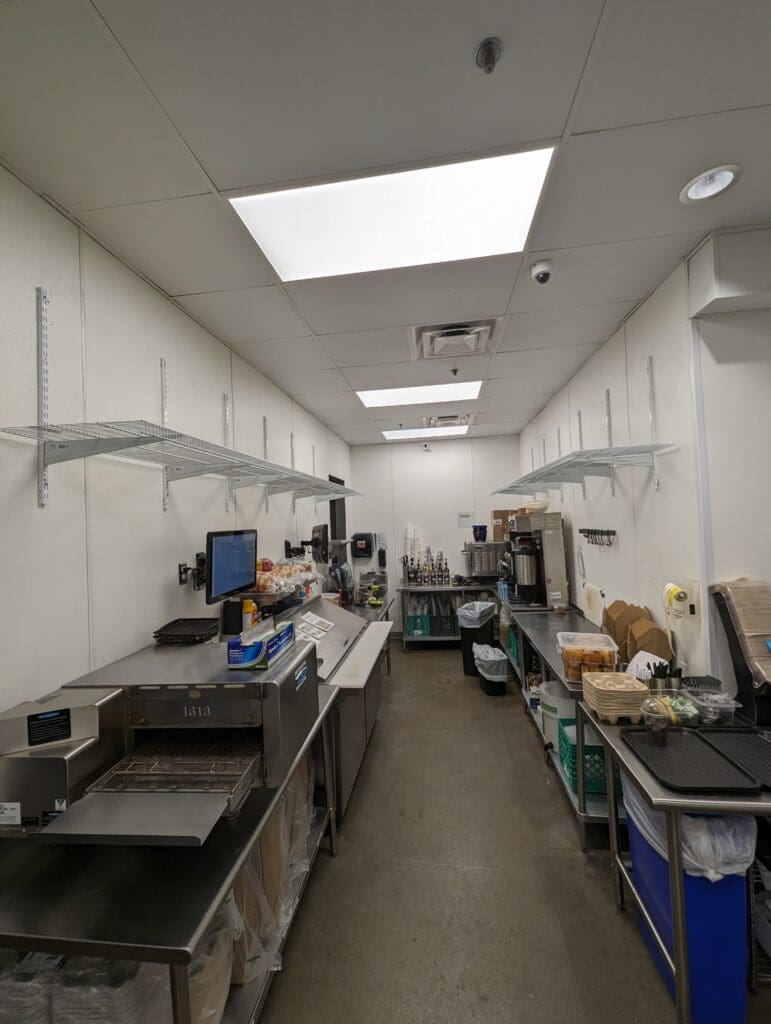
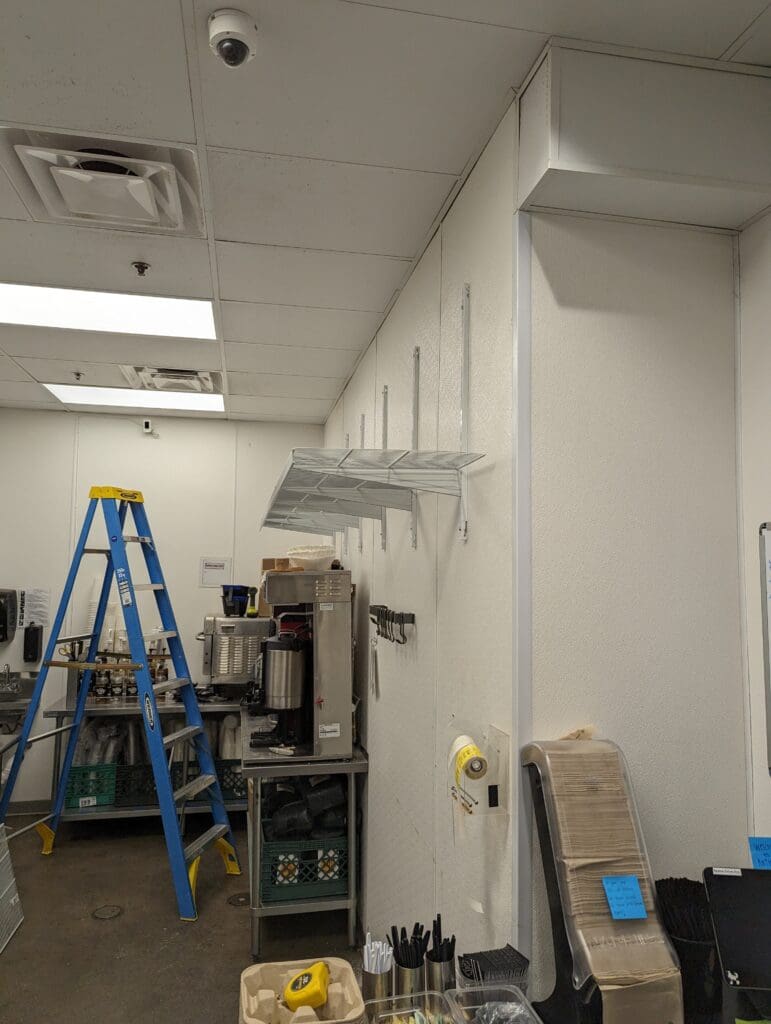
    Photos of My Work

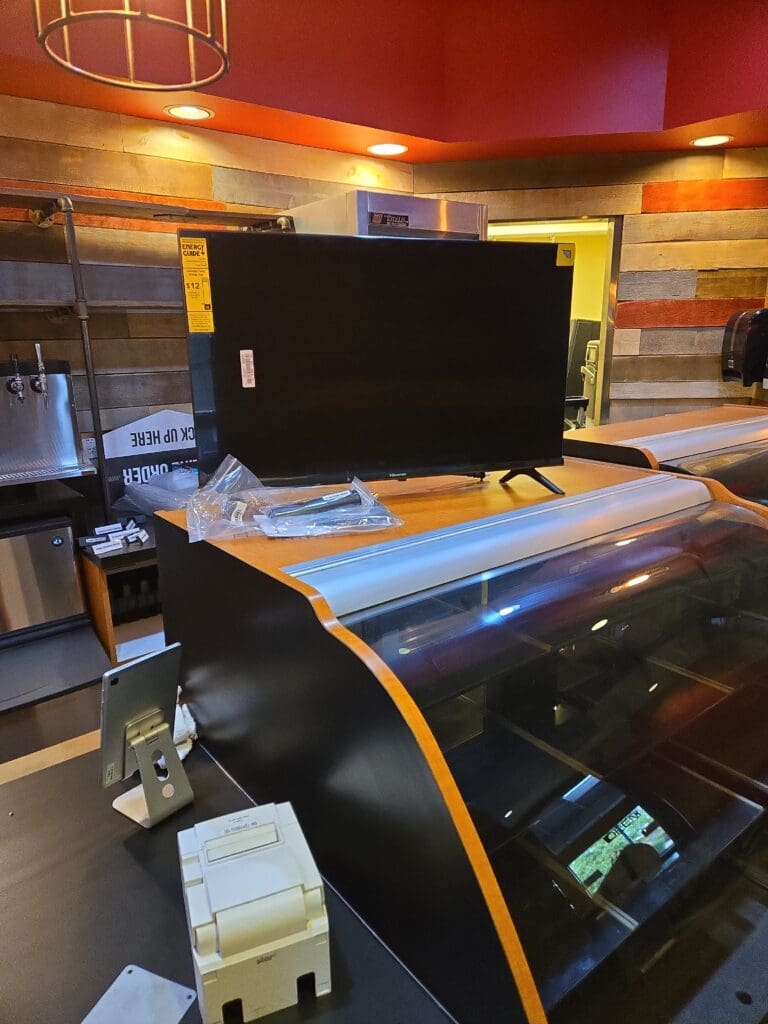
    Added an Ethernet port for the Kitchen Display System (KDS).

    More work posts can be found in the blog archive below.

Secret Link