Tag: Final

  • Bulk Tablet Setup: Configure 100 Devices in 4 Hours

    Starting this new chapter left me speechless and genuinely excited — it truly was a dream come true. I can provision 100 tablets in just four hours, and I love every minute of it. I enjoy preparing tablets for new launches and supporting Joe Coffee partners through system upgrades and improvements. Staying busy and working toward my goals is what drives me, and this role lets me do exactly that.

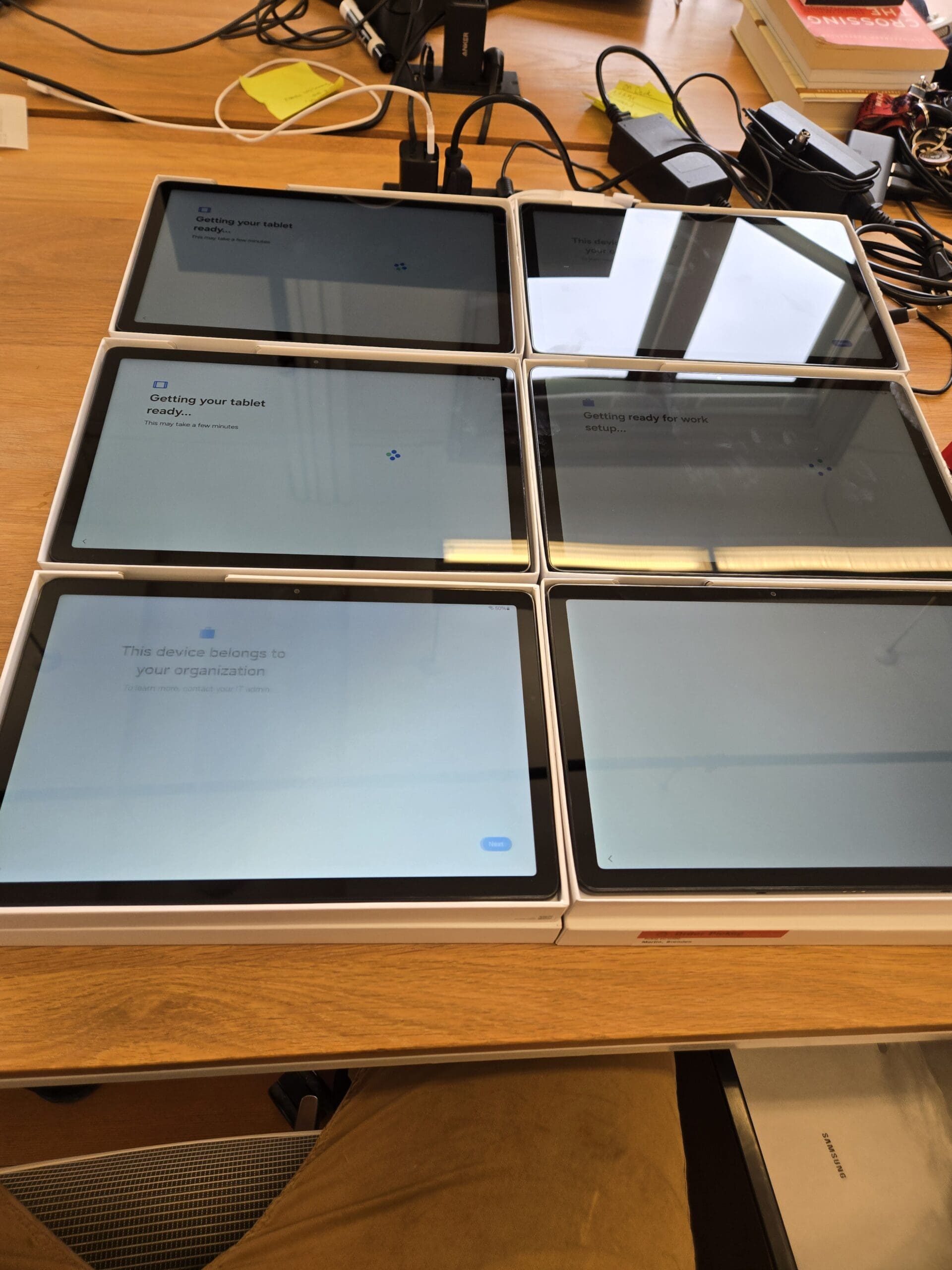
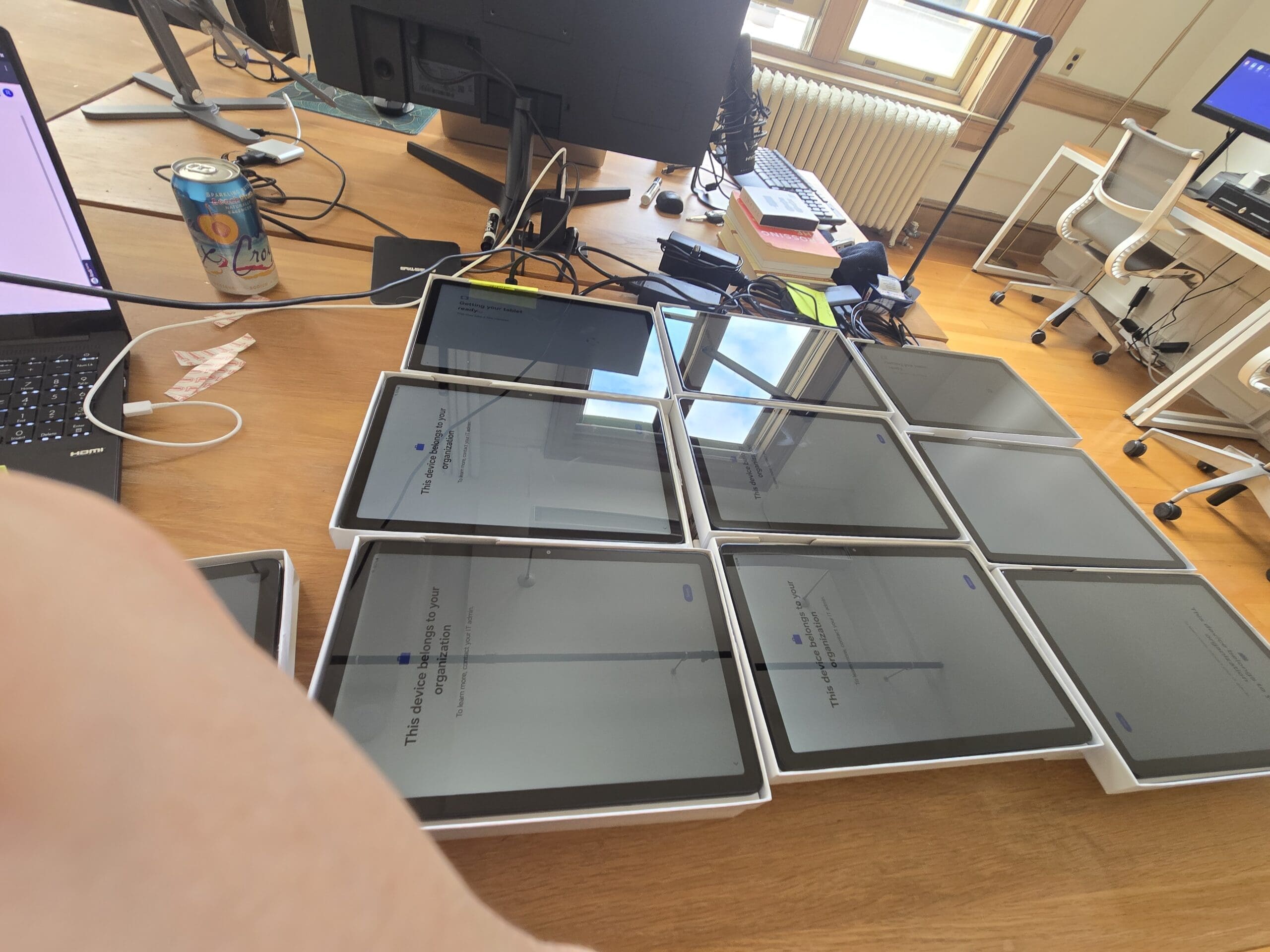
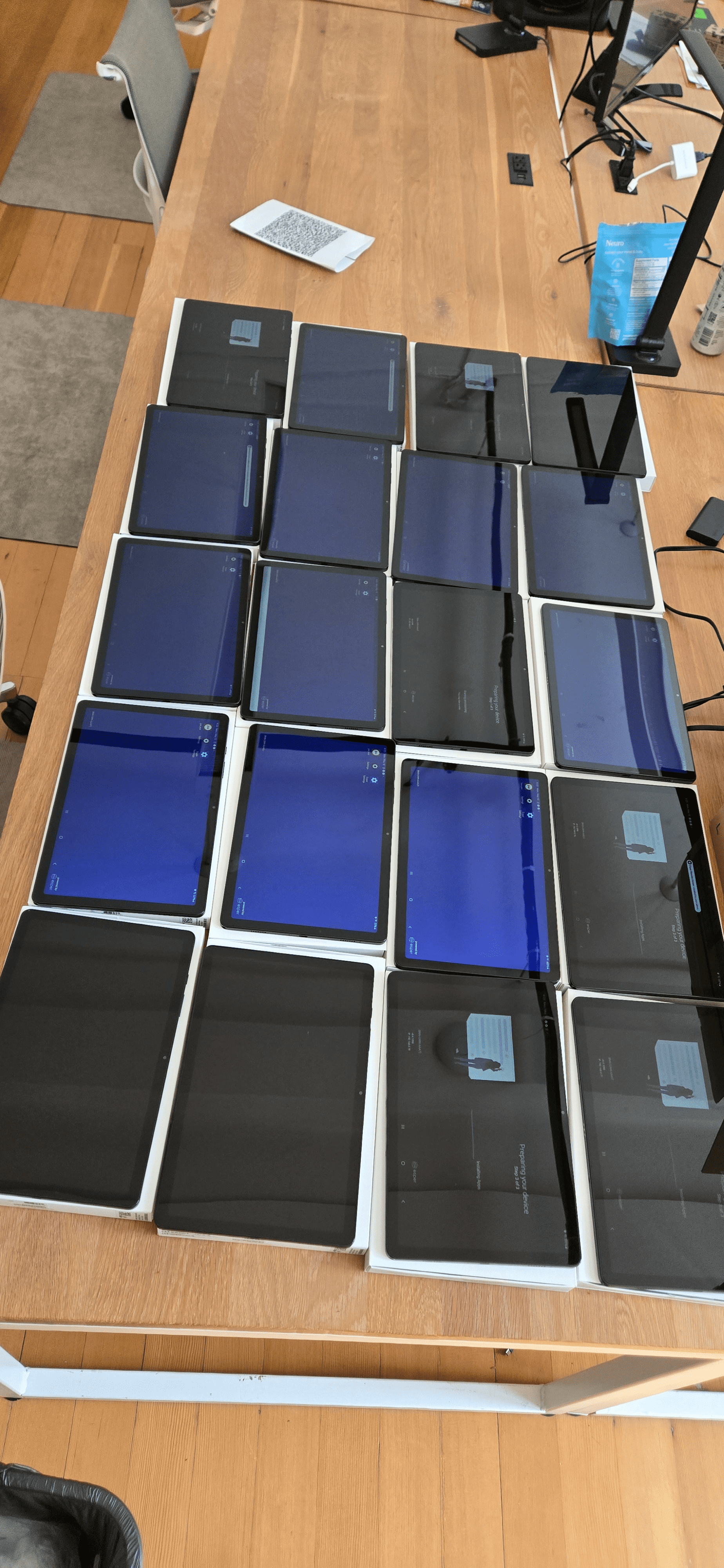
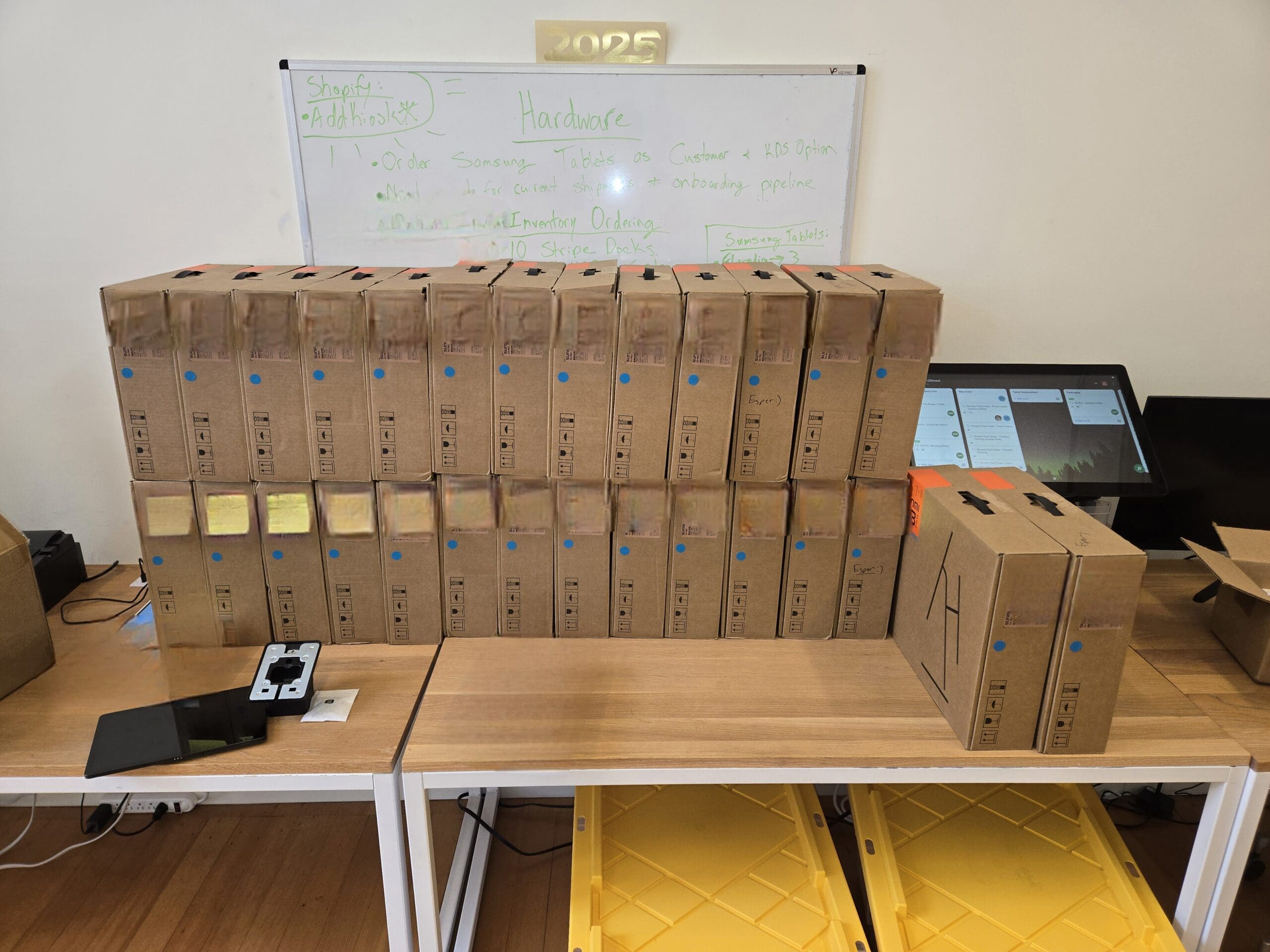
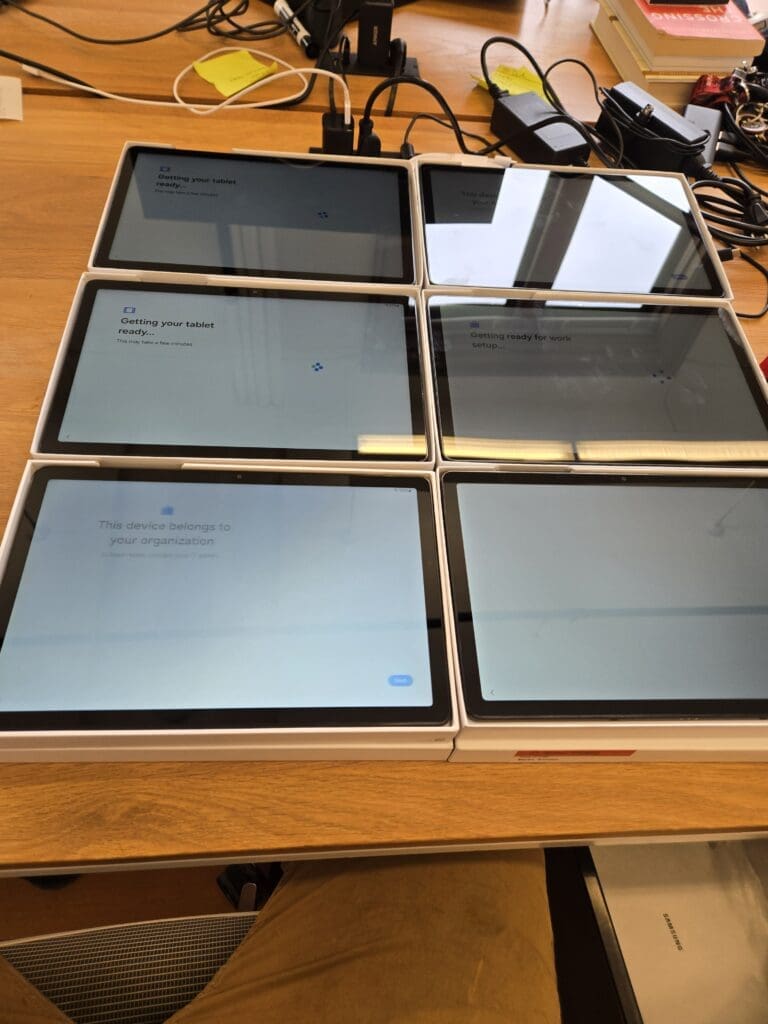
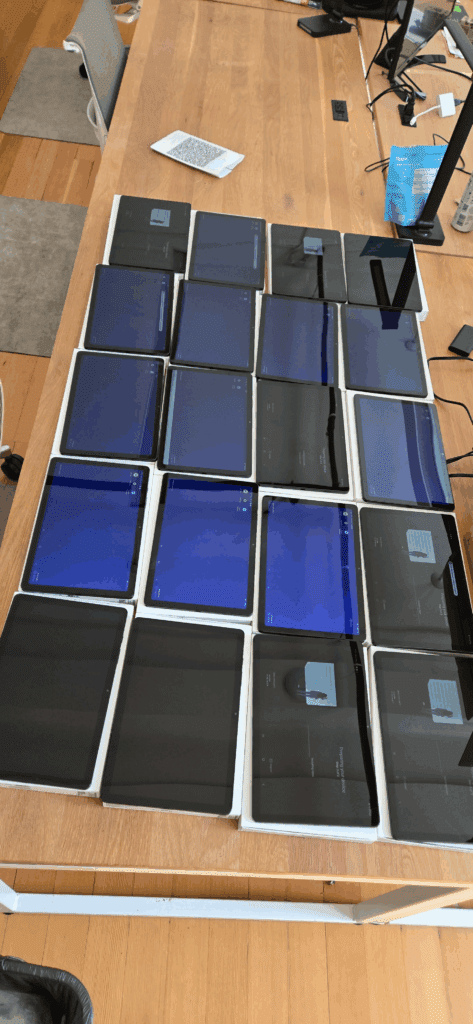
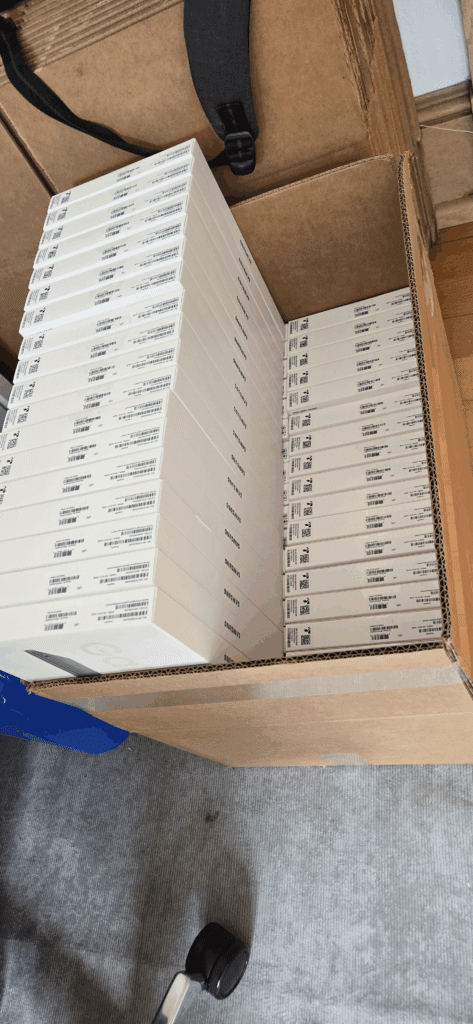
    Here is what the process looks like when I am working through 100 tablets at once:

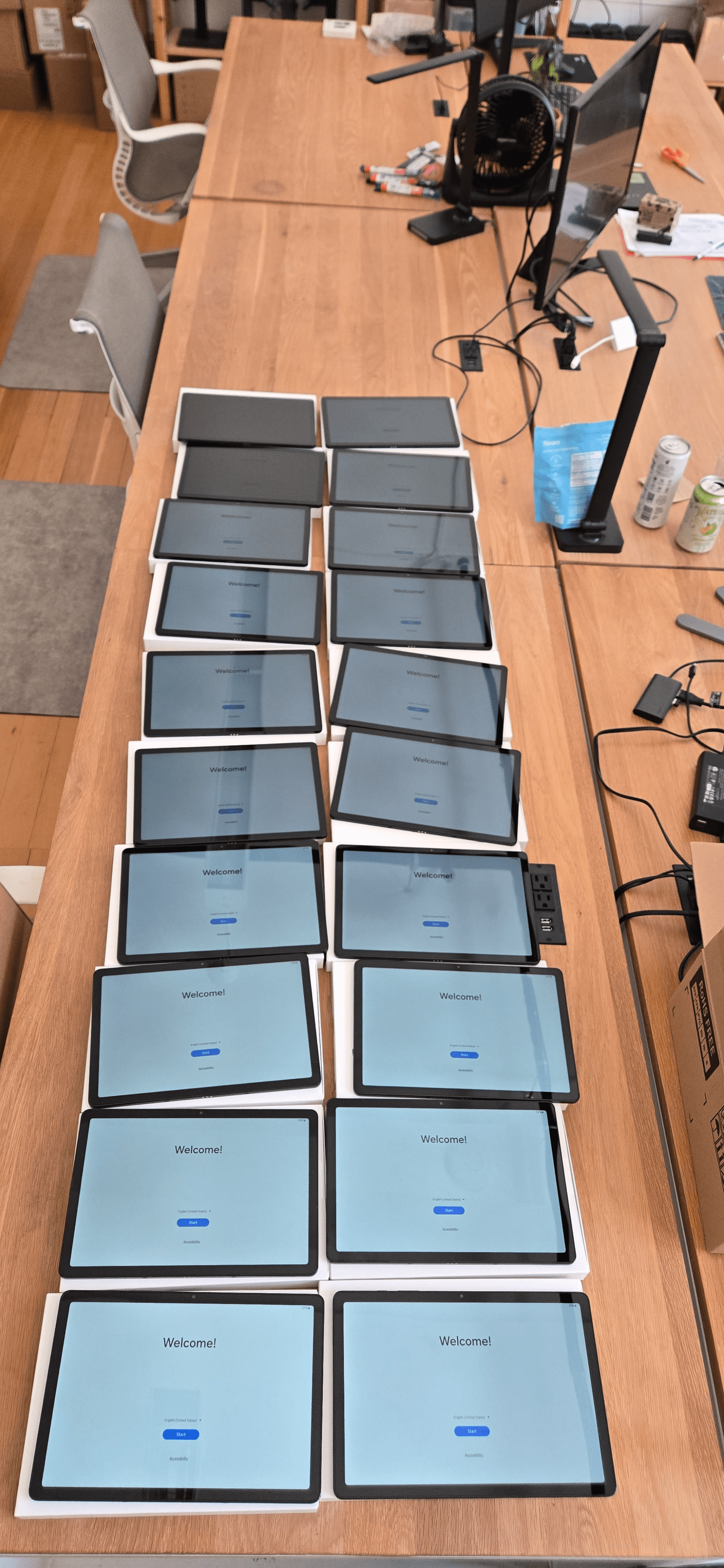
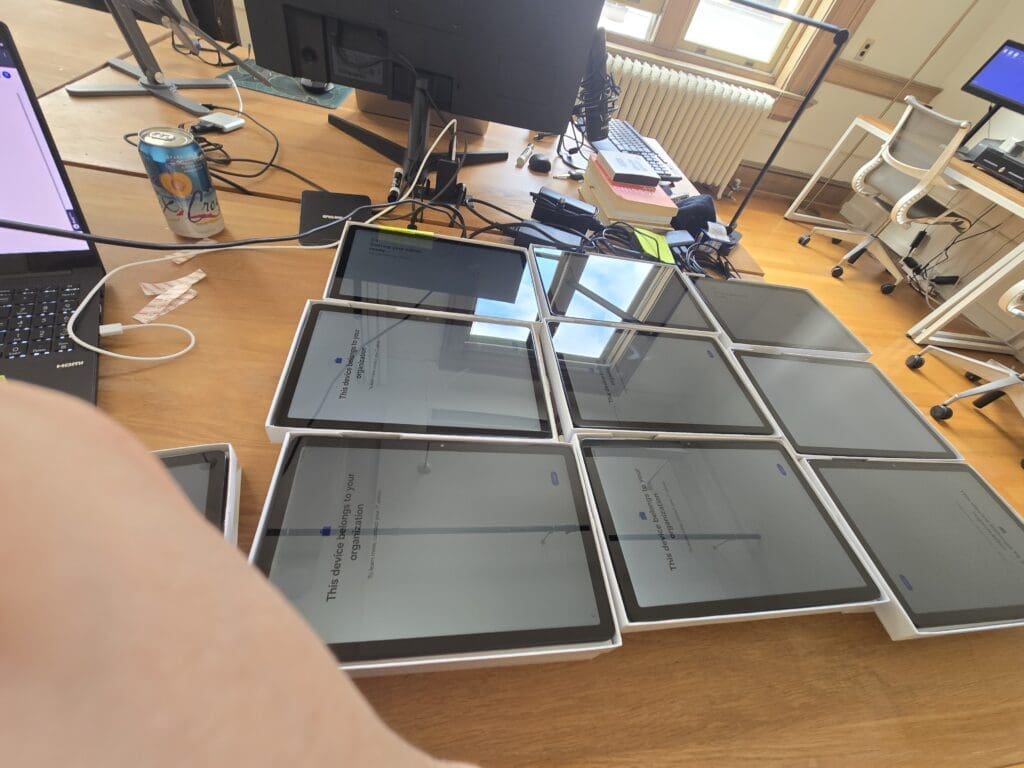
    Single table displaying 20 Samsung tablets arranged and ready for provisioning at Joe Coffee office

    Each Table Holds 20 Tablets — 5 Tables to Handle All 100

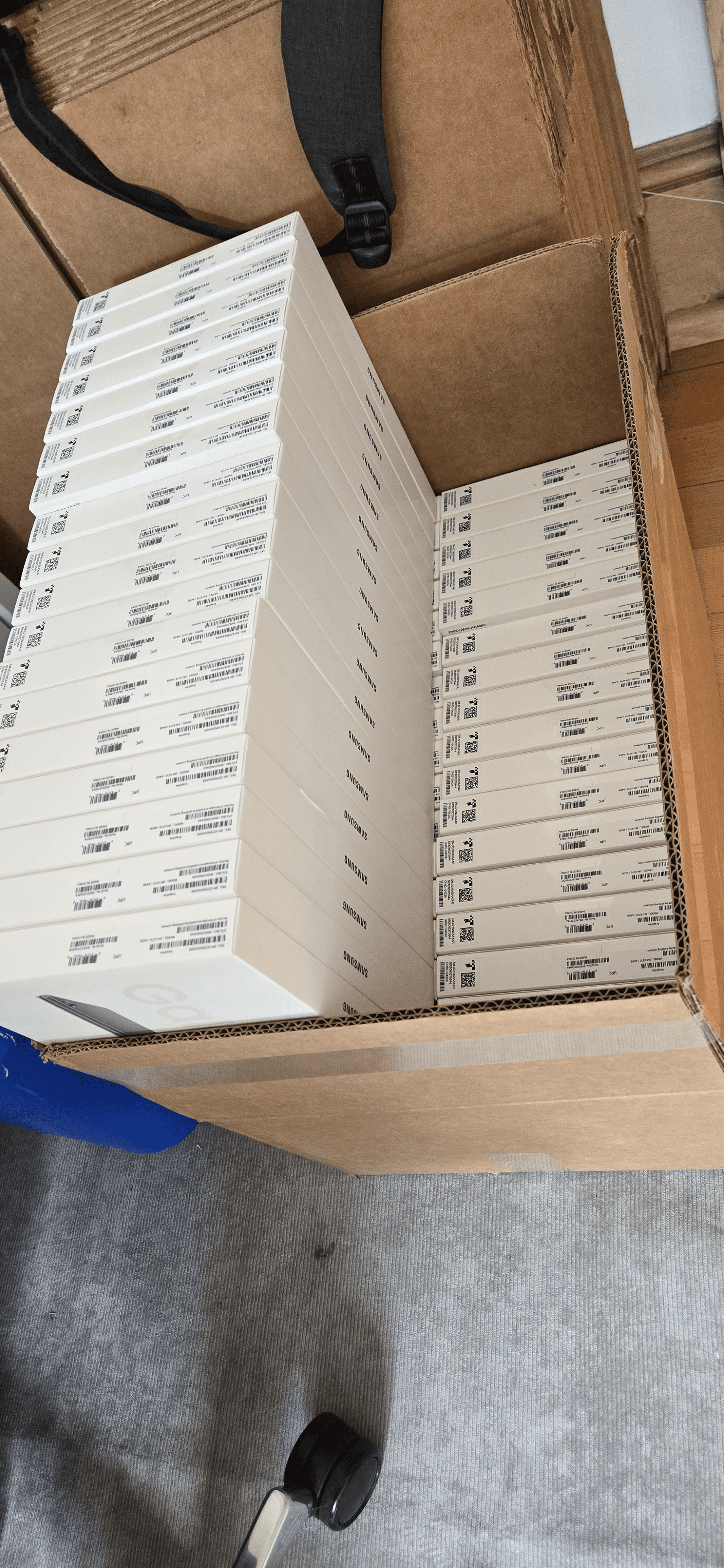
    Overview of five tables each holding 20 Samsung tablets during a bulk provisioning session at Joe Coffee

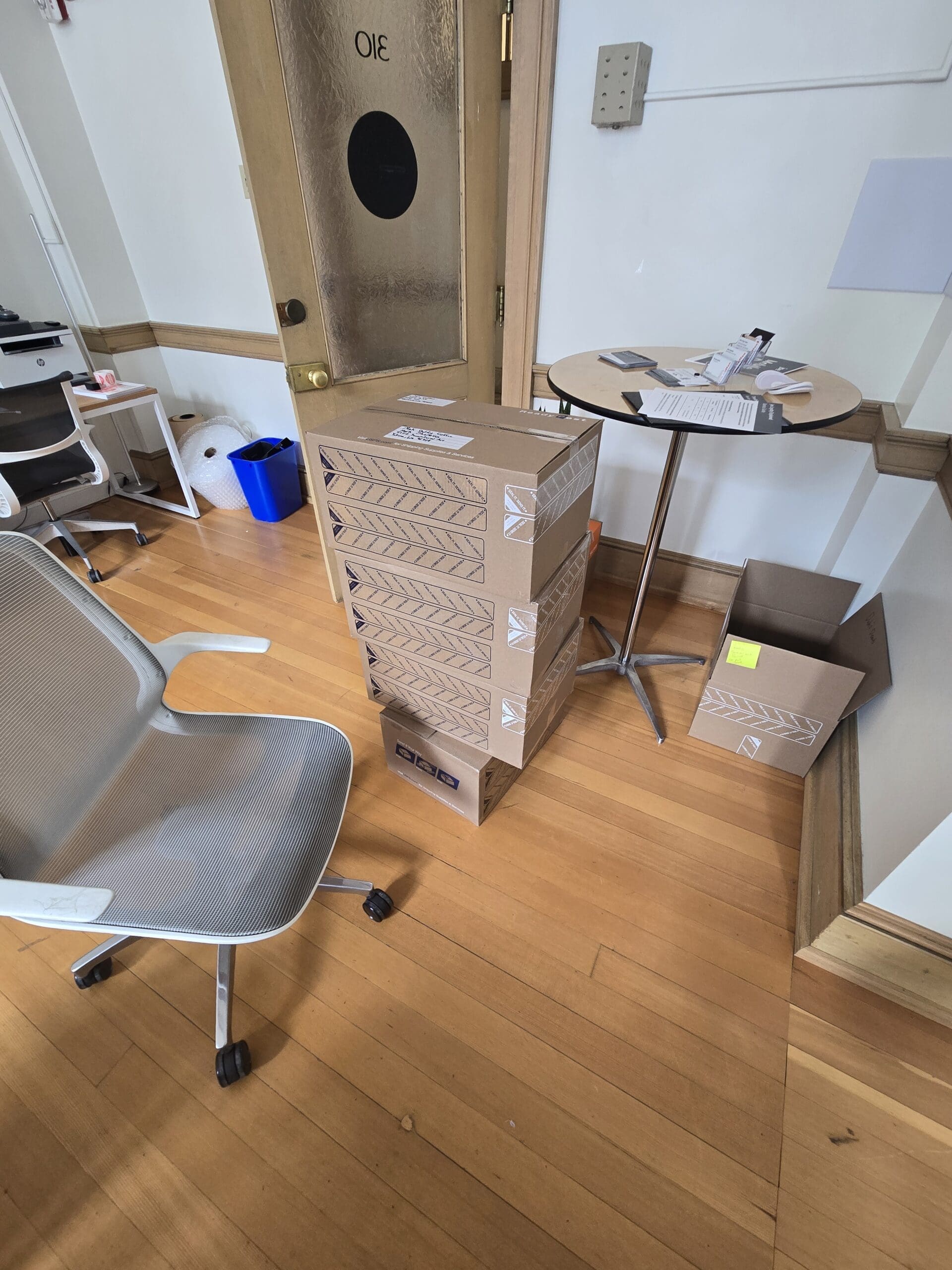
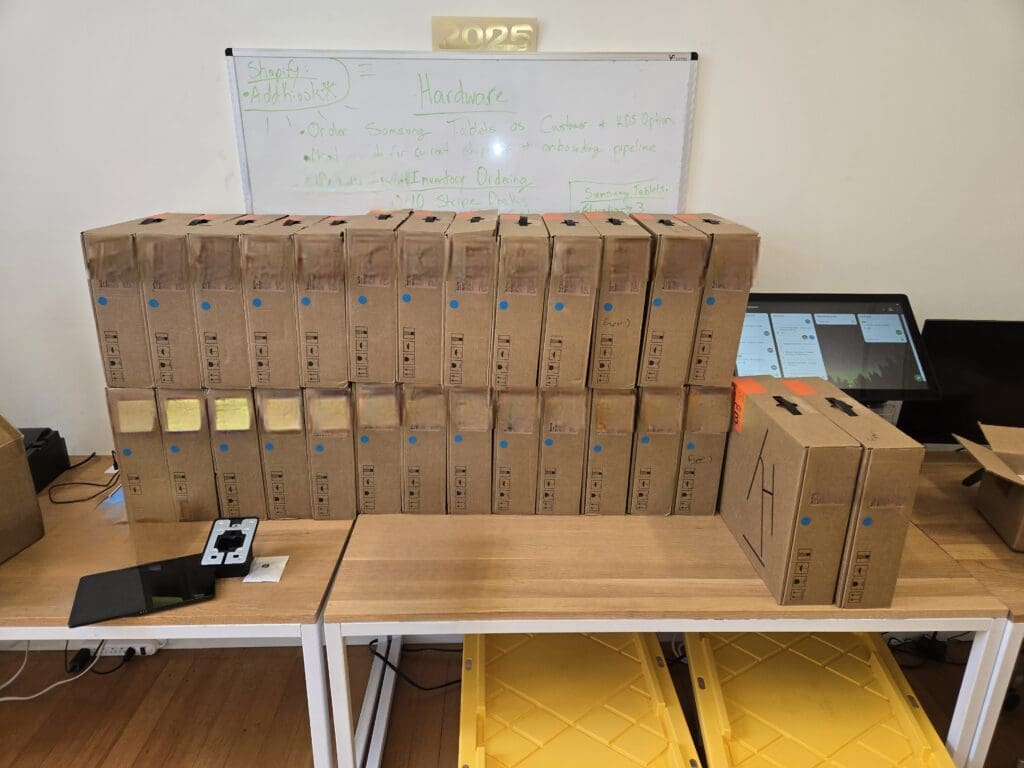
    Preparing 100 tablets in a single day is demanding work, but I genuinely enjoy the process — it streamlines setup for the company and makes future tasks faster and easier for everyone. My workflow is straightforward and efficient: I power on each tablet, launch the Joe app, and pair the tablet with the company system. Once configured, I power it off and place it in a white Samsung box, then package it together with the terminal and kiosk system. The finished units are shipped directly to the company, ready to go.

    My Brother Label Printer Has Been a Game-Changer

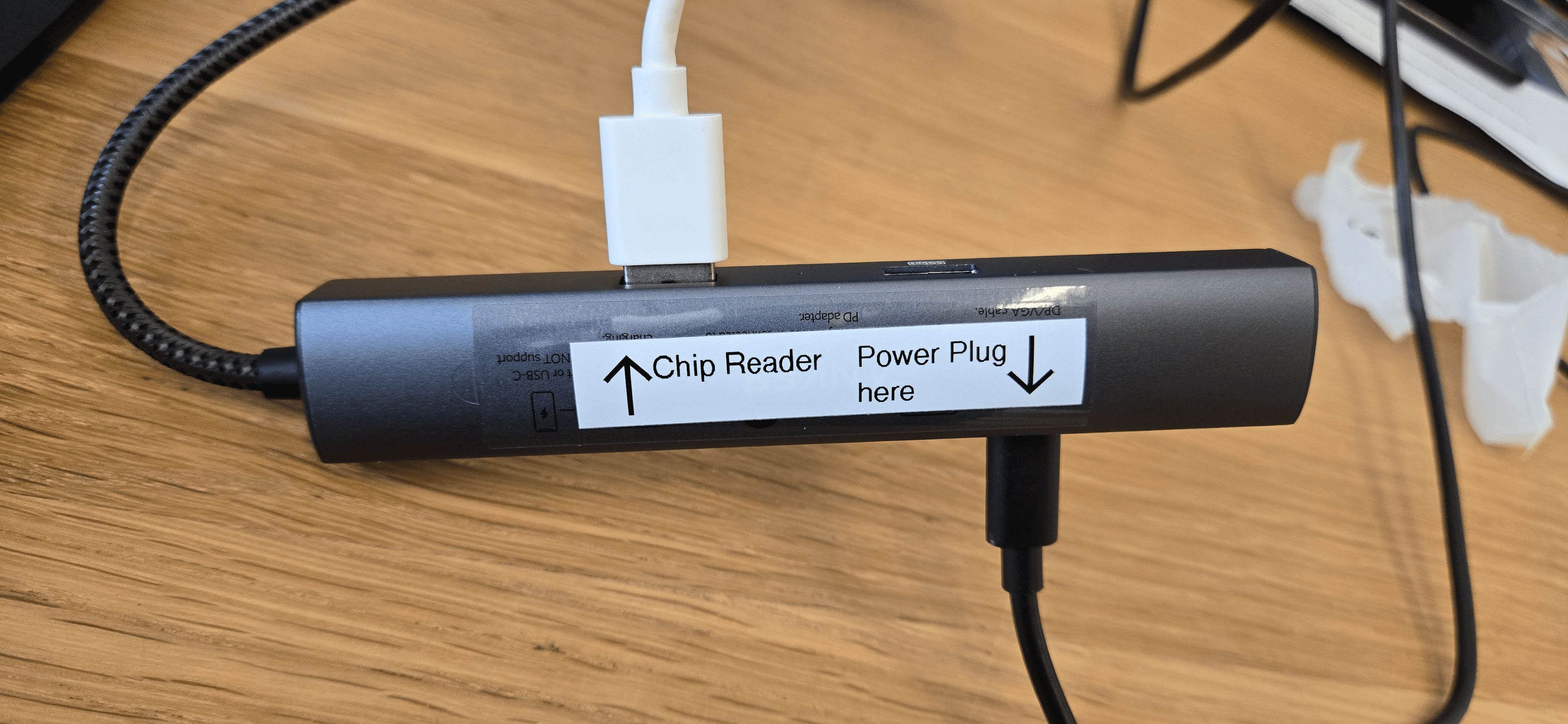
    Brother label printer on desk used for printing unique device labels for Samsung tablets at Joe Coffee

    I recently added a Brother label printer to my setup, and it has made a noticeable difference. Printing labels directly from my computer is fast, clean, and keeps everything organized. It is remarkable how much one small tool can speed up hardware preparation and make the whole process run more smoothly for the team.

    Every Samsung tablet and its box receives a unique label before it ships. This makes troubleshooting straightforward — if a partner ever has an issue, they can read the number off the back of their tablet and pass it to our IT team, who can then access the device remotely to diagnose or resolve any problems with the Joe app.

    What It Is Like Working at the Joe Coffee Office

    The atmosphere at the Joe Coffee office is something I genuinely look forward to every day. The team is supportive, friendly, and invested in each other’s success — there is a real sense of camaraderie that makes the work feel meaningful. Management is approachable and actively encourages growth, offering feedback and opportunities to develop new skills. The office itself is bright and well-designed, with dedicated spaces for collaboration, focused work, and the occasional breather. Team events and shared experiences keep morale high and relationships strong. Being part of this team feels like being part of a community that values hard work, creativity, and mutual respect — and that makes every workday genuinely rewarding.

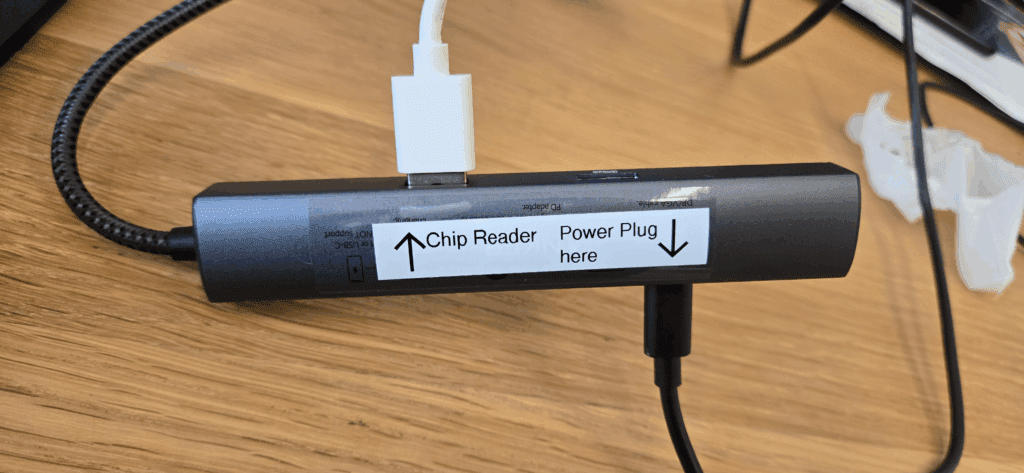
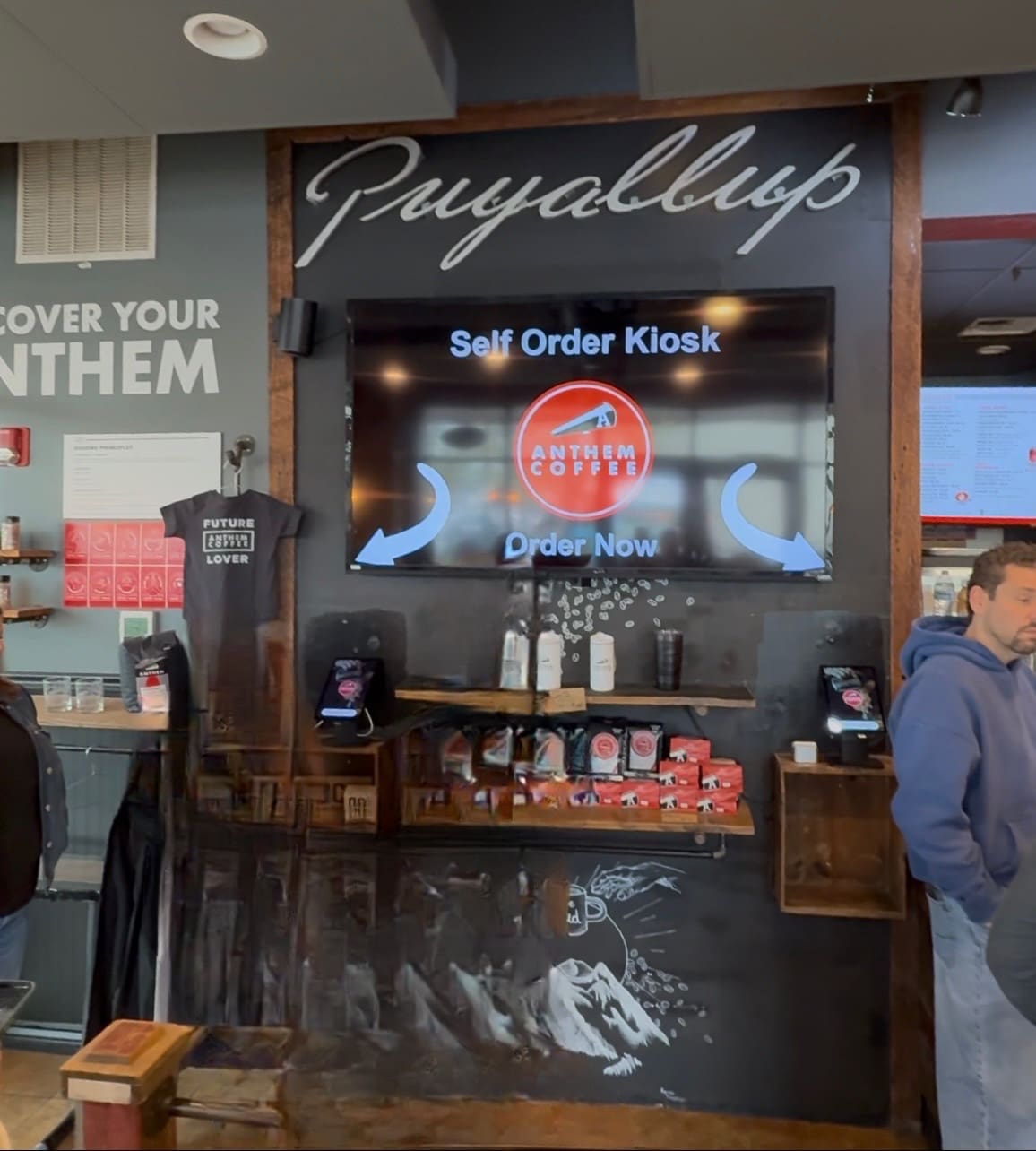
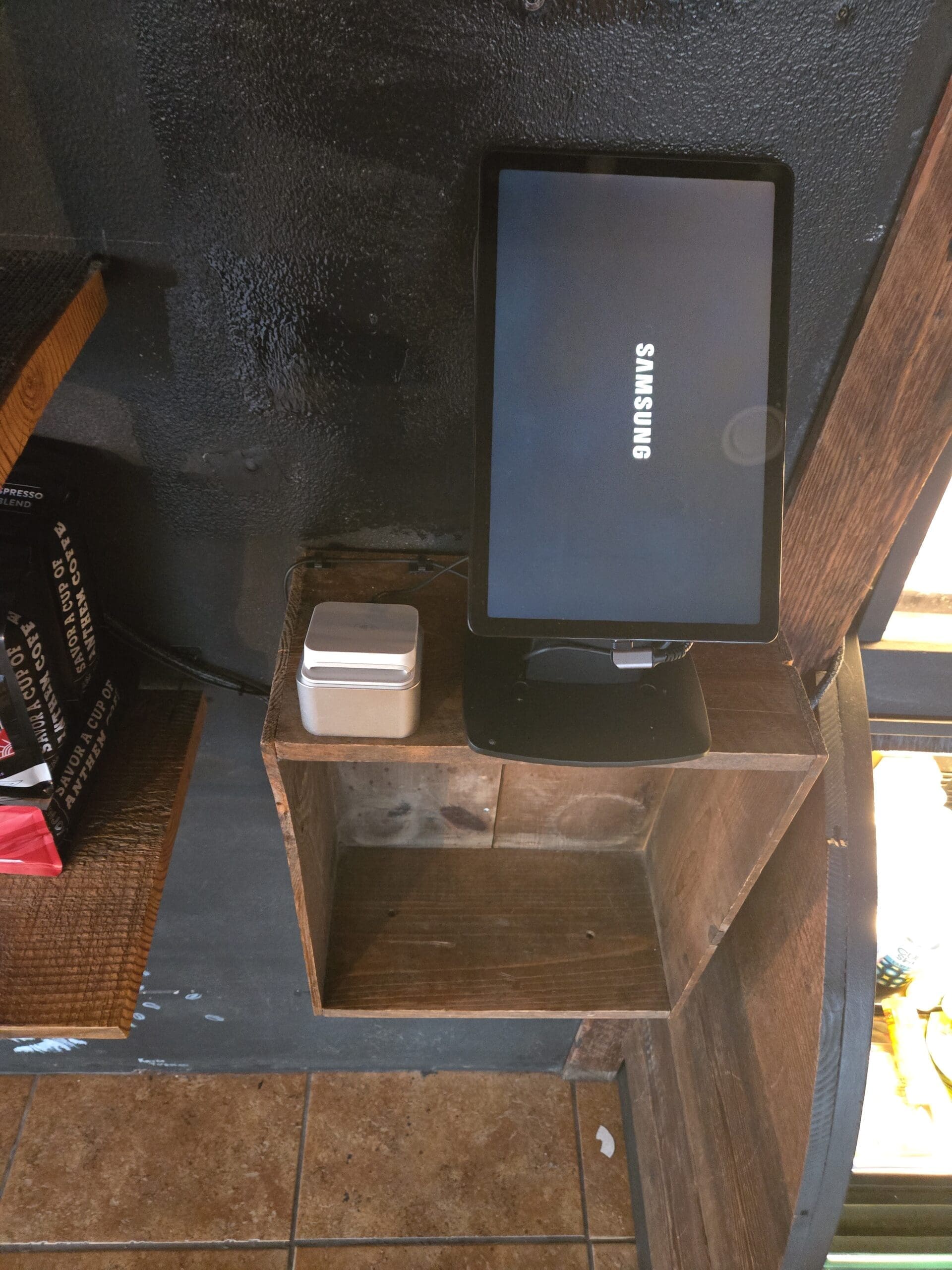
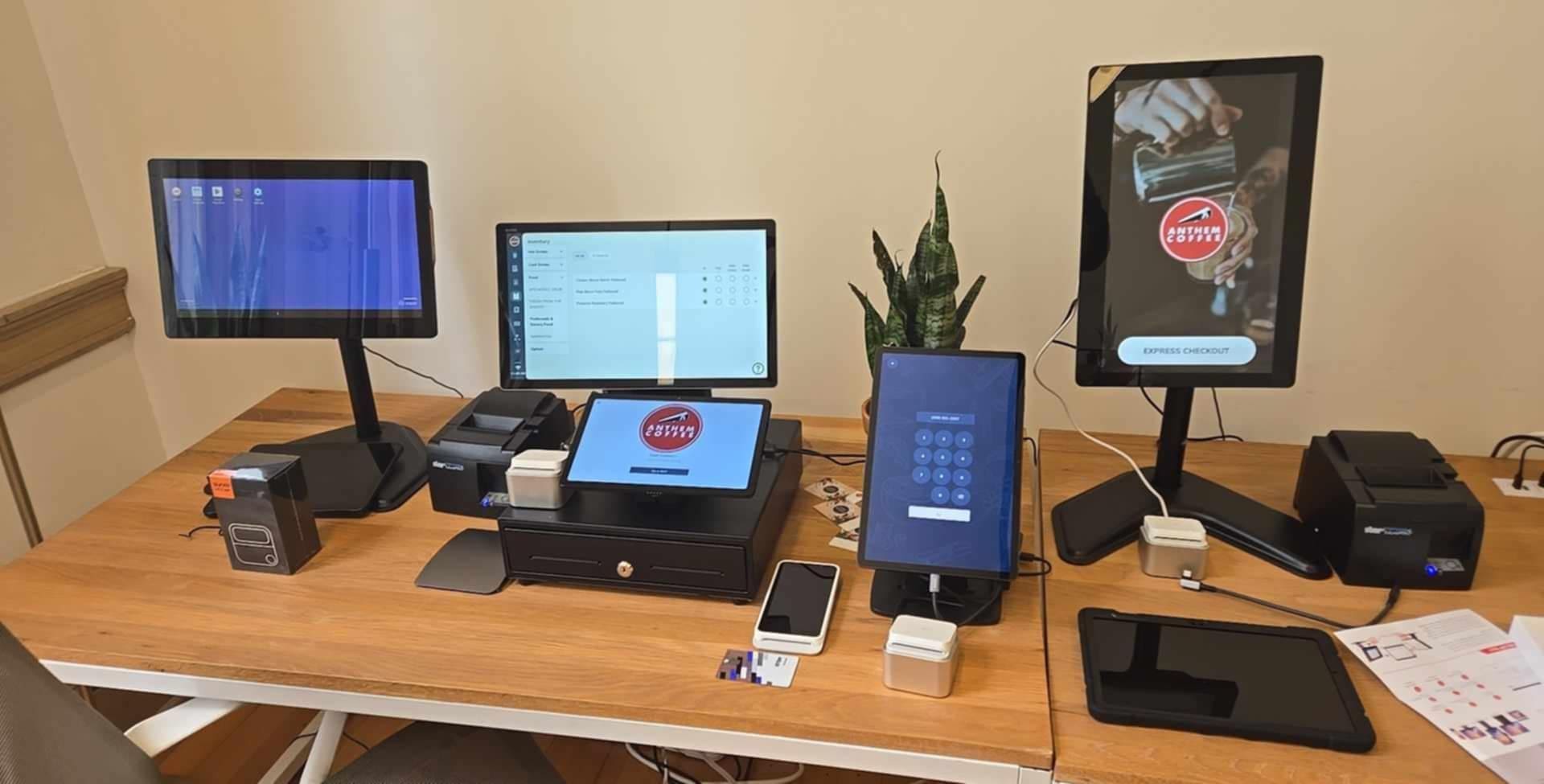
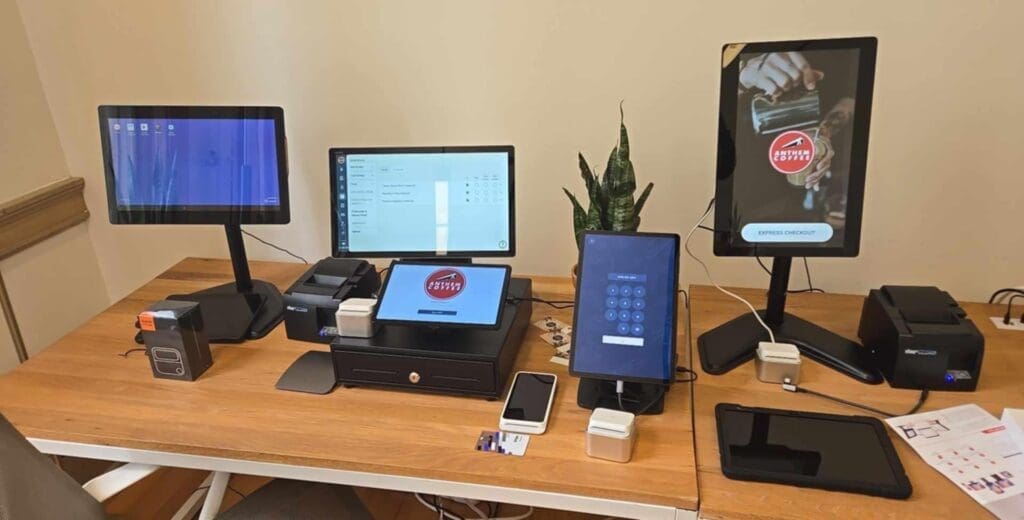
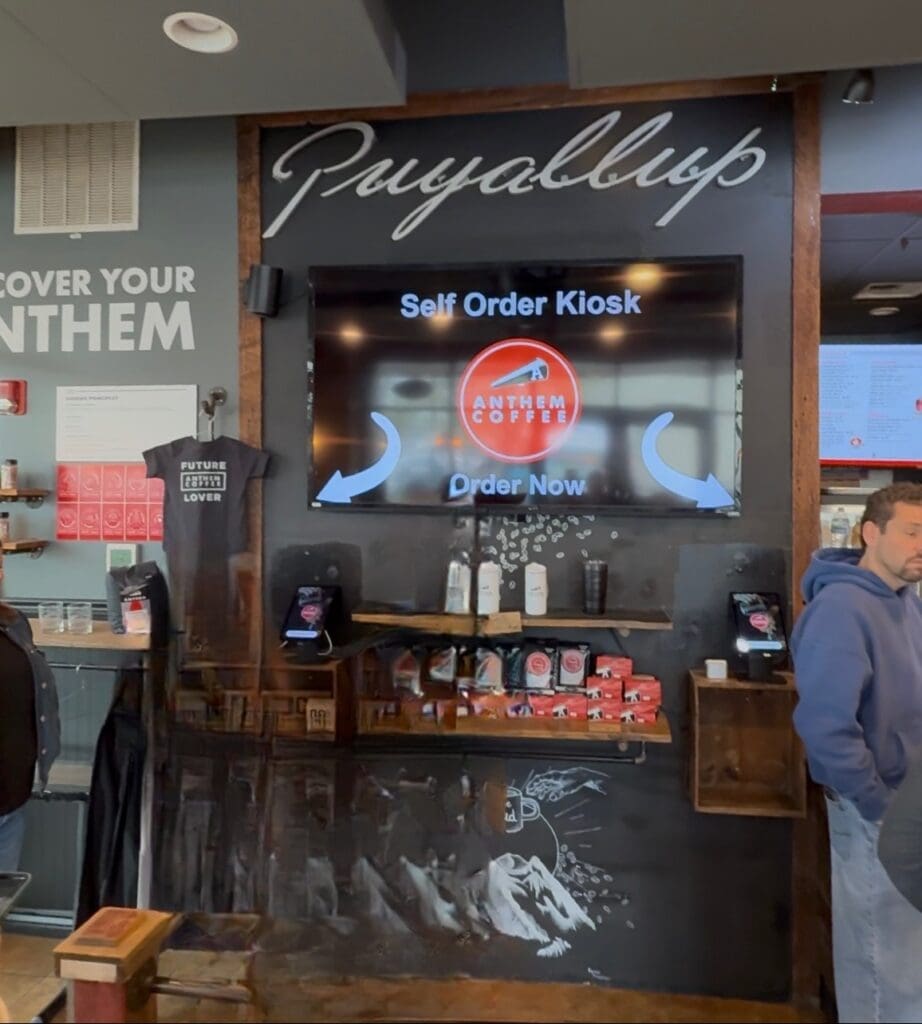
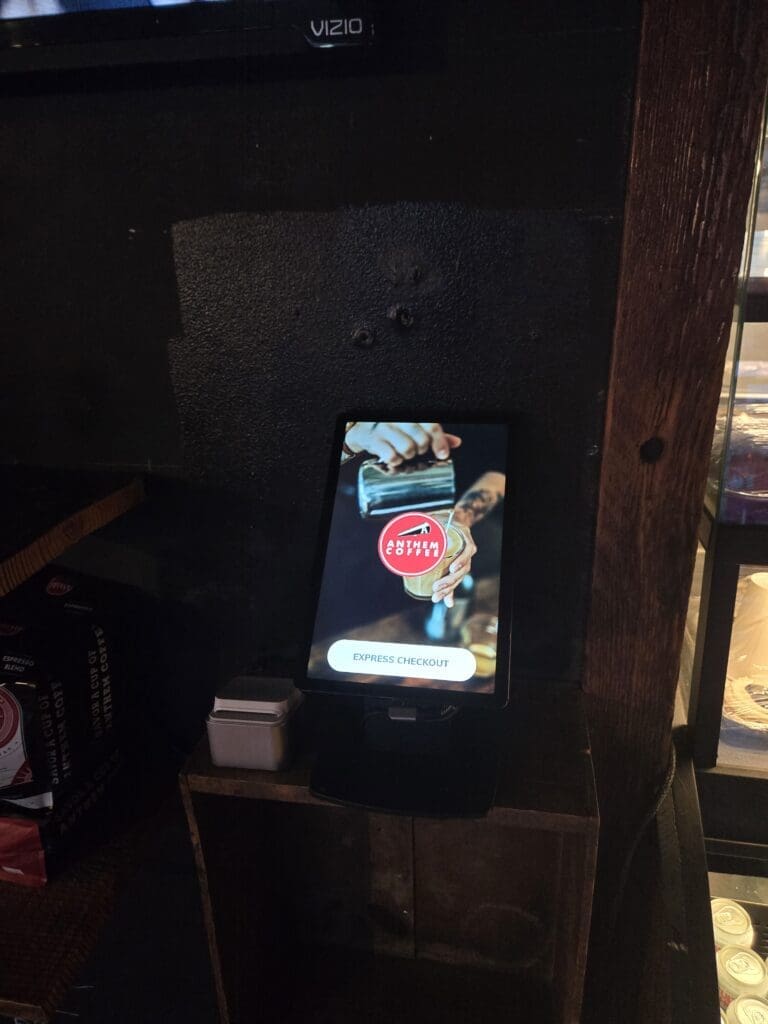
    Kiosk system walkthrough.
  • Cottage Getaway: Fix Network Issues & Make Memories

    Our cottage getaway was a mix of hands-on technical work and genuinely relaxing downtime — and honestly, that balance made it all the more memorable.

    Day 1: Setting Up the Network

    On our first day at the cottage, I spent the afternoon tackling an essential task: installing all the access points and wireless bridges, and replacing the old non-weatherproof cables with fresh wiring. It was a full network setup job, but I wanted to make sure our internet connection would be solid, stable, and reliable for the entire stay. A little prep work upfront goes a long way when you’re relying on connectivity out in the country.

    Day 2: A Melted NanoStation and a Quick Fix

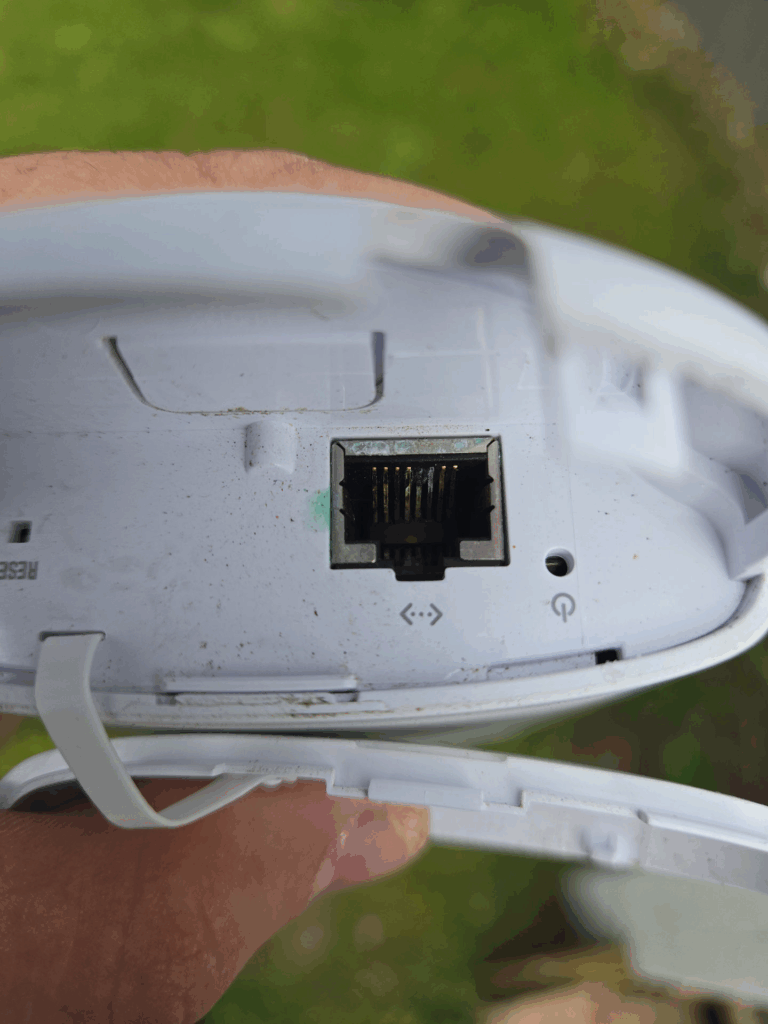
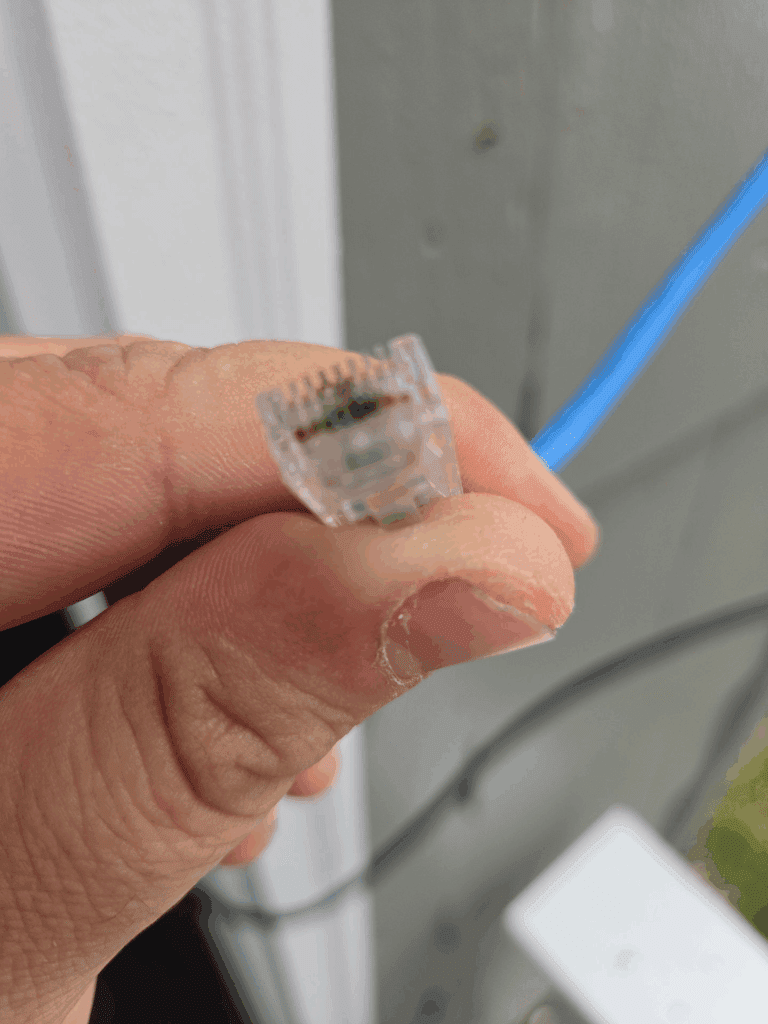
    On the second day, I noticed the NanoStation had gone offline. After some investigation, I found the device had been irreparably damaged — most likely from an electrical surge, as the connector had actually melted. I got straight to work replacing the Cat6 cable, installing a new connector, and swapping in a replacement NanoStation. Once everything was back up and running, the connection was completely stable for the rest of the trip. Sometimes troubleshooting in the field means rolling up your sleeves and improvising — but there’s real satisfaction in getting it sorted.

    Evenings Well Spent

    Despite the technical hiccup, the evenings were genuinely lovely. I enjoyed spending quality time with Jasmine — we watched movies and TV shows, cooked meals together, and took a peaceful walk as the sun went down. We even treated ourselves to a well-earned cheat-day dessert while soaking in the relaxed vacation atmosphere. It’s amazing how much a slow evening at a cottage can recharge you.

    Day 3: The Beach That Wasn’t — and the Trail That Was

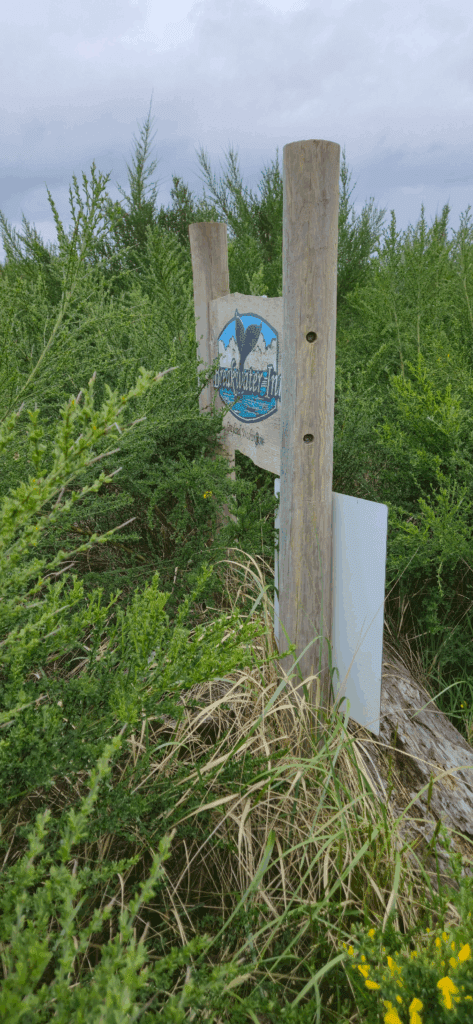
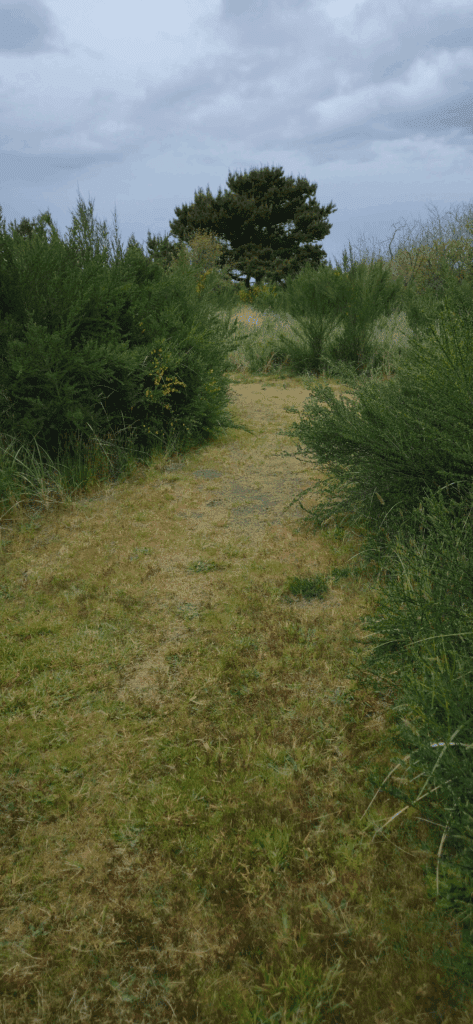
    On our last day, we set out to find the beach — but the adventure took an unexpected turn. We wandered a little off course and ended up at a “No Trespassing” sign, which was a clear cue to turn back. We never did make it to the beach, but we discovered a scenic trail along the way and enjoyed a quiet walk through some beautiful natural surroundings. Afterward, we strolled back to the hotel before heading to the cottage by car. Sometimes the detours end up being the best part of the journey.

    No Trespassing sign at the end of the trail during our cottage getaway
    The other side of the path — a No Trespassing sign marked the end of our beach adventure.
    Scenic trail walk during cottage vacation
    Beautiful scenery along the cottage trail
    Cottage getaway landscape and nature views
    Peaceful walk near the cottage
    Cottage vacation sunset and evening views
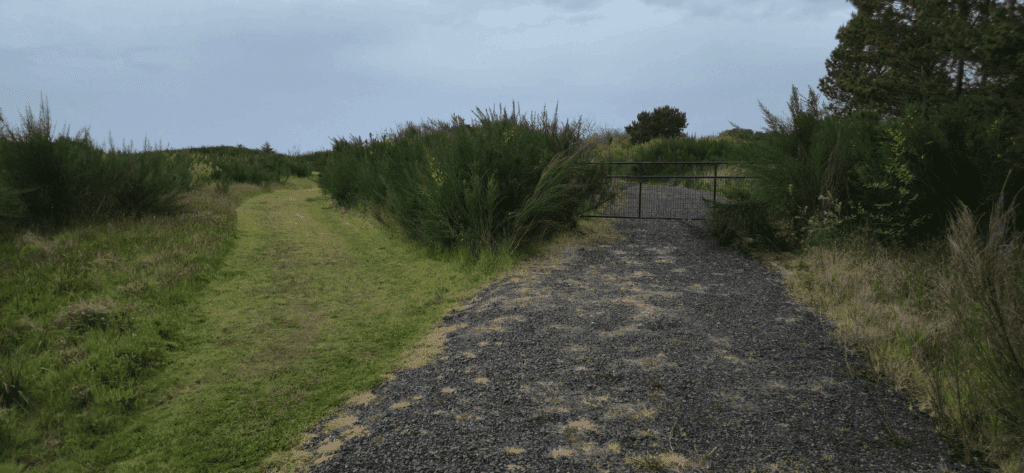
    Lake view at the end of the trail with no beach access
    The path ended at the lake — no way through to the beach from here, but the view made the walk worthwhile.

    Already Planning the Next Visit

    Missing the beach was a small disappointment, but the trip was full of great moments all the same. We are already looking forward to coming back — and next time, we are definitely making it to that lake for a swim!

  • Grayland WA Wiring & Bridge Infrastructure Upgrade

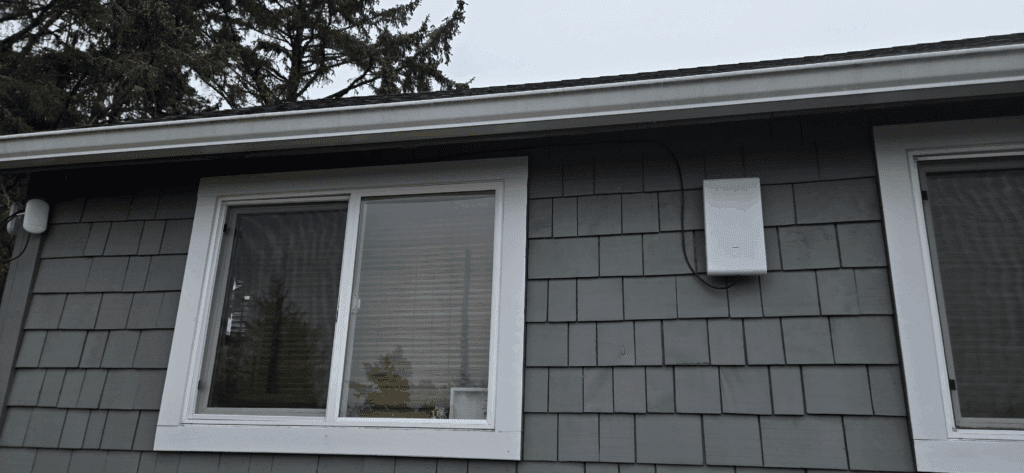
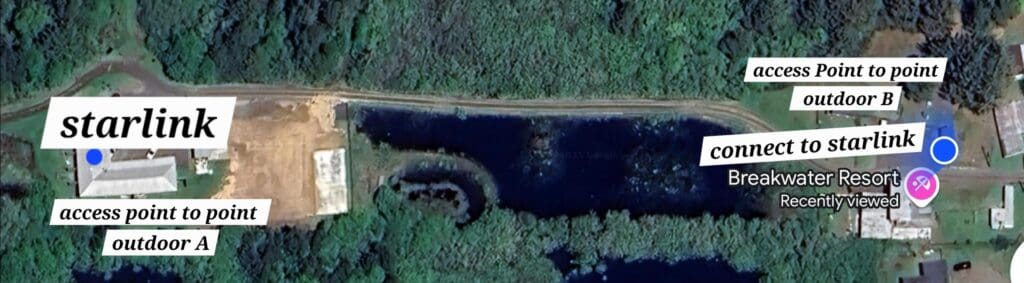
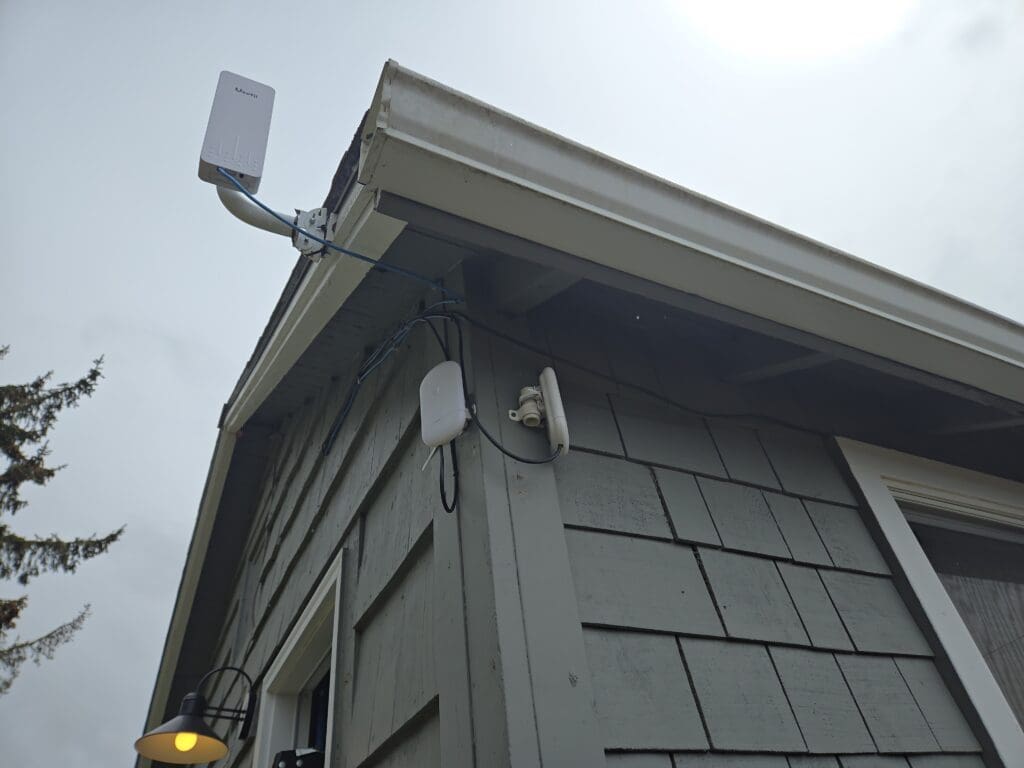
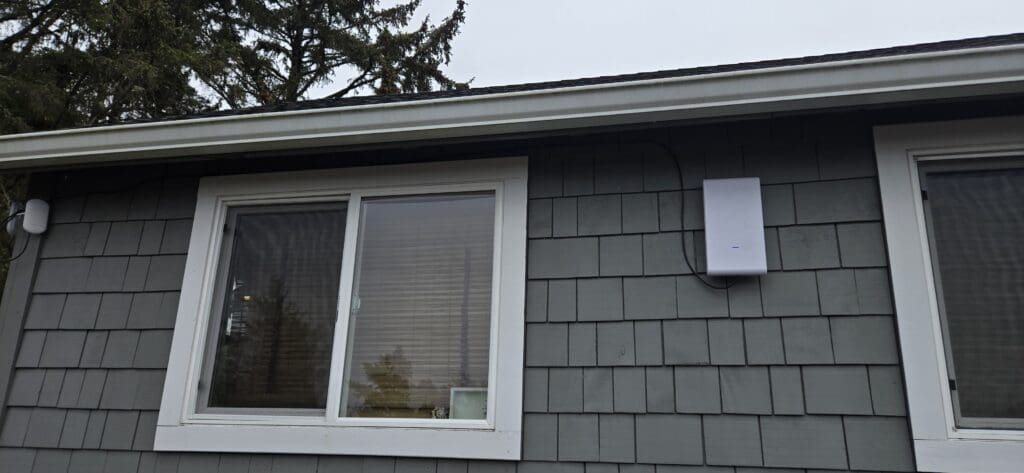
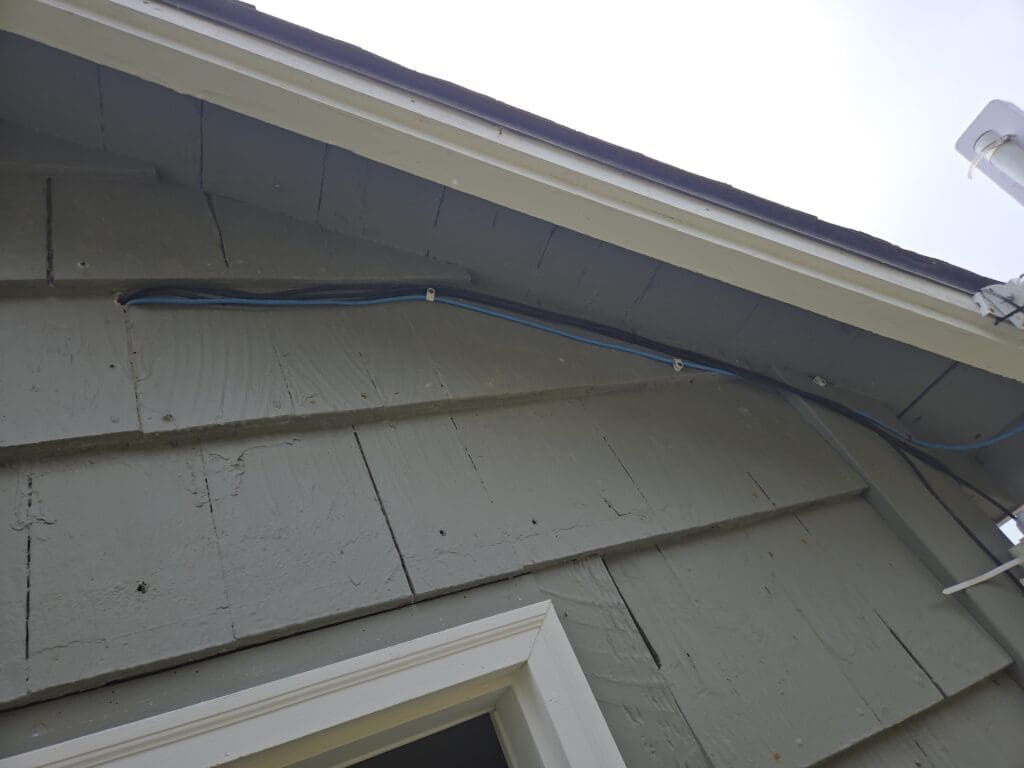
    We stayed for two nights at Breakwater Resort, and it was a genuinely enjoyable trip — a nice mix of relaxation and hands-on work. During our visit, I had the opportunity to help the resort with some essential networking upgrades. My main task was installing a wireless bridge access point to improve connectivity across the property, along with replacing the existing indoor network cable with outdoor-rated Cat 6, making the whole setup more durable and weather-resistant.

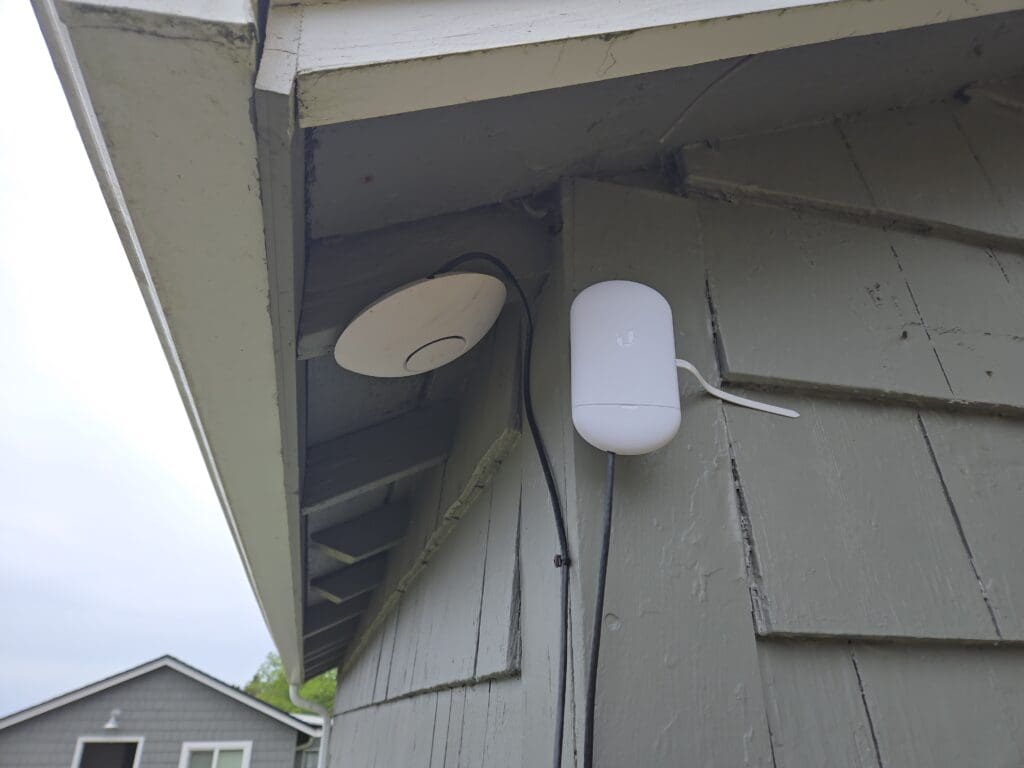
    On the second day, things took an unexpected turn. The newly installed access point went offline, which kicked off a troubleshooting session. After a closer look, I found that the NanoStation had suffered significant damage — the Ethernet port had overheated and melted, making the unit completely unusable. It had almost certainly been taken out by an electrical surge or incompatible cabling infrastructure.

    We swapped in a brand-new NanoStation to get things back online, but that revealed a second problem: the existing Cat 5e cable running outdoors was not compatible with Power over Ethernet (PoE) requirements and could not reliably power the new access point hardware. The fix was straightforward — replace it with a proper outdoor-rated PoE cable built to handle both the electrical load and the elements. With that in place, the new access point came up without issue and the network was stable for the rest of the stay.

    Overall, the time at Breakwater Resort was a satisfying combination of vacation and technical work. It was good to leave the property in a noticeably better state than we found it.

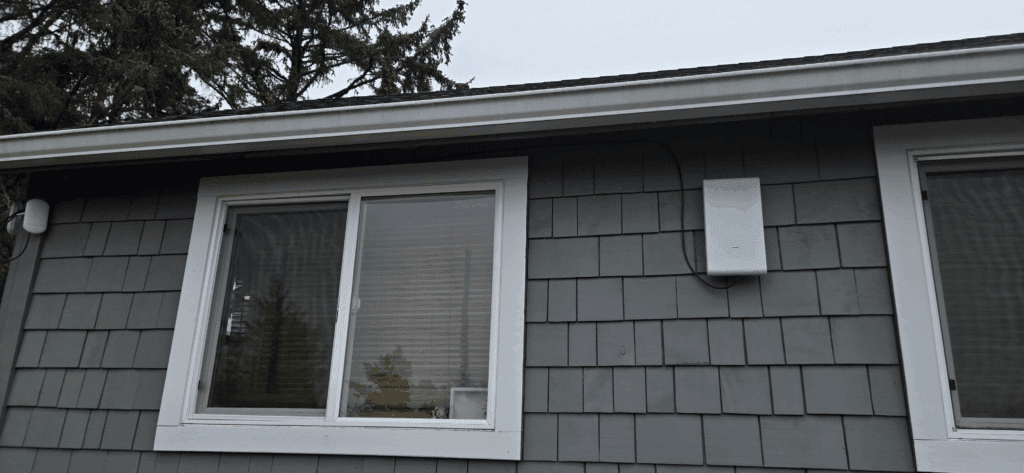
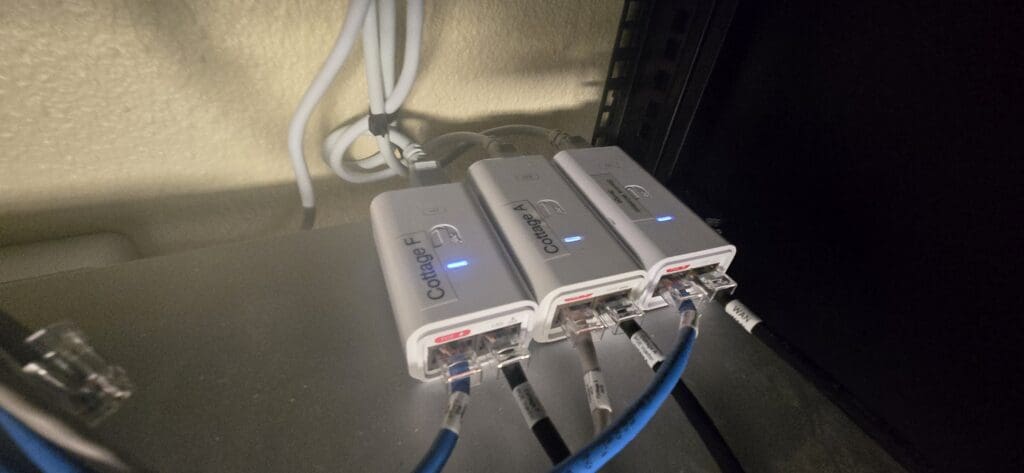
    Starlink bridged from the hotel to the cottage — roughly half a mile and working great.

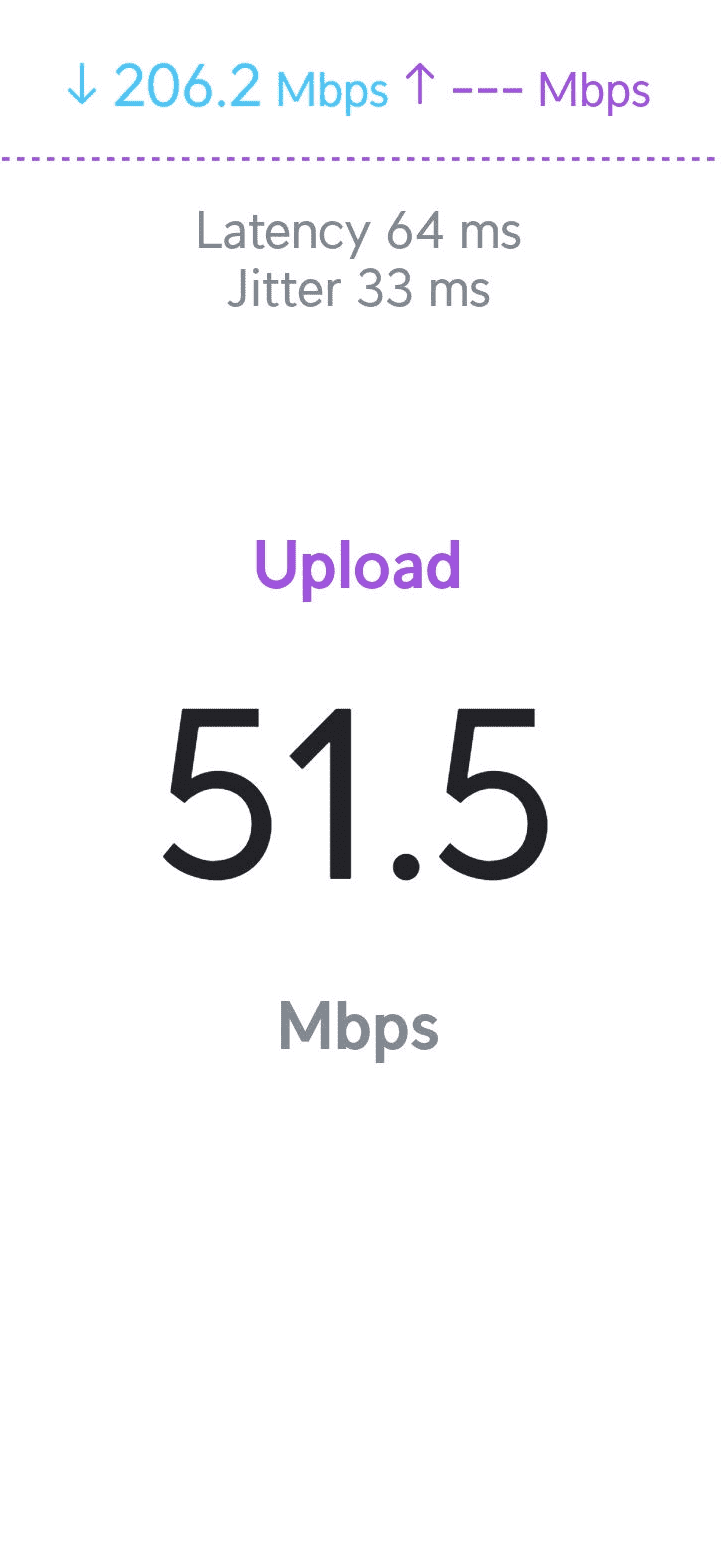
    I also installed an outdoor WiFi 6 access point to extend coverage across the parking lot. The speeds are now nearly on par with the Starlink connection itself.

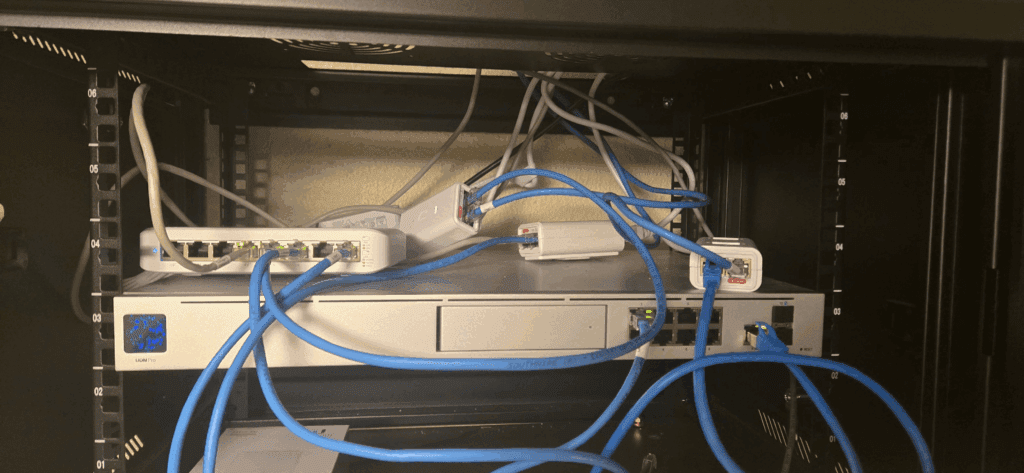
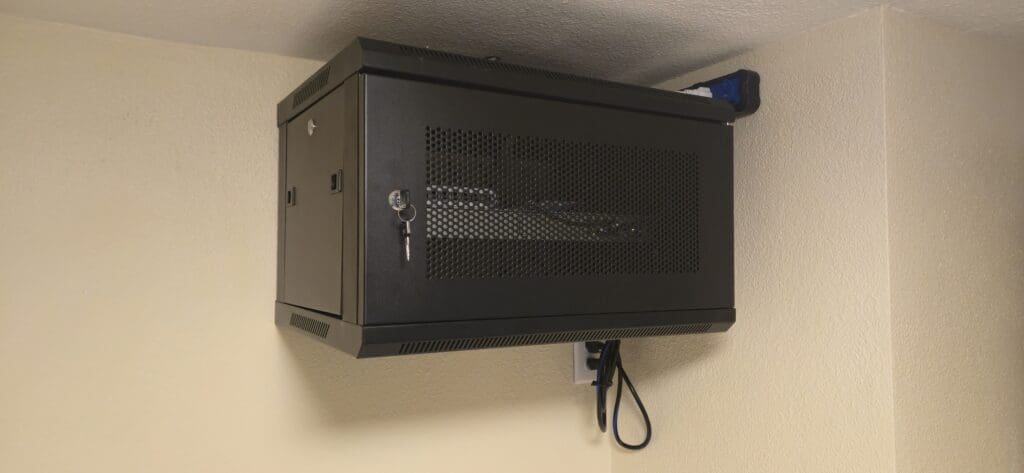
    Here is how everything looked before the upgrades — original wiring, no labeling.

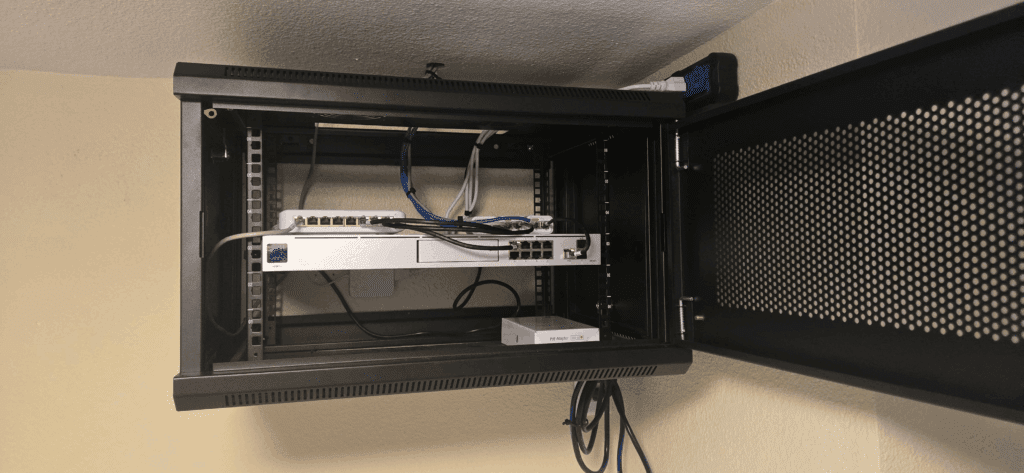
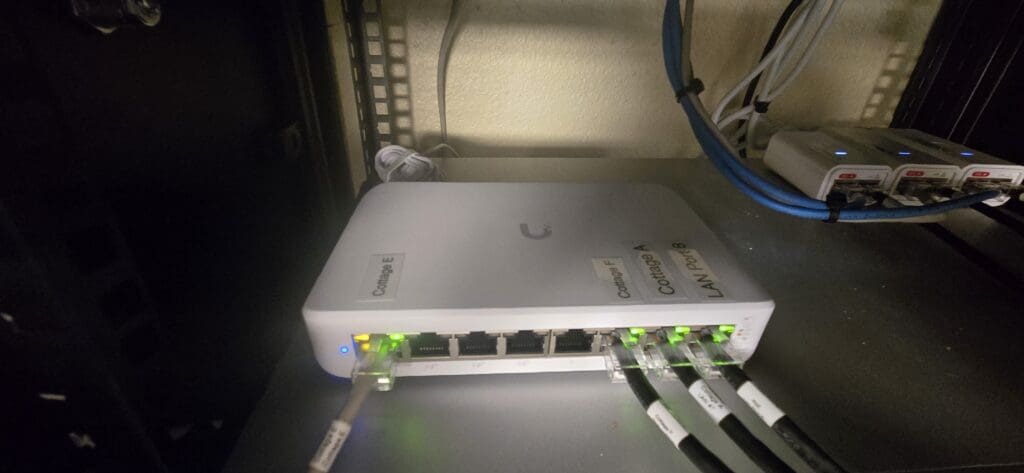
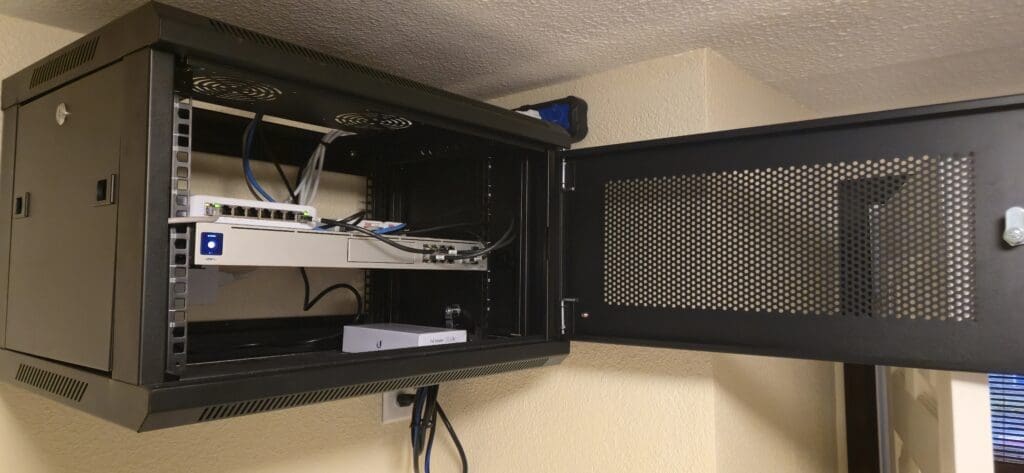
    And here is the finished result after the full rewire, with everything properly labeled and organized.

  • Static IPv6 Address on Ubuntu 22.04 with Netplan

    Assigning a static IPv6 address to your Ubuntu 22.04 LTS server ensures it is always reachable at the same address — a critical requirement for web servers, mail servers, DNS hosts, and any service that other systems need to connect to reliably. Without a fixed address, dynamic IPv6 assignment can cause disruptions every time your server reboots or your network lease renews. On Ubuntu 22.04, network configuration is handled through Netplan, which uses a clean, human-readable YAML file to define all your network settings in one place.


    Why Use a Static IPv6 Address?

    By default, most servers receive a dynamically assigned IPv6 address that can change over time. A static IPv6 address eliminates that variability — the address stays fixed regardless of reboots, DHCP lease renewals, or network topology changes. This predictability is essential whenever external systems, DNS records, firewall rules, or end users need to connect to your server at a known, consistent address. It also simplifies security auditing, since you always know exactly which address your server is presenting to the outside world.


    What You Need

    • Ubuntu 22.04 LTS installed and running.
    • IPv6 connectivity active on your network — confirm with your hosting provider or network administrator if you are unsure.
    • The following details for your server, obtained from your hosting provider or network administrator: your static IPv6 address, subnet prefix (typically /64), default IPv6 gateway, and DNS server addresses.
    • Root or sudo access to the server.

    Step 1: Identify Your Network Interface Name

    Open a terminal and run the following command to list all network interfaces currently active on the system:

    ip a

    Scan the output for your primary network interface. Common names include ens33, eth0, and enp0s3, but the exact name depends on your hardware and virtualization platform. Make a note of it — you will need it in Step 3 when editing the Netplan configuration file.


    Step 2: Back Up Your Netplan Configuration

    Before making any changes to your network configuration, create a backup of the existing Netplan file. This gives you a quick and reliable way to restore your previous working state if something goes wrong during editing:

    sudo cp /etc/netplan/00-installer-config.yaml /etc/netplan/00-installer-config.yaml.bak

    If your system uses a differently named Netplan file, list all files in the directory first with ls /etc/netplan/ and back up whichever .yaml file is present. On some Ubuntu 22.04 installations — particularly cloud images — the file may be named 50-cloud-init.yaml instead.


    Step 3: Edit the Netplan Configuration File

    Open the Netplan configuration file in a text editor:

    sudo nano /etc/netplan/00-installer-config.yaml

    Add or update the IPv6 section to match the example below. Replace ens33 with your actual interface name, and substitute all placeholder address values with the real details provided by your hosting provider or network administrator:

    network:
      version: 2
      ethernets:
        ens33:
          dhcp6: no
          addresses:
            - 2001:db8::1001/64
          gateway6: 2001:db8::1
          nameservers:
            addresses:
              - 2001:4860:4860::8888
              - 2001:4860:4860::8844

    The DNS addresses shown above (2001:4860:4860::8888 and 2001:4860:4860::8844) are Google’s public IPv6 DNS resolvers. You can use these as-is if your provider does not specify dedicated DNS servers, or substitute Cloudflare’s IPv6 resolvers (2606:4700:4700::1111 and 2606:4700:4700::1001) as an alternative.

    Important: YAML is whitespace-sensitive — indentation must use spaces, never tabs, and the structure must match exactly. A single misplaced space can cause Netplan to reject the entire file. Save the file with Ctrl+O, press Enter to confirm the filename, then exit with Ctrl+X.


    Step 4: Test and Apply the Configuration

    Before applying the change permanently, use netplan try to test it safely. This command applies the new configuration temporarily and automatically reverts it after 120 seconds unless you explicitly confirm — giving you a safety window to verify that your connection is still working before committing:

    sudo netplan try

    If the configuration is accepted and your connection remains stable, confirm the change by pressing Enter when prompted. If you lose connectivity and cannot confirm in time, Netplan will automatically roll back to the previous configuration after the timeout expires — protecting you from being permanently locked out.

    Once confirmed, apply the configuration permanently with:

    sudo netplan apply

    Step 5: Verify the Address and Test Connectivity

    Confirm that your static IPv6 address has been successfully assigned to the interface:

    ip -6 addr show

    Your static address should appear in the output next to your interface name. Next, test that outbound IPv6 connectivity is functioning correctly:

    ping6 google.com

    A successful ping response confirms that your server can reach IPv6 destinations and that DNS resolution over IPv6 is working as expected. If the ping fails, double-check your gateway and DNS entries in the Netplan file, verify that your hosting provider has IPv6 enabled on your connection, and ensure the correct prefix length is set for your address.


    Tips for Success

    • Always back up before making changes. The backup created in Step 2 lets you restore your working configuration instantly if something goes wrong — a step that takes seconds but can save hours of troubleshooting.
    • Record your network settings somewhere safe. Keep a note of your static IPv6 address, prefix length, gateway, and DNS values outside of the server itself — in a password manager, infrastructure documentation system, or secure note. If the server becomes unreachable, you will need these details to troubleshoot from outside.
    • Ensure you have console or out-of-band access. If a misconfigured network file cuts off SSH access, a console connection (available through your hosting provider’s control panel or a physical terminal) allows you to log in and fix the issue without relying on network connectivity. Many cloud providers offer browser-based console access for exactly this scenario.
    • Validate your YAML syntax before applying. You can check your Netplan file for syntax errors without applying any changes by running sudo netplan generate. Any YAML formatting issues will be reported immediately, before they affect your live network configuration.

    Your Ubuntu 22.04 LTS server now has a permanent, static IPv6 address configured and managed through Netplan. Going forward, the address will remain consistent across reboots and network changes, giving you a stable, reliable foundation for any service — from web hosting to email delivery — that depends on a fixed, publicly reachable IPv6 address.
  • Fulfillment & IT Support Specialist at Joe Coffee

    On April 1, 2025, I started a new role at Joe Coffee as a Fulfillment Specialist. Yes, April Fools’ Day — and no, it is not a joke. It is very real, and I could not be more excited about it.

    In this role, I wear several hats: Fulfillment Specialist, IT Support, and In-Person Installer. I genuinely love all three. There is something deeply satisfying about making sure every order is packed correctly and shipped as quickly as possible, and about knowing that the work I do directly helps coffee shop partners get up and running. The team has been incredibly supportive from day one, and I feel like my contributions are valued and noticed.

    A Look at the Work So Far

    The Part That Keeps Me Coming Back

    I am also genuinely excited about the installer and IT support side of this role. Getting to visit local coffee shops, solve real problems on-site, and walk out knowing everything is working the way it should — often within the same day — is one of the most rewarding parts of the job.

    If you are a coffee shop owner looking for reliable hardware and software to power your operation, I encourage you to check out joe.coffee — a trustworthy platform built specifically to serve independent coffee shops.

  • YoDeck Rayidant Setup Guide: Digital Menu Boards

    We’re thrilled to announce that Anthem Coffee & Tea is now leveraging YoDeck on Rayidant Hardware for a more seamless, professional digital signage experience. This transition unlocks enhanced content management features and significantly reduces monthly subscription costs — a genuine win-win for both the Anthem team and Foster Creative.

    This platform is efficient, intuitive, and purpose-built to simplify menu and advertisement updates for coffee shops and multi-location businesses alike. Whether you’re brand new to digital signage or already comfortable with content management systems, YoDeck makes publishing updated menus and promotions fast and effortless. Every step of the process is covered in detail below.
    In this guide, you’ll find a complete walkthrough covering how to set up your access, organize your media library, and update playlists for all in-store TVs — so your displays always reflect your latest offerings.


    Step 1: Setting Up Your YoDeck Access

    Before diving in, complete the following quick setup steps:

    1. Log in using your work email or your designated YoDeck dashboard login.
    2. You’ll be added as a Directory User with the permissions needed to publish, edit, and manage media and playlists.
    3. Confirm your account is part of the Anthem Coffee Group before uploading any content — this keeps your files properly organized and visible to the correct players.

    Step 2: Uploading Media Files to YoDeck

    Video walkthrough available! Watch the tutorial below for a quick visual overview of the upload process.
    How to Upload Media

    1. Log In: Access the YoDeck dashboard using your assigned work email.
    2. Navigate: In the left sidebar, click Media → All Media.
    3. Organize: Consistent folder structure is critical. Always follow this naming convention when uploading:
      Anthem Coffee and Tea → WA or AZ → Menu or Ads → [Month + Year] → [Your media files]
      Example: Anthem Coffee and Tea → WA → Menu → June 2025 → [images or PDFs]
    4. Upload Media: Open the correct monthly folder, then click Add Media to upload your image or PDF files directly into that folder.

    Step 3: Updating Playlists for the Ads TV

    Keeping your digital menu boards and advertisement playlists current is essential for delivering a polished, professional experience to every customer who walks through the door.

    How to Update a Playlist

    1. In the left sidebar, click Playlists.
    2. Select the correct playlist for your location: WA/Ads or AZ/Ads.
    3. Switch to Folder view to browse your organized media library more easily.
    4. Navigate to Media Folder → Anthem Coffee and Tea → WA or AZ → Menu or Ads → [Month + Year].
    5. Select the latest menu or advertisement files for the current month.
    6. Preview your selection by clicking the plus (+) circle on any thumbnail to confirm you’ve chosen the correct content before adding it.
    7. Confirm your selection: Click the arrow button to add the chosen media to the active playlist.
    8. Save & Publish: Click Save, then push the updated playlist to your player(s).

    💡 Pro Tip: There’s no need to manually adjust slide durations. Each slide defaults to a 5-second display time, keeping content moving at a comfortable, consistent pace.

    Once saved and pushed, your updates will appear simultaneously across both single and dual TV setups — changes go live instantly at all locations with no delays or manual refreshes required.


    Need Help?

    Don’t hesitate to reach out! If you’d like a personal walkthrough of the YoDeck dashboard or run into any issues along the way, contact us via email or Slack. We’re happy to help you:

    • Organize and structure new content correctly
    • Publish your latest menu updates or promotional ads
    • Troubleshoot and confirm that content is displaying correctly on all in-store TVs

    Final Thoughts

    Switching to YoDeck on Rayidant Hardware is a smart move for any growing coffee brand. It lowers operational costs, streamlines content updates, and delivers a user-friendly digital signage solution that any team member can confidently manage. With this step-by-step guide and ongoing support available, keeping your digital menu boards and promotional displays fresh has never been simpler.

    Welcome aboard, Anthem Coffee & Tea — let’s make your digital displays work smarter, not harder.


  • Fix Tablet Update Problems: Hard Restart & Wi-Fi

    If your tablet is experiencing issues after a configuration change or a corrupted software update, don’t worry — there’s a simple workaround. Performing a hard restart can clear the problem and get your device back up and running quickly.

    Tablet hard restart and Wi-Fi reconnection steps

    Steps to Perform a Hard Restart

    1. Press and hold both the Volume Down button and the Power button simultaneously for a full ten seconds. Count slowly to ensure you hold them long enough.
    2. Release both buttons and allow the tablet to restart on its own. Once it powers back on, it should automatically reconnect to your Wi-Fi network.
    3. Open the app or portal you were using before the issue occurred and verify that everything is working correctly.

    Why This Works

    A hard restart forces the tablet to fully power cycle, clearing temporary memory and flushing any corrupted state left behind by a failed update or configuration change. Unlike a standard restart, it bypasses the normal shutdown sequence, which is exactly what’s needed when the device is unresponsive or stuck.

    Still Having Trouble Connecting to Wi-Fi?

    If your tablet does not automatically reconnect to Wi-Fi after the restart, try the following:

    • Open Settings and navigate to Wi-Fi or Network & Internet.
    • Tap your saved network name and select Forget, then reconnect by entering your password again.
    • If the problem persists, restart your router or modem and attempt to reconnect once it is back online.

    Tip: If you continue to experience update problems after a hard restart, consider checking the manufacturer’s support site for device-specific firmware updates or known issue advisories.

  • Jasper’s Heartwarming Reunion: Dog Returns Home Safe

    After months of worry, heartbreak, and uncertainty, I am overjoyed to announce that Jasper is finally home where he belongs. This reunion would not have been possible without some incredibly kind and generous people. Max and Summerlove went out of their way to help bring Jasper home safely — traveling to my old place to search for him. That is when we received the best news: Ricky’s wife had been lovingly caring for Jasper the entire time. She brought him home, we re-adopted him, and this time we are fully committed to doing even better than before.

    Jasper is now safe, stable, and settling back in with our family — including our five kids and Sunny. One of the very first things we did was take him to the vet for a full checkup. The vet examined him thoroughly and prescribed medication to treat an open wound. Thankfully, it was nothing too serious — bites from a dog or cat, with no vein damage or major complications. Jasper will also be receiving his vaccines and a neuter procedure very soon. From this point forward, he is getting more attention than ever before, because I simply cannot lose him again. I will not lose him again.

    Jasper is more than just a pet — he is my companion, my comfort, and my source of joy. He follows me everywhere I go. There is nothing I love more than lying on the floor and just being present with him. Getting him medically stabilized and back home has been one of the greatest reliefs of my life.

    A True Warrior: What Jasper Survived

    As part of his ongoing wellness plan, Jasper will also receive an X-ray to confirm everything looks good internally. When I spoke with my old neighbors, I learned just how much of a fighter he truly is. They shared that Jasper had been through serious rough patches in January, March, May, July, September, and October — pulling through every single time like the resilient little warrior he is. I could not be more proud of him.

    The Backstory: How We Were Separated

    The backstory is a painful one. When I was hospitalized for seven days, Jasper was no longer at home when I returned. I was devastated, and circumstances required that I leave the RV park shortly after. For months, I had no idea where he was or whether he was okay. Then, in October, my good friend Ricky reached out with incredible news — Jasper had been living safely with him — and he sent me a video. I was completely overwhelmed with emotion. I moved as quickly as I possibly could to bring him home. He is now officially registered in my name, and his upcoming vaccines are already scheduled.

    Jasper Is Home — Reunion Photos

    I am beyond grateful that Jasper is alive, healthy, and back home. He is my special boy, and he is exactly where he needs to be. Thank you to everyone who helped make this reunion possible. 🐾❤️

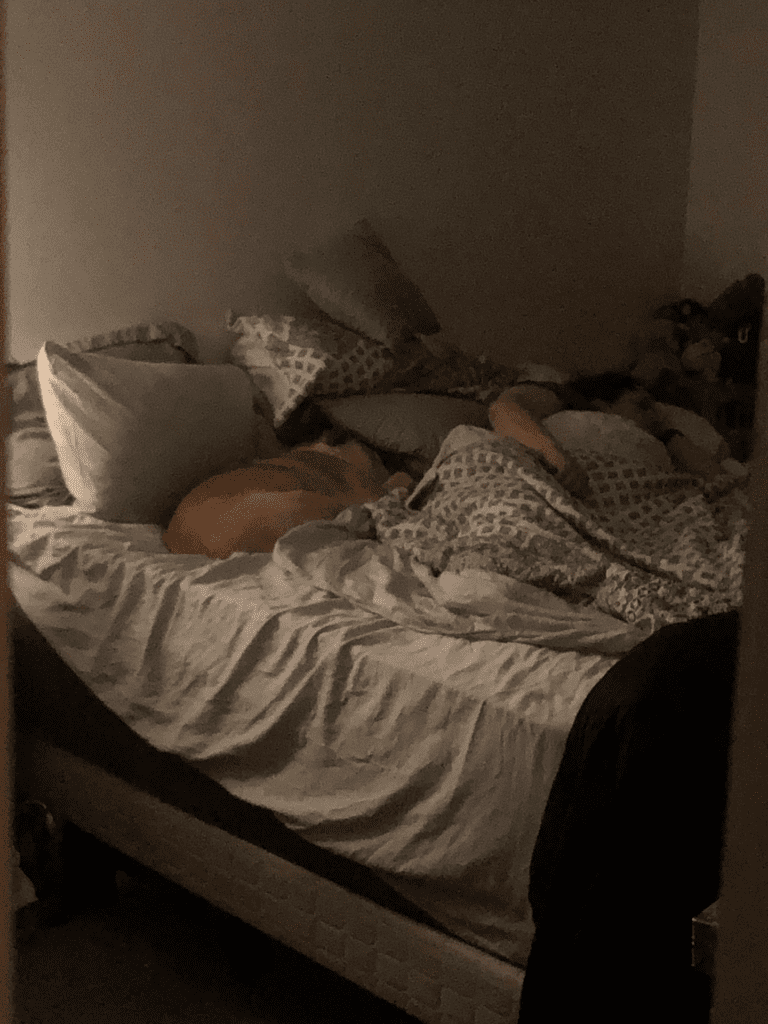
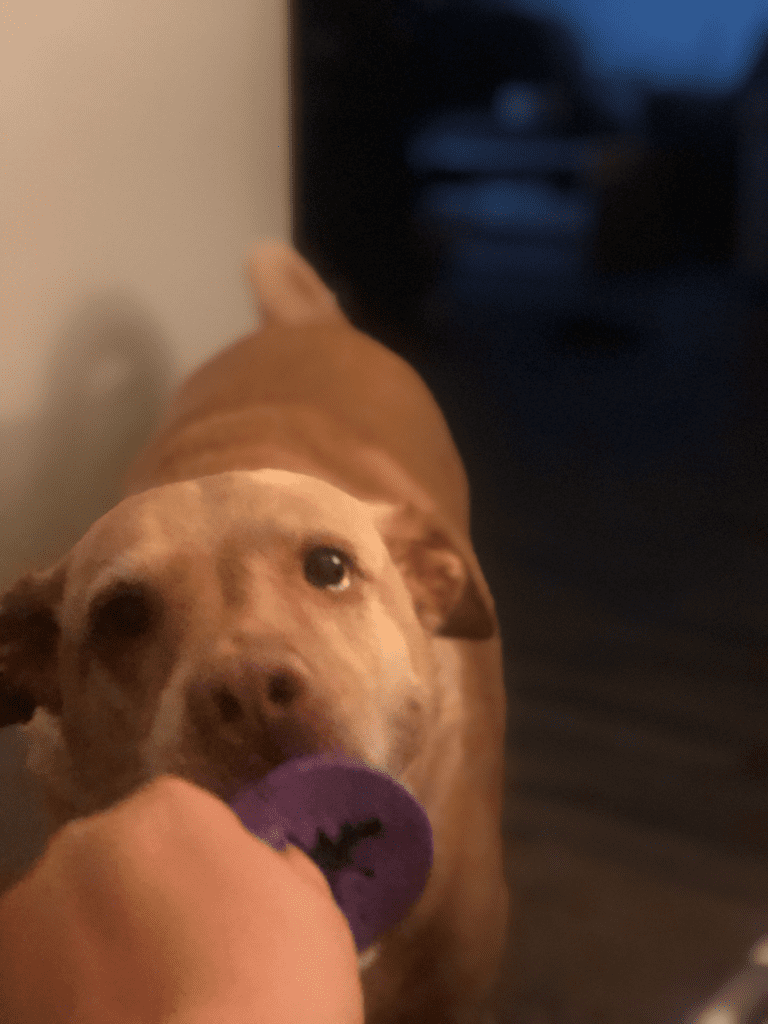
    Jasper the dog finally back home safe after months away
    Jasper reunited with his family after a long separation

    Older Photos of Jasper

    These photos below were taken before we were separated — a reminder of how far we have both come.

    Old photo of Jasper the dog before the separation
    Jasper as a puppy in a fond early memory

    View the full photo album here: Jasper’s Reunion Photo Gallery

    Jasper recovering from bite wound injuries at the vet
    Jasper happy and healing at home after his reunion
    Jasper the dog reunion story — back where he belongs
    Jasper safe, loved, and settled back into his home
  • Milo’s Tribute: Remembering a Beloved Companion

    Milo passed away peacefully this morning at 3:30 a.m. He was an absolute joy to be around — the kind of companion who made every ordinary moment feel a little brighter. Losing him is deeply painful, but I find comfort in knowing that he is no longer suffering and that he is now free, running through heavenly fields without a care in the world. These photos and videos are more than memories — they are treasures I will carry in my heart for the rest of my life. Until we meet again, my dear friend. Run free across the Rainbow Bridge, Milo. 🌈


    Videos of Milo


    A Collection of Cherished Memories with Milo ❤️


    🌈 Run free, Milo. You will never be forgotten. We love you always.

  • 26th Birthday Celebration: Movies, Pancakes & Recovery

    Twenty-six years old — I’ll take it! My birthday didn’t go exactly as planned, but it turned out to be a memorable one nonetheless. On July 30th, the day before my birthday, I started coming down with what felt like a cold or flu. I took a COVID-19 test at home and thankfully it came back negative, so I refused to let it slow me down entirely.

    On July 31st, 2024 — my actual birthday — I headed out to the movie theater with my mom and my girlfriend Jasmine to see Deadpool & Wolverine. Despite feeling a little under the weather, I had an amazing time. The movie was fantastic. It made perfect sense to bring these two powerhouse characters together — both are arguably the strongest in the X-Men universe, and neither can be killed by conventional means. The chemistry, the humor, and the action were all on point. Highly recommend it if you haven’t seen it yet!

    Richard with his mom and girlfriend Jasmine at the movie theater on his 26th birthday
    Mom, Jasmine and me ❤
    Deadpool and Wolverine movie poster at the theater

    While my mom waited at the concession stand for the popcorn and drinks, Jasmine and I couldn’t resist stopping to snap a photo in front of a really cool movie poster on the way to the theater room. It’s the little moments like that that make a birthday special.

    Richard and family at the pancake house for his 26th birthday celebration
    We also went out to the pancake house to celebrate — a perfect birthday treat!
    Richard celebrating his 26th birthday

    After the movie and some birthday celebrations, I headed home to rest up. By August 1st at 10 p.m., though, the cold had gotten worse — I couldn’t sleep and was having trouble breathing comfortably. I made a late-night run to the store and picked up NyQuil, DayQuil, and ZzzQuil with pain relief. After taking the NyQuil and a pain reliever, I finally drifted off to sleep. I woke up feeling significantly better — still dealing with a runny nose and a lingering cough, but nothing like the night before.

    All in all, even with a stubborn cold trying to crash the party, my 26th birthday was a great one. I’m grateful for my mom and Jasmine for making it special, and I’m looking forward to getting back to full health and hitting the ground running at work. Here’s to 26!

Secret Link