If you’ve ever been unable to use a standard government or corporate network for your business, you’re not alone. We faced the same challenge and needed a reliable hotspot solution that could serve an entire office — not just a single device. After some experimenting, I found a straightforward way to connect a MiFi hotspot to a router using an Android tablet, and it works beautifully.
What You’ll Need
Before getting started, make sure you have the following items on hand:
- An Android tablet with USB tethering support
- A USB-C hub with an Ethernet port
- A standard Wi-Fi router with a WAN port
- A MiFi mobile hotspot device
- An Ethernet cable
How the Connection Chain Works
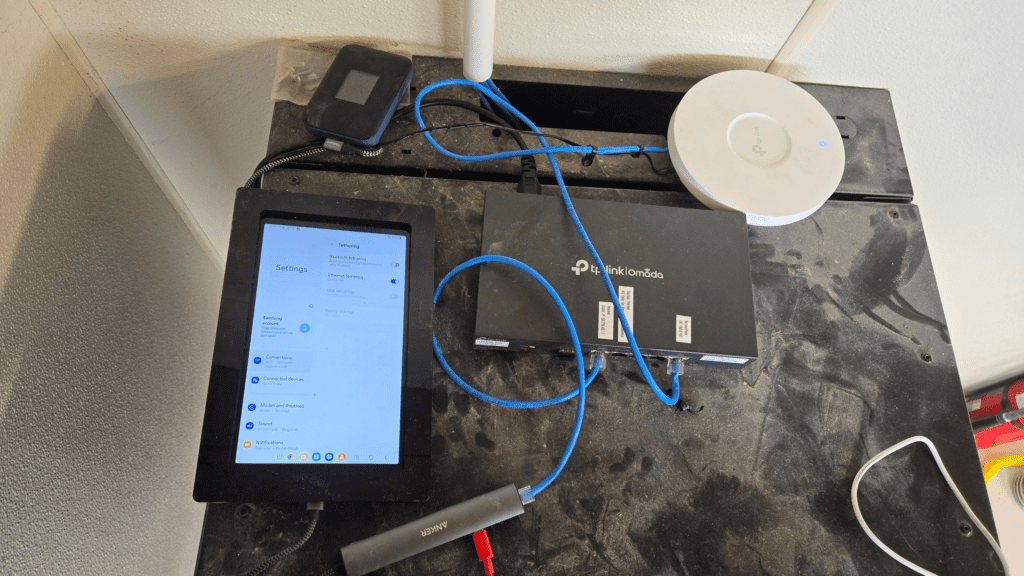
The setup follows a simple three-step chain: the MiFi hotspot connects to the tablet via Wi-Fi, the tablet shares its internet connection through USB or Ethernet tethering, and the router then distributes that connection to every device on your network.
Step-by-Step Setup
- Connect the tablet to the MiFi hotspot via Wi-Fi as you normally would.
- Plug a USB-C hub (with an Ethernet port) into your tablet.
- Run an Ethernet cable from the USB-C hub to the WAN port on your router.
- On the tablet, navigate to Settings > Network > Hotspot & Tethering and enable USB/Ethernet Tethering.
- Your router will now receive internet through the tablet, and every device connected to the router will have internet access.
The best part? Your MiFi hotspot only sees one connected device — the tablet — while your router handles distributing the connection to everyone on the network. This is an excellent workaround if your MiFi device enforces a connection limit.
Keeping the Tether Alive: Prevent the Tablet from Sleeping
One common issue is that an idle tablet will eventually suspend the tether connection and drop your internet. Fortunately, Android’s Developer Options include a simple fix.
- Go to Settings > About Tablet and tap Build Number seven times to unlock Developer Mode.
- Navigate to Settings > Developer Options and enable Stay Awake (keeps the screen on while the device is charging).
- Reduce screen brightness to its lowest setting to conserve battery.
- Keep the tablet plugged into a power source at all times so it does not drain the battery.
With these settings in place, the tablet will stay awake and maintain the tether connection indefinitely — keeping your router and your entire network online without interruption.
Why This Works Better Than a Wi-Fi Extender
You might wonder why not simply use a Wi-Fi extender or repeater. In practice, that approach proved unreliable with our MiFi device. Using a tablet as a tethering bridge delivers a stable, wired connection directly to the router’s WAN port — far more consistent than a wireless repeater setup, especially in a business environment where uptime is critical.
If you’re looking for a budget-friendly way to share a MiFi hotspot connection across an entire network, this tablet tethering method is a clever and effective solution. Give it a try and share how it works for you in the comments below!
Comments (0)
No comments yet. Be the first!