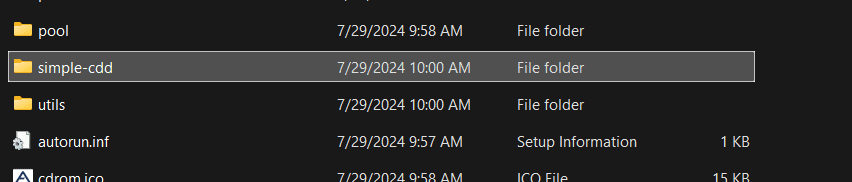
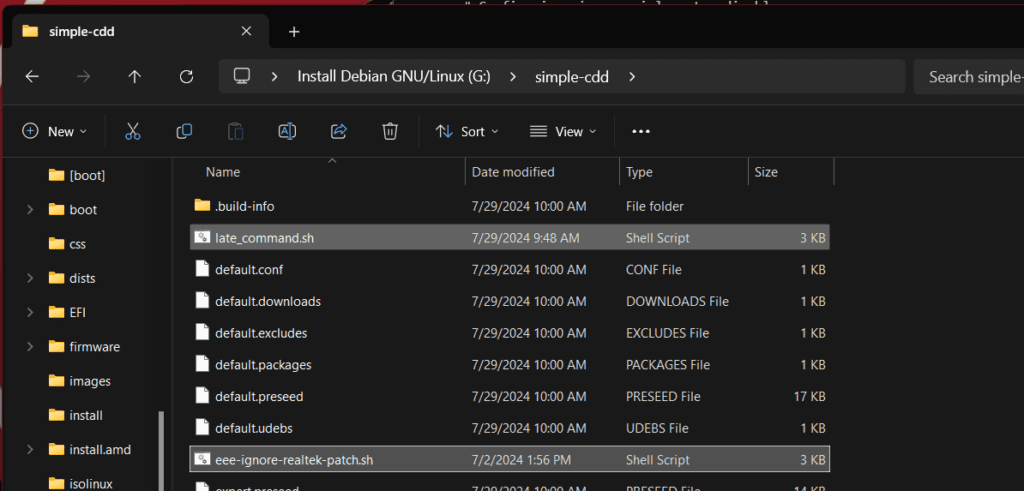
I used Rufus to make a USB bootable after I burned the ISO to USB. I then went to the USB folder simple-CDD, and pasted the scripts eee-ignore-realtek-patch.sh and late_command.sh to the folder.
Next, paste the two files you just downloaded and extract them.
Then, now plug the USB in and install the files fresh. This will disable network EEE to allow you to process, and make sure you don’t enable it in the future.
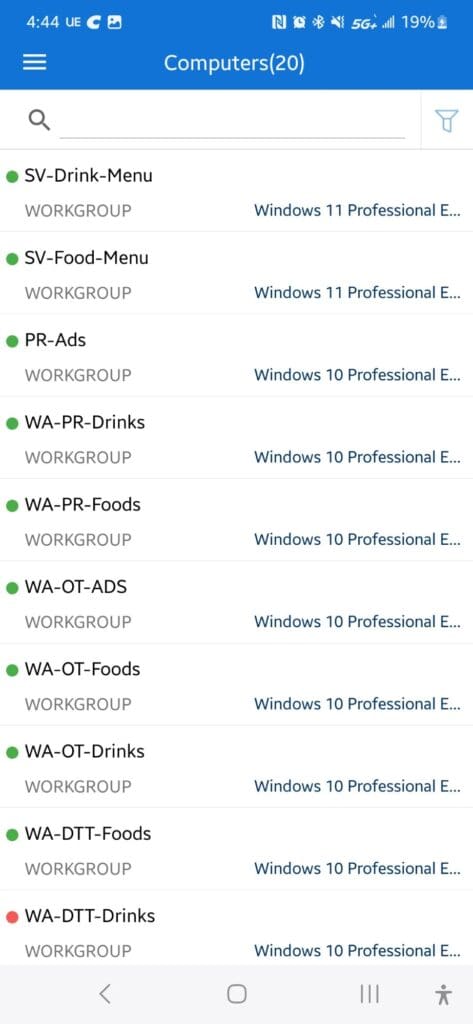
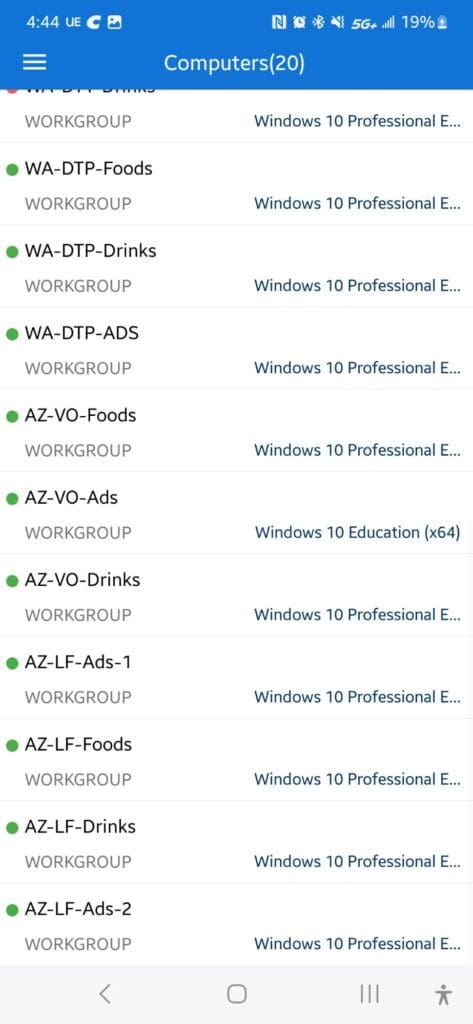
I’m learning that if they enable auto-update, then some bugs happen. And then the best solution is to go back to safe mode and remove one driver. But I feel bad about all these TV apps that can’t remote control due to being blue screen death. And so few IT members in each business to do all TV. Unfortunately, my stores do have Windows 11 and 10, but they’re not enabled for autoupdate. I prefer to update my computer monthly in person. As of today, July 19th, 2024, all my stores are still working with Windows 10, 11. And they’re working pretty well. With last month’s update , i left it alone until Windows released the next update that fixed, but it fixed today. whew.That scary moment when you suddenly get a blue death screen all over your store at once during the middle of the night when you’re sleeping, and that nightmare comes true.
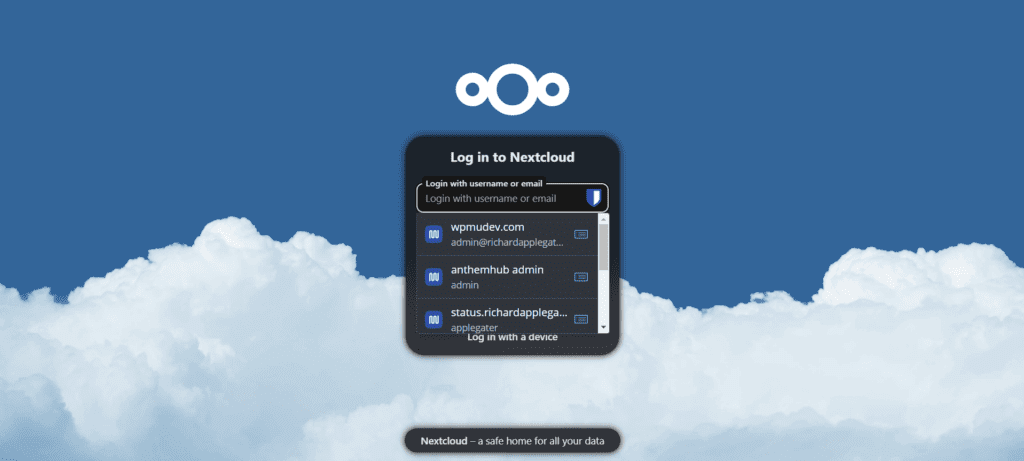
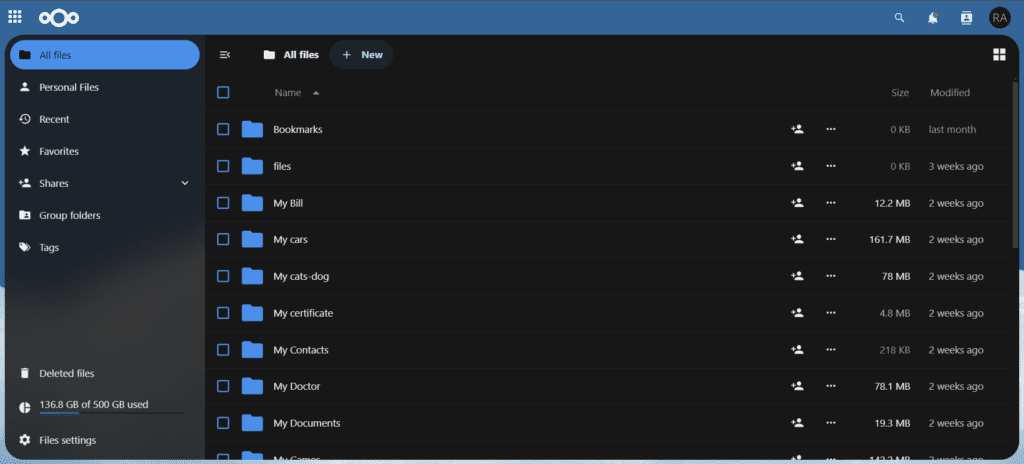
I recently migrated all my Google Drive accounts to my self-hosted Nextcloud server. Now, I have full control over my personal data. Everything is stored safely on my server, not on third-party services like Google Drive, OneDrive, or iCloud. Many of these services charge monthly fees—even for basic file storage.
Why I Chose Nextcloud
Nextcloud gives me control and privacy. I can store, organize, and manage my files without relying on big companies. This means no more worries about rising costs or losing access if my account is restricted.
All-in-One Productivity
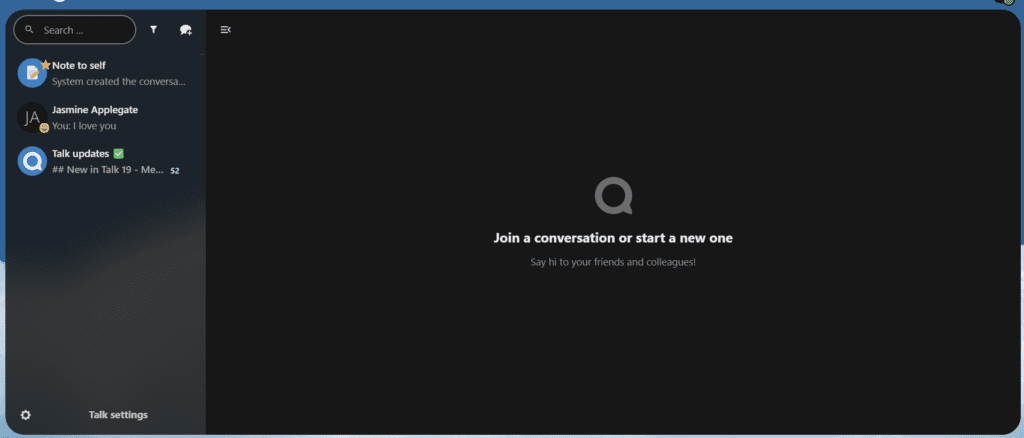
With Nextcloud, I added an office suite. Now, I can create and edit documents, spreadsheets, and presentations—all right inside Nextcloud. I also use Nextcloud Talk to handle communication and collaboration. Having everything in one place makes my work much easier and keeps me organized.
I use Cloudron for my setup. Cloudron makes it easy to install Nextcloud as a pre-packaged app. It’s stable, supported by the community, and maintained by the Cloudron team.
Now, all my data is under my control. No more monthly payments to Google. Everything—from photos and documents to communication apps—is in one secure place on my cloud.
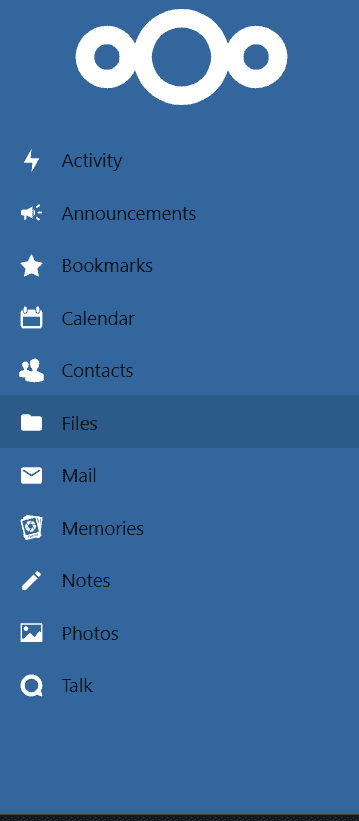
App List on My Nextcloud:
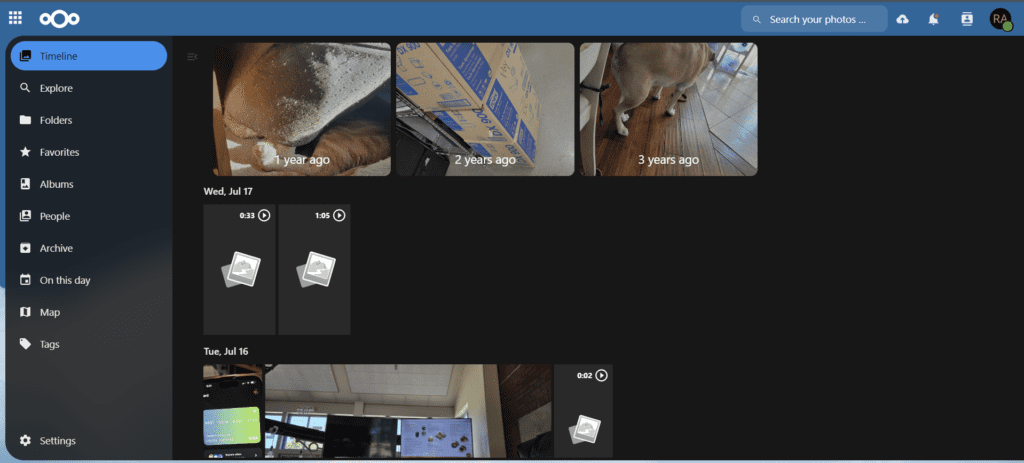
Files (Memories)
Office Suite
Nextcloud Talk
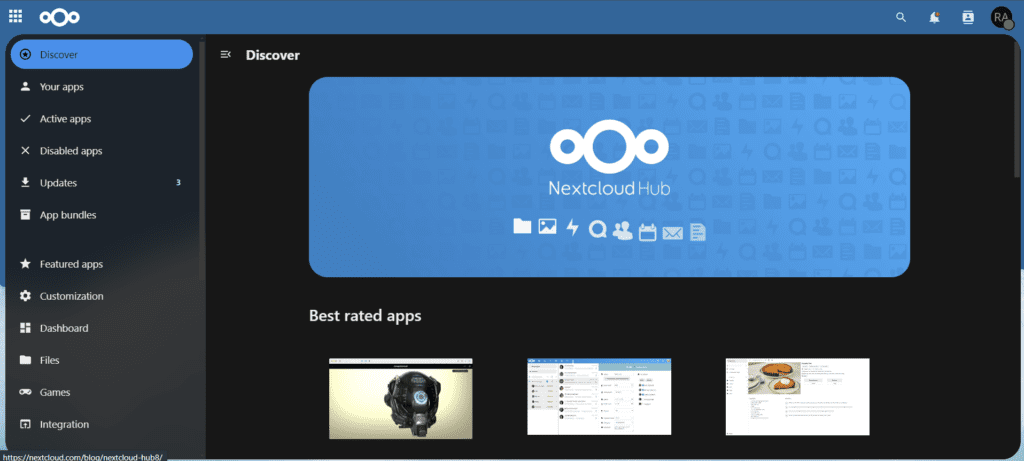
App Marketplace
If you’re interested in learning more, feel free to reach out or check the links above!
Photo preview:
google drive miragrated to my cloud now everything is here and I am no longer paying google.App list for my cloudMy photos (Memories)nextcloud TalkApp Marketplace in Nextcloud