Category: Linux Server

  • How I Prevented My Ubuntu Server from Crashing by Moving Docker to a Separate Drive

    Every Linux server failure I’ve seen from disk issues starts the same way:

    Root slowly fills up.

    No alarms. No drama. Just creeping usage.

    On this Ubuntu server, / was sitting at a safe percentage — but something wasn’t right. A quick disk usage scan showed the real issue:

    /opt 141G
    

    Large directories on root are a warning sign. And on Docker hosts, the usual culprit is container storage.

    Rather than wait for the root filesystem to fill and crash services, I made a structural fix:

    I moved Docker completely off the root disk.

    Here’s how.


    Why Moving Docker Matters

    By default, Docker stores everything under:

    /var/lib/docker
    

    That includes:

    • Images
    • Containers
    • Volumes
    • Build cache
    • Overlay filesystem layers

    On active systems, this can grow into hundreds of gigabytes.

    When root fills:

    • Docker stops
    • systemd fails
    • Logs stop writing
    • SSH may fail
    • The server can become unstable

    Best practice: separate OS storage from container storage.


    The Proper Fix: Move Docker’s Data Root

    Instead of deleting images repeatedly, the right solution is to move Docker’s data directory to a secondary disk.

    In this case, the secondary drive was mounted at:

    /mnt/1TB
    

    The new Docker path:

    /mnt/1TB/docker-data
    

    Step-by-Step: Move Docker to Another Drive (Ubuntu)


    Step 1 — Confirm the Secondary Drive Is Mounted

    Verify mount:

    df -h
    

    Ensure your secondary disk appears mounted at your intended path.

    Also confirm UUID-based mount in /etc/fstab:

    cat /etc/fstab
    

    This prevents mount issues after reboot.


    Step 2 — Stop Docker

    sudo systemctl stop docker
    sudo systemctl stop docker.socket
    

    Step 3 — Create the New Docker Directory

    sudo mkdir -p /mnt/1TB/docker-data
    sudo chown root:root /mnt/1TB/docker-data
    sudo chmod 711 /mnt/1TB/docker-data
    

    Step 4 — Copy Existing Docker Data

    Preserve permissions and metadata:

    sudo rsync -aP /var/lib/docker/ /mnt/1TB/docker-data/
    

    Important: the trailing slash matters.


    Step 5 — Configure Docker

    Edit:

    sudo nano /etc/docker/daemon.json
    

    Add:

    {
      "data-root": "/mnt/1TB/docker-data"
    }
    

    If you use GPU runtime, include those runtime settings as needed — but the only required change for relocation is "data-root".

    Save the file.


    Step 6 — Backup the Old Docker Directory

    sudo mv /var/lib/docker /var/lib/docker.bak
    

    This gives you rollback protection.


    Step 7 — Start Docker

    sudo systemctl start docker
    

    Step 8 — Verify the New Location

    docker info | grep "Docker Root Dir"
    

    Expected:

    Docker Root Dir: /mnt/1TB/docker-data
    

    Step 9 — Clean Up After Verification

    Once confirmed working:

    sudo rm -rf /var/lib/docker.bak
    

    Production-Safe Boot Protection

    One critical issue many guides miss:

    If Docker starts before the secondary drive mounts at boot, it may recreate /mnt/1TB/docker-data on root.

    To prevent this, create a systemd override:

    sudo mkdir -p /etc/systemd/system/docker.service.d
    sudo nano /etc/systemd/system/docker.service.d/override.conf
    

    Add:

    [Unit]
    RequiresMountsFor=/mnt/1TB
    

    Reload:

    sudo systemctl daemon-reload
    

    Now Docker will not start unless the drive is mounted.


    Final Result

    After this change:

    • Root remains stable
    • Docker storage is isolated
    • Disk growth is predictable
    • Server stability improves significantly

    This is not a cleanup tactic — it’s structural infrastructure design.


    Takeaway

    If you run Docker on Ubuntu and care about uptime:

    • Do not let /var/lib/docker live on root.
    • Use a separate mounted volume.
    • Enforce mount dependency.
    • Protect your OS partition.

    Disk space issues don’t explode suddenly.

    They accumulate quietly.

    Separating Docker storage is one of the simplest and most effective ways to prevent a future outage.

  • Workflow: Anthem Network uptime Notifications

    Monitoring Source:
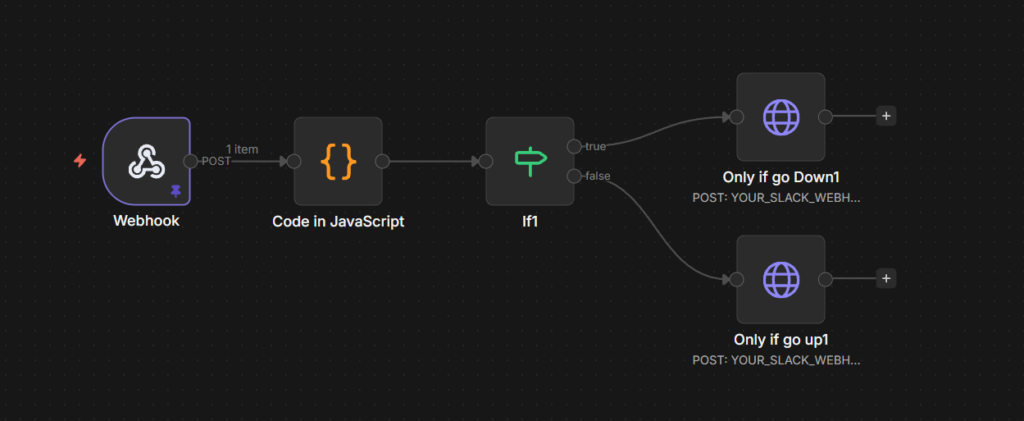
    This workflow is triggered by webhook events sent from Uptime Kuma, a self-hosted monitoring system. When a monitored service changes state (UP or DOWN), Uptime Kuma sends a JSON payload to this webhook endpoint, which then processes the data and forwards formatted notifications to Slack.

    Purpose: Receive Uptime Kuma status webhooks and post Slack alerts for DOWN and UP events.


    Nodes

    1) Webhook

    • Type: Webhook (Trigger)
    • What it’s for: Entry point that receives the POST request from Uptime Kuma.
    • Endpoint path: POST /webhook/Anthemnetworkstatus
    • Expected payload: JSON with body.heartbeat and body.monitor

    2) Code in JavaScript

    • Type: Code
    • What it’s for: Converts the raw Uptime Kuma webhook payload into clean fields used by the rest of the workflow.
    • Key logic:
      • Reads:
    - `body.heartbeat` (status, ping, time, msg)
    - `body.monitor` (name, hostname/url/type)
    
    • Creates:
    - `isDown` → `true` when `heartbeat.status === 0` (Kuma: 0=DOWN, 1=UP)
    - `name` → monitor name
    - `hostnameOrURL` → monitor hostname/url fallback
    - `time` → heartbeat time (fallback: now)
    - `status` → `"Down"` or `"Up"`
    - `msg` → human readable summary string
    
    • Also passes through:
    - `heartbeat`
    - `monitor`
    

    3) If

    • Type: IF (Condition)
    • What it’s for: Routes the workflow based on the status.
    • Condition:{{$json.isDown}} is true
      • True path (DOWN) → goes to Only if go Down
      • False path (UP) → goes to Only if go up1

    4) Only if go Down

    • Type: HTTP Request (POST to Slack Incoming Webhook)
    • What it’s for: Sends a DOWN alert to Slack when isDown=true.
    • Message formatting:
      • Title/header: “🚨 Service is DOWN”
      • Color: #e01e5a (red)
      • Includes fields: Service, Status, Target, Time
      • Includes details from heartbeat message / built msg

    5) Only if go up1

    • Type: HTTP Request (POST to Slack Incoming Webhook)
    • What it’s for: Sends an UP alert to Slack when isDown=false.
    • Message formatting:
      • Title/header: “✅ Service is UP”
      • Color: #2eb886 (green)
      • Includes fields: Service, Status, Target, Time
      • Includes message block with the formatted msg

    Connections (flow)

    Webhook → Code in JavaScript → If →

    • True (DOWN) → Only if go Down
    • False (UP) → Only if go up1
  • Working Setup: Caddy (public HTTPS) → Mailu Front (internal HTTPS) + Mailu SMTP/IMAP uses same Sectigo cert

    Goal

    • https://my.richardapplegate.io/webmail and /admin work
    • Caddy serves the site on public port 443
    • Mailu also serves HTTPS internally on front:443
    • SMTP/IMAP ports (465/993/995/587) use the same Sectigo wildcard cert
    • No port conflicts and no redirect loops

    1) Certificates on the host

    You have these two files (already confirmed they match):

    • fullchain.pem
    • privkey.pem

    Store them in a stable host path, example:

    • /mnt/volumes/certs/fullchain.pem
    • /mnt/volumes/certs/privkey.pem

    ✅ Verified match test:

    openssl x509 -noout -modulus -in fullchain.pem | openssl md5
    openssl pkey -noout -modulus -in privkey.pem  | openssl md5
    

    2) Caddy docker-compose

    Caddy publishes public ports and has the certs mounted:

    services:
      caddy:
        image: caddy:2
        restart: unless-stopped
        networks:
          - caddy
        ports:
          - "80:80"
          - "443:443/tcp"
          - "443:443/udp"
        volumes:
          - ./Caddyfile:/etc/caddy/Caddyfile:ro
          - ./data:/data
          - ./config:/config
          - /mnt/volumes/certs:/certs:ro
    networks:
      caddy:
        external: true
    

    3) Mailu env (mailu.env) — corrected values

    These are the critical “must be right” ones:

    DOMAIN=richardapplegate.io
    HOSTNAMES=my,mail
    
    PORTS=25,465,587,993,995,4190
    
    TLS_FLAVOR=cert
    TLS_CERT_FILENAME=fullchain.pem
    TLS_KEYPAIR_FILENAME=privkey.pem
    
    WEB_ADMIN=/admin
    WEB_WEBMAIL=/webmail
    WEBSITE=https://my.richardapplegate.io
    

    ✅ Important notes:

    • DOMAIN is the apex domain: richardapplegate.io
    • HOSTNAMES are labels only: my,mail (no dots)
    • TLS_FLAVOR is cert (not certs)
    • Do not include 80 or 443 in PORTS (Caddy owns those publicly)

    4) Mailu docker-compose networking + cert mounts

    4.1 Attach front to BOTH networks

    Mailu internal network (for smtp/imap/etc) and the caddy network (so Caddy can reach it):

    services:
      front:
        networks:
          - mailu
          - caddy
    

    4.2 Mount certs into Mailu containers that use them

    At minimum, mount into front, smtp, and imap (names may vary, but these are typical):

    services:
      front:
        volumes:
          - /mnt/volumes/certs/fullchain.pem:/certs/fullchain.pem:ro
          - /mnt/volumes/certs/privkey.pem:/certs/privkey.pem:ro
    
      smtp:
        volumes:
          - /mnt/volumes/certs/fullchain.pem:/certs/fullchain.pem:ro
          - /mnt/volumes/certs/privkey.pem:/certs/privkey.pem:ro
    
      imap:
        volumes:
          - /mnt/volumes/certs/fullchain.pem:/certs/fullchain.pem:ro
          - /mnt/volumes/certs/privkey.pem:/certs/privkey.pem:ro
    

    (These filenames match your TLS_CERT_FILENAME / TLS_KEYPAIR_FILENAME.)


    5) Caddyfile (the working site)

    You terminate TLS at Caddy and proxy to Mailu front over internal HTTPS to avoid redirect loops:

    my.richardapplegate.io {
      tls /certs/fullchain.pem /certs/privkey.pem
    
      # optional: make / go to webmail
      @root path /
      redir @root /webmail 302
    
      reverse_proxy https://front:443 {
        transport http {
          tls_server_name my.richardapplegate.io
          # Only if chain issues ever happen:
          # tls_insecure_skip_verify
        }
    
        header_up Host {host}
        header_up X-Forwarded-Proto {scheme}
        header_up X-Forwarded-Host  {host}
        header_up X-Forwarded-For   {remote_host}
      }
    }
    

    ✅ Why HTTPS upstream (front:443)?
    Because with TLS_FLAVOR=cert, Mailu front enforces HTTPS; proxying to http://front:80 triggers redirect loops. HTTPS upstream avoids that entirely.


    6) Restart order (clean rebuild)

    6.1 Restart Mailu (force recreate so config regenerates)

    cd /mnt/volumes/SamsungSSD970EVOPlus2TB/mailu
    docker compose down
    docker compose up -d --force-recreate
    

    6.2 Reload Caddy

    docker exec caddy caddy reload --config /etc/caddy/Caddyfile
    

    7) Verification tests

    7.1 Web cert (public 443 via Caddy)

    openssl s_client -connect my.richardapplegate.io:443 -servername my.richardapplegate.io </dev/null 2>/dev/null \
    | openssl x509 -noout -subject -issuer -dates
    

    7.2 Mailu front cert (internal, from inside caddy container)

    docker exec caddy sh -lc \
    'openssl s_client -connect front:443 -servername my.richardapplegate.io </dev/null 2>/dev/null | openssl x509 -noout -subject -issuer -dates'
    

    7.3 SMTP TLS cert (465)

    openssl s_client -connect my.richardapplegate.io:465 -servername my.richardapplegate.io </dev/null 2>/dev/null \
    | openssl x509 -noout -subject -issuer -dates
    

    7.4 IMAPS cert (993)

    openssl s_client -connect my.richardapplegate.io:993 -servername my.richardapplegate.io </dev/null 2>/dev/null \
    | openssl x509 -noout -subject -issuer -dates
    

    Expected: all show CN=*.richardapplegate.io and Sectigo issuer.

Secret Link