Author: applegater

  • Arionza moment I had

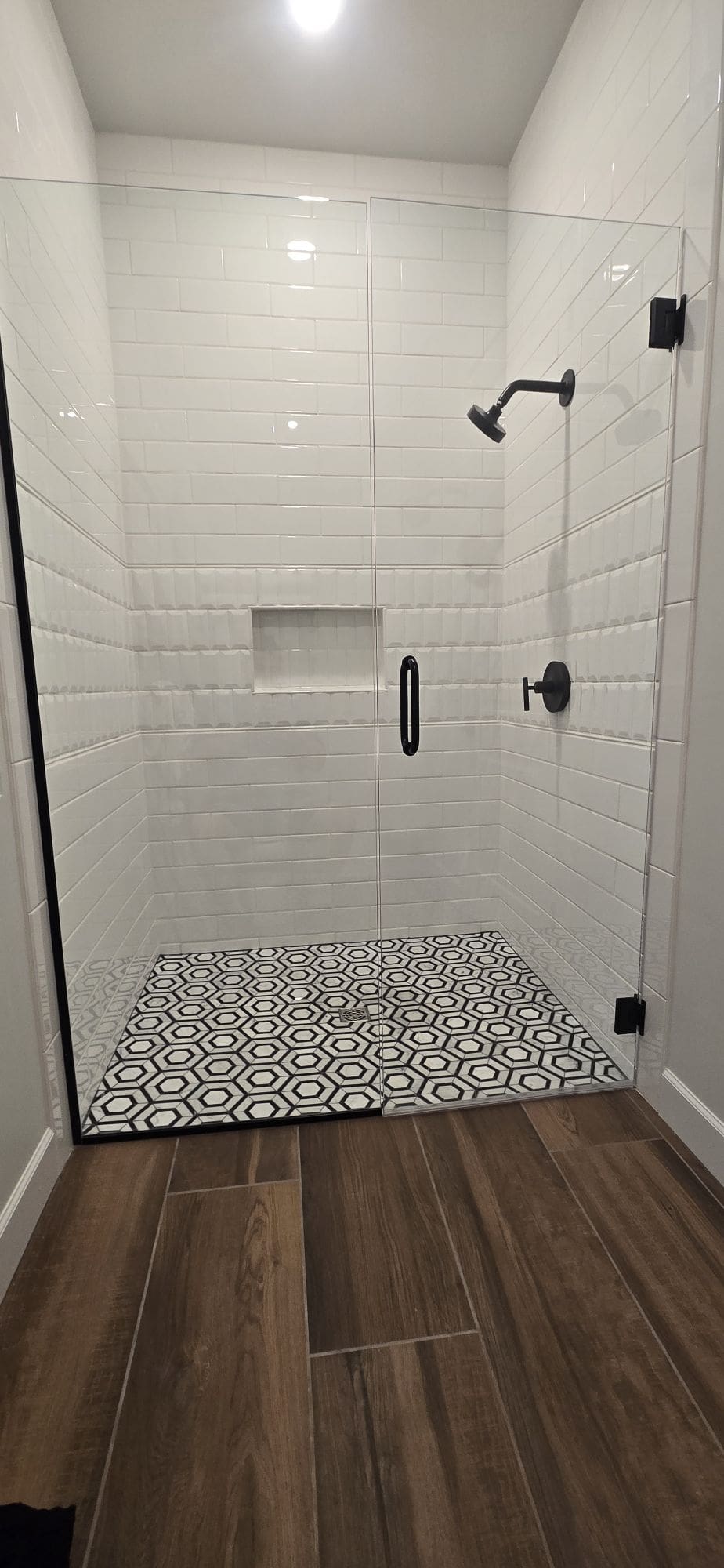
    When I get off the plane, it’s so thrilling to be on Arionza ground. It’s got this amazing vibe and nice people around, and my weather is perfect. I’d love to live in Arionza. And I went to the Cottage house to stay over. Oh man, they’ve got new technology for microwaves and good old-fashioned blind windows. Here is video and photo cool stuff.

  • Today, It was an exceedingly pleasant day on May 10th.

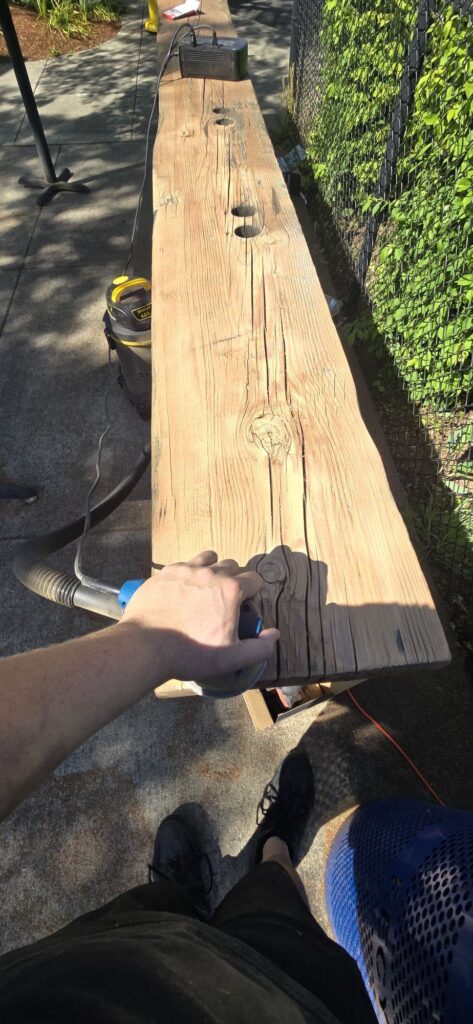
    I decided to sanding this table to restore its appearance and then paint it with weatherproof paint so it would look new again. We noticed that the table was very shiny, worn out, and even starting to bend. After sanding and painting, it looks great once more.

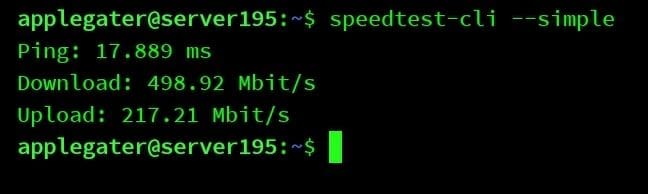
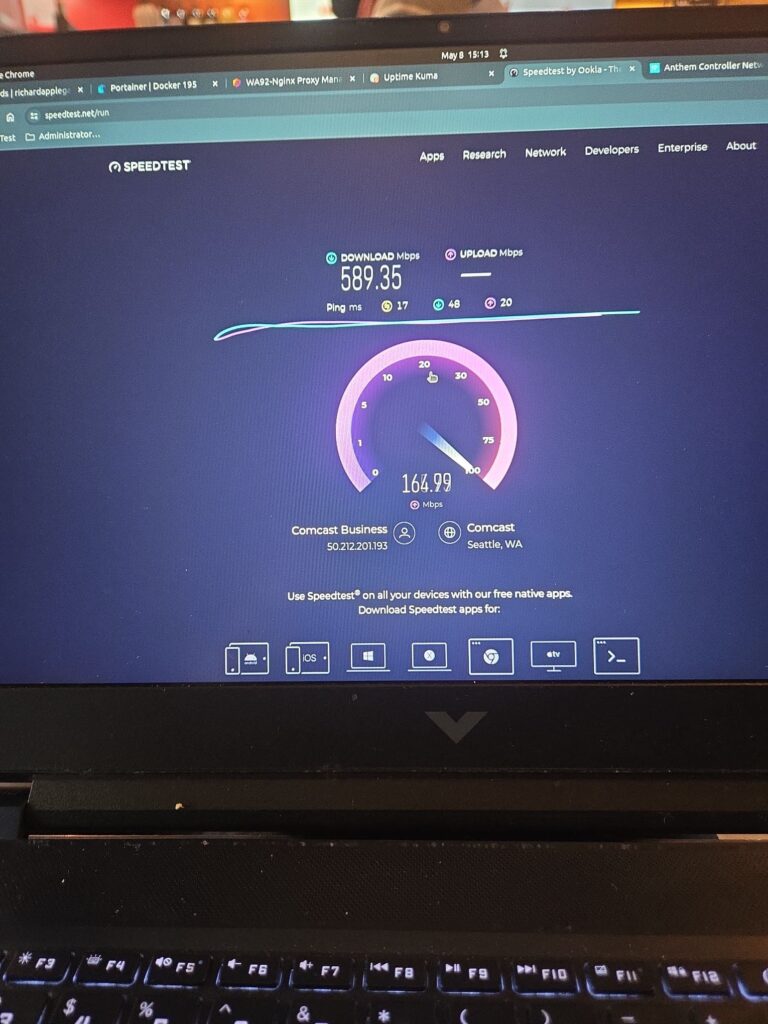
  • Comcast business upgrade speed automatic no cost!

    Indeed, it was the correct decision. Comcast Business has recently upgraded our plans to 250 MBPS, automatically upgrading with download speeds reaching 500 MBPS and upload speeds at 200 MBPS. I have decided to relocate my server from medical to another location that offers the highest upload speeds and is ideal for smooth operation.

    500mbps download and 200 uploads from comcast Business.
    This is my first experience in our business.

    Subsequently, I have established a website at https://status.richardapplegate.io for my work status uptime. It is crucial to me to monitor their performance constantly. I also monitor our comcast business gateway. Great to document their outrage from time to time to provide us credit.

  • How to Deploy MariaDB with Portainer Stacks Using Docker Compose


    If you’re looking to run a robust relational database in your Dockerized environment, MariaDB is an excellent open-source choice. With Portainer, managing your databases and application stacks becomes super easy—even with little Docker experience. In this post, I’ll walk you step by step through deploying MariaDB using Portainer Stacks (which leverages Docker Compose).


    Why Use MariaDB with Portainer?

    • MariaDB: Powerful open-source database, compatible with MySQL.
    • Portainer: Friendly web UI to easily deploy, manage, and monitor Docker containers, stacks, and services.

    Using them together lets you:

    • Quickly spin up databases.
    • Take advantage of persistent storage.
    • Easily manage your containers and stacks through a visual interface.

    Step 1: Access Your Portainer Dashboard

    You need your Portainer instance up and running. Log in at
    http://<your-server>:9000
    Replace <your-server> with your server’s IP or domain.


    Step 2: Open Portainer Stacks

    • On the left sidebar, click Stacks.
    • Then, click the “+ Add stack” button.

    Step 3: Compose the MariaDB Stack

    1. Name your stack (e.g., mariadb-stack).
    2. In the Web editor area, paste the following Docker Compose YAML (and adjust credentials as needed):
       version: '3.8'
    
       services:
         mariadb:
           image: mariadb:11.3

           container_name: mariadb
           restart: unless-stopped
           environment:
             - MARIADB_ROOT_PASSWORD=YourRootPassword123

             - MARIADB_DATABASE=mydatabase
             - MARIADB_USER=myuser
             - MARIADB_PASSWORD=userpassword
           ports:
             - "3306:3306"
           volumes:
             - mariadb_data:/var/lib/mysql
    
       volumes:
         mariadb_data:

    What does this do?

    • Pulls the latest MariaDB image (v11.3).
    • Sets up root/user passwords and a database.
    • Persists your data in a Docker volume (mariadb_data).
    • Exposes MariaDB on the default port 3306.

    Step 4: Deploy Your MariaDB Stack

    Scroll to the bottom and click Deploy the stack.

    Portainer will pull the required images and create your MariaDB container.


    Step 5: Connect & Use Your Database

    The MariaDB instance is now running! You can connect to it:

    • From any app on the server:
      localhost:3306, user myuser, password userpassword
    • From another machine (if port 3306 is accessible):
      your-server-ip:3306, same credentials

    Use your favorite MariaDB/MySQL client, or connect from other containers via the Docker network.


    Optional: Add phpMyAdmin for Easy Database Management

    Want a web interface for MariaDB? Just add phpMyAdmin to the stack by updating your YAML:

    version: '3.8'
    
    services:
      mariadb:
        image: mariadb:11.3
        container_name: mariadb
        restart: unless-stopped
        environment:
          - MARIADB_ROOT_PASSWORD=YourRootPassword123
          - MARIADB_DATABASE=mydatabase
          - MARIADB_USER=myuser
          - MARIADB_PASSWORD=userpassword
        ports:
          - "3306:3306"
        volumes:
          - mariadb_data:/var/lib/mysql
    
      phpmyadmin:
        image: phpmyadmin:latest
        restart: unless-stopped
        ports:
          - "8080:80"
        environment:
          - PMA_HOST=mariadb
          - PMA_USER=myuser
          - PMA_PASSWORD=userpassword
    
    volumes:
      mariadb_data:

    Now, after redeploying the stack, visit:
    http://<your-server>:8080 for a full-featured GUI!


    Tips & Best Practices

    • Secure Your Database: Don’t expose port 3306 to the internet unless necessary.
    • Persistent Storage: Docker volumes make it easy to back up or move data.
    • Stack Upgrades: Edit the stack YAML and re-deploy for future changes.

    Conclusion

    With just a few clicks and a simple YAML file, you can have a resilient MariaDB server up and running using Portainer Stacks and Docker Compose. Add phpMyAdmin for web-based administration, and you have a powerful, easy-to-manage development or production setup!

    Have questions or run into trouble? Drop a comment below! 🚀


Secret Link