If you are upgrading from Arista Edge Firewall 7.0.0 to 7.1.1 and your system uses Realtek Ethernet devices, you may encounter a critical issue: Linux Ethernet drivers trigger kernel panics when Energy-Efficient Ethernet (EEE) is enabled. This guide walks you through every step to apply the official Arista patch and complete a clean installation to resolve the problem permanently.
Why This Happens
Energy-Efficient Ethernet (EEE) is a power-saving feature built into many network adapters. Unfortunately, certain Realtek Ethernet drivers in Linux — as used by the Arista Edge Firewall — are incompatible with EEE, causing the system to crash with a kernel panic during or after the upgrade. The fix is to disable EEE toggling before installation using an official patch provided by Arista.
Step 1: Download the Required Patch Files
Visit the official Arista wiki page and download the two patch scripts needed to disable EEE on Realtek devices:
Arista Wiki: Patch – Disable EEE Toggle
The two files you will need are:
- eee-ignore-realtek-patch.sh
- late_command.sh
Step 2: Create a Bootable USB Drive
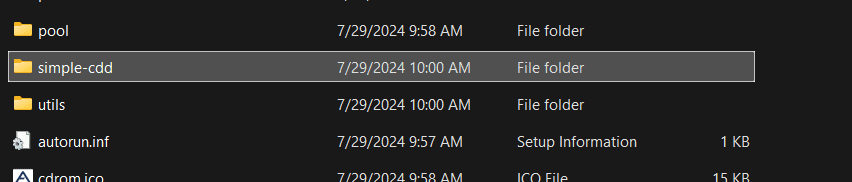
Use Rufus (or a similar tool) to burn the Arista Edge Firewall 7.1.1 ISO to a USB drive and make it bootable. Once the USB drive is ready, open it in File Explorer and navigate to the simple-CDD folder.
Step 3: Copy and Extract the Patch Files
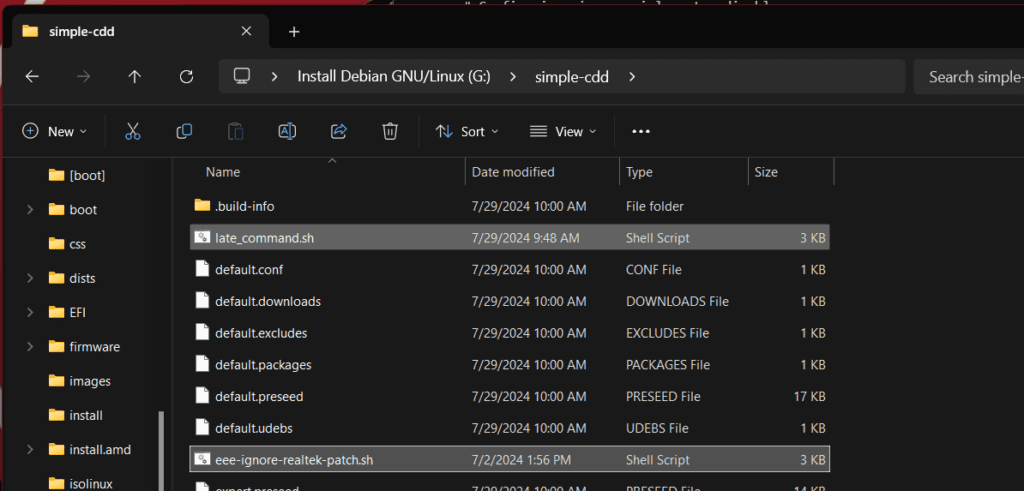
Paste the two downloaded patch files — eee-ignore-realtek-patch.sh and late_command.sh — directly into the simple-CDD folder on the USB drive. If they are compressed, extract them first so the scripts are available as plain .sh files in that directory before proceeding.
Step 4: Boot and Perform a Fresh Installation
Plug the prepared USB drive into your firewall appliance and boot from it to begin a fresh installation of Arista Edge Firewall 7.1.1. The patch scripts will automatically disable EEE toggling for Realtek Ethernet devices during the installation process, preventing the kernel panic from occurring.
Important: Keep EEE Disabled Going Forward
Once the installation is complete, do not re-enable Energy-Efficient Ethernet on your Realtek network interfaces. Doing so will cause the system to crash again. To verify that EEE remains disabled after installation, run the following command in the firewall’s Linux shell, replacing eth0 with your actual interface name:
ethtool --show-eee eth0Confirm that the output shows EEE as disabled. If it is not, consult the official Arista wiki page for additional remediation steps.
Summary
Upgrading to Arista Edge Firewall 7.1.1 on systems with Realtek Ethernet devices requires one small but critical preparation step: patching the installer to disable Energy-Efficient Ethernet. By downloading the official Arista patch scripts, placing them in the simple-CDD folder on your bootable USB, and performing a fresh install, you can complete the upgrade successfully without kernel panics. If you run into any issues, consult the official Arista wiki page for the latest guidance.
Leave a Reply