Uptime Kuma → n8n → Slack Alert Workflow
This n8n workflow receives status-change webhooks from Uptime Kuma and posts formatted alerts directly to Slack. When a monitored service goes down, your team gets an immediate red alert with full context. When it recovers, they get a clear green recovery notice — all without any manual polling or additional SaaS dependencies.
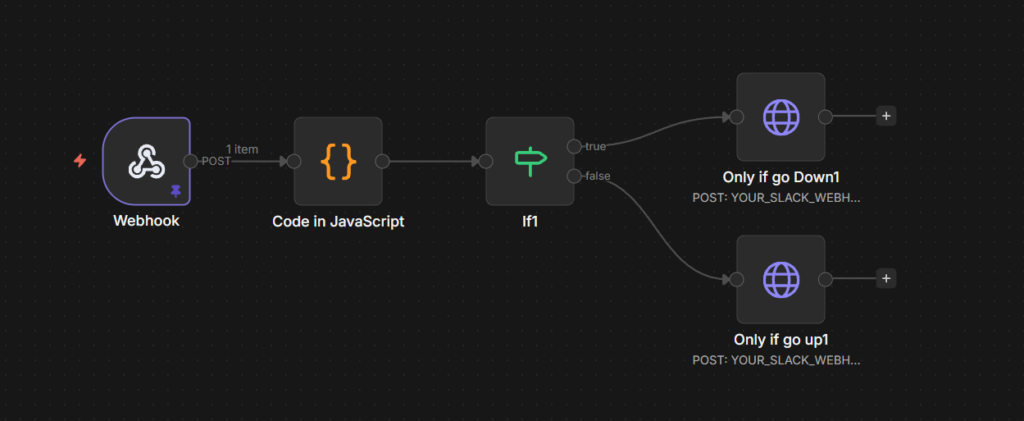
How It Works
Uptime Kuma is a powerful, self-hosted monitoring tool that continuously checks the availability of your services — including websites, REST APIs, DNS records, TCP ports, and more. Whenever a monitored service changes state (from UP to DOWN, or from DOWN back to UP), Uptime Kuma fires a JSON payload to a configured webhook URL.
This n8n workflow listens on that webhook endpoint around the clock. When a payload arrives, the workflow parses the raw data into clean, structured fields, determines whether the event represents a DOWN or UP transition, and sends a color-coded Slack message containing the service name, target host, timestamp, and a human-readable summary of the event.
The end result is real-time Slack alerting for every service state change — with no manual polling, no missed incidents, and no third-party SaaS dependency beyond Slack itself. It’s a lightweight but highly effective addition to any self-hosted infrastructure monitoring stack.
Workflow Flow
The workflow follows a simple, reliable branching pattern:
Webhook → Code (parse payload) → IF condition
                                    ├── True (DOWN)  → Slack: red alert
                                    └── False (UP)   → Slack: green recovery
Node Reference
1. Webhook (Trigger)
This is the entry point of the workflow. It listens for incoming POST requests sent by Uptime Kuma whenever a monitor changes state.
- Endpoint:
POST /webhook/Anthemnetworkstatus - Expected payload: A JSON object containing
body.heartbeat(status, ping, time, message) andbody.monitor(name, hostname, URL, type).
Configure this webhook URL in Uptime Kuma under the notification settings for each monitor you want to receive alerts for.
2. Code (JavaScript — Payload Parser)
This node takes the raw Uptime Kuma webhook payload and transforms it into clean, structured fields that downstream nodes can reliably consume.
Input fields read:
body.heartbeat— containsstatus,ping,time, andmsgbody.monitor— containsname,hostname,url, andtype
Output fields created:
isDown— boolean, set totruewhenheartbeat.status === 0(Uptime Kuma uses 0 for DOWN and 1 for UP)name— the monitor’s display namehostnameOrURL— the monitor’s hostname or URL, whichever is availabletime— the heartbeat timestamp, with a fallback to the current time if the field is missingstatus— a human-friendly string: either"Down"or"Up"msg— a human-readable summary of the state change event
The original heartbeat and monitor objects are also passed through for reference or future use.
3. IF (Condition — Route by Status)
This node evaluates the isDown field and routes the execution into one of two branches:
- True (service is DOWN) → routes to the DOWN alert node
- False (service is UP) → routes to the UP recovery alert node
The condition evaluates {{ $json.isDown }}.
4. DOWN Alert (Slack — HTTP Request)
This node fires whenever a monitored service goes down. It sends a POST request to a Slack Incoming Webhook URL with a red-themed alert message designed to grab immediate attention.
- Header: 🚨 Service is DOWN
- Color:
#e01e5a(red) - Fields included: Service name, Status, Target (hostname or URL), Time
- Details: The raw heartbeat message and the formatted
msgsummary
5. UP Alert (Slack — HTTP Request)
This node fires when a previously downed service recovers. It sends a POST request to the same Slack Incoming Webhook URL with a green-themed recovery message to confirm the service is healthy again.
- Header: ✅ Service is UP
- Color:
#2eb886(green) - Fields included: Service name, Status, Target (hostname or URL), Time
- Details: The formatted
msgsummary
Setup Notes
- In Uptime Kuma, add a notification of type Webhook and point it to the n8n webhook URL shown above. Apply this notification to every monitor you want covered.
- In n8n, update both Slack HTTP Request nodes with your actual Slack Incoming Webhook URL. You can use the same webhook URL for both DOWN and UP alerts, or route them to separate channels for better visibility.
- Test the full workflow by temporarily pausing or toggling a monitor in Uptime Kuma. Confirm that both the DOWN and UP alerts appear correctly formatted in your Slack channel before relying on it in production.
Leave a Reply